Supervised Fine-Tuning for VLMs
Learn how to fine-tune vision-language models for multimodal tasks using supervised learning with your custom image and text datasets.
Purpose and Overview
Supervised Fine-Tuning (SFT) for vision enables you to adapt pre-trained vision-language models to your specific multimodal use cases. This process allows you to customize model behavior for tasks involving both images and text, improving performance on domain-specific visual understanding and generation tasks.
Step 1: Model & Training Selection
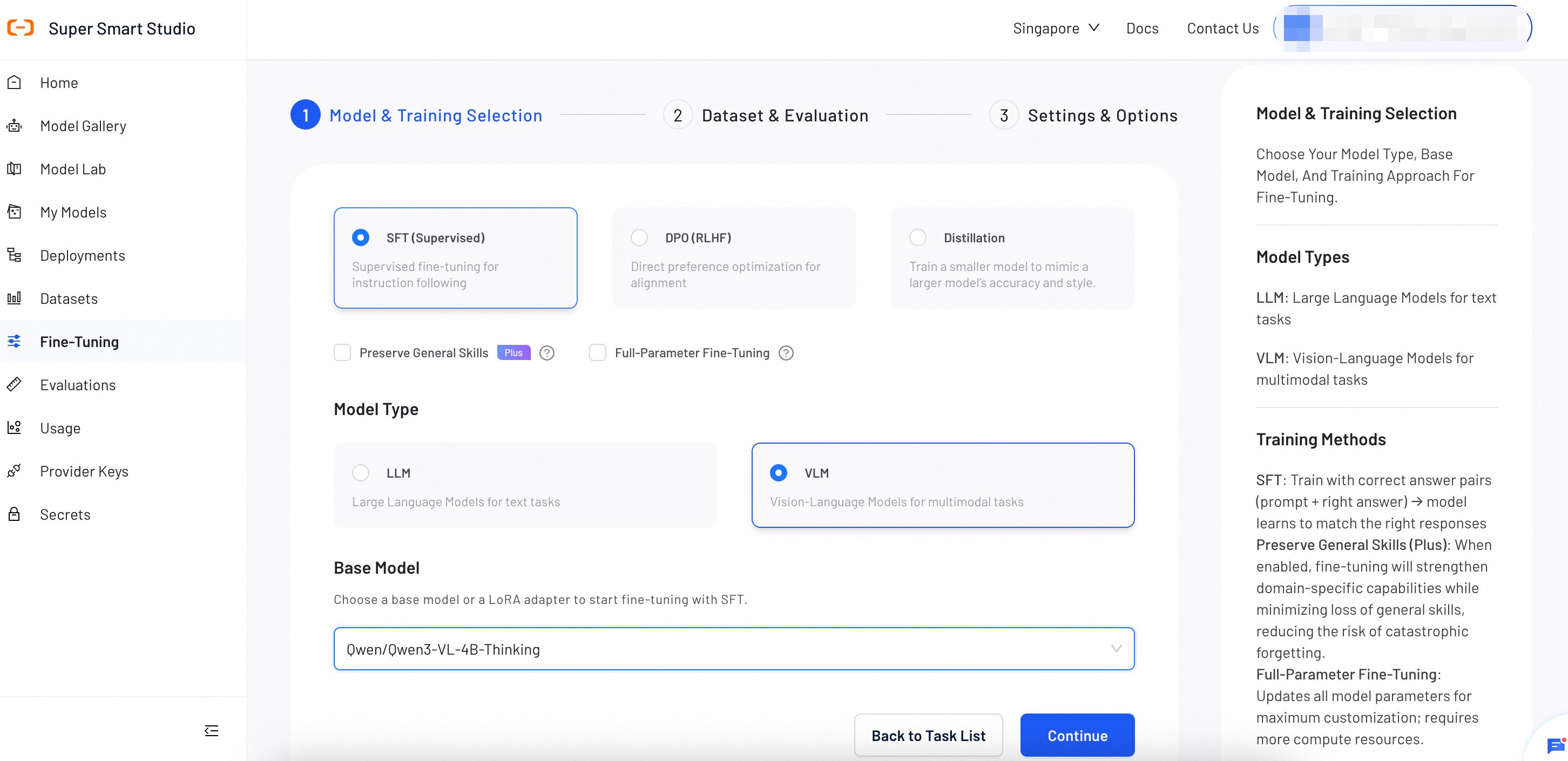
Select a training method, fine-tuning method, model type, and base model for the SFT training task.
1. Choose a Training Method
Select SFT (Supervised) as the training method.
Fine-Tuning Options
SFT for VLM provides the following optional settings.
Fine-Tuning Method
-
LoRA (Default): Trains small adapter modules on top of frozen model weights. LoRA reduces computational cost and memory usage. Recommended for most use cases.
-
Full-Parameter Fine-Tuning: Updates all model parameters during training. Provides maximum model capacity but requires more computational resources than LoRA.
Preserve General Skills (SFT-Plus)
Select Preserve General Skills to strengthen domain-specific capabilities and reduce the risk of catastrophic forgetting during training.
2. Select a Model Type
- LLM: For text-only tasks such as text generation, translation, and question answering. See Supervised Fine-Tuning - LLM.
- VLM: For multimodal tasks involving text and images.
3. Choose a Base Model
Select a base model as the foundation for fine-tuning. The choice of base model impacts the final performance and capabilities of the fine-tuned model. Review candidate model details in Model Gallery before fine-tuning.
- Start with Instruct models for most conversational applications. (e.g.,
Qwen3-VL-4B-Instruct) - Choose Thinking models when your task requires step-by-step reasoning. (e.g.,
Qwen3-VL-4B-Thinking)
After completing all selections, click Continue.
Step 2: Dataset & Evaluation
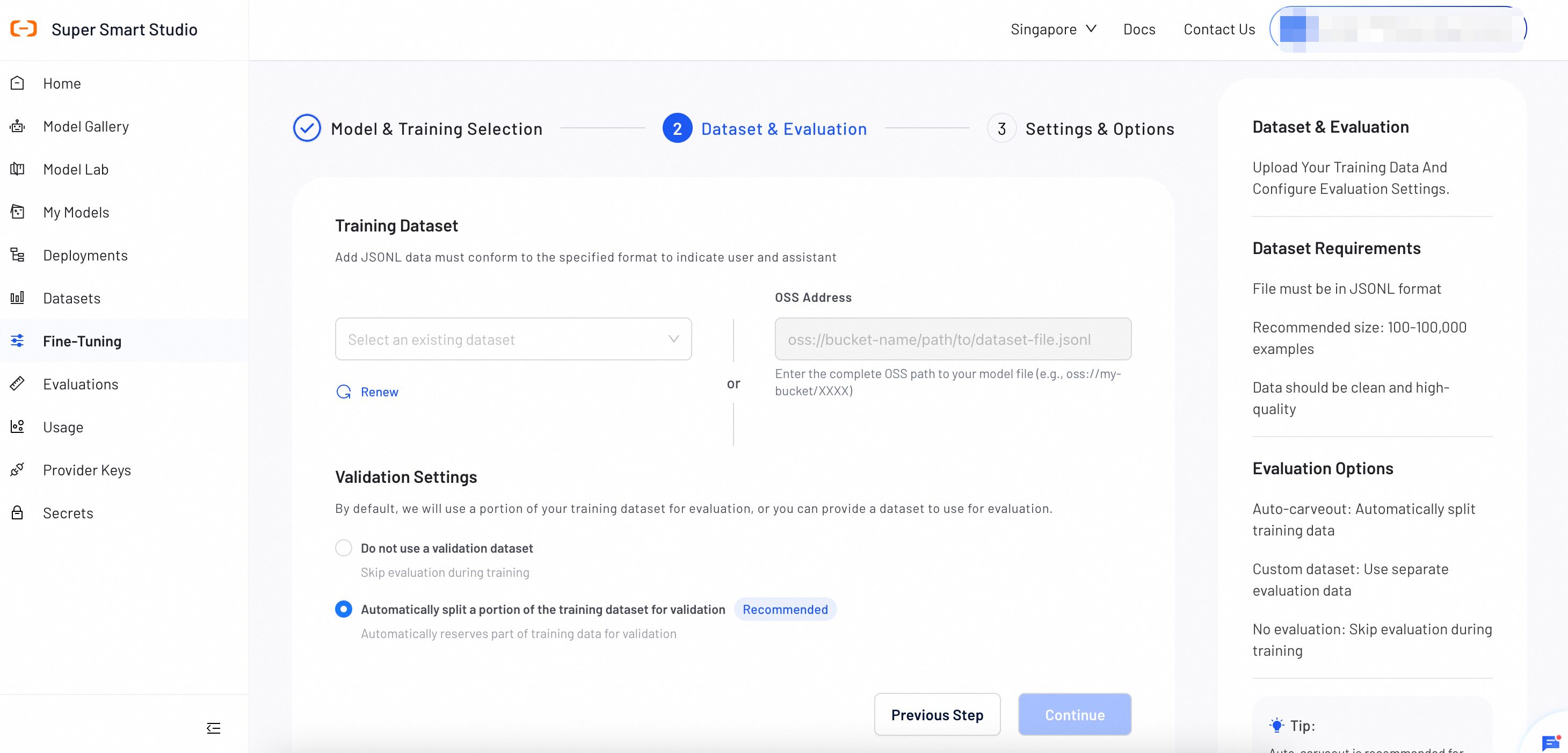
Upload your multimodal training dataset and configure evaluation settings to monitor training progress and model performance.
Dataset Requirements
File Format
File must be in JSONL format with each line containing a valid JSON object with both text and image data.
Dataset Size
Recommended size: 100-100,000 examples. Vision models typically require fewer examples than text-only models.
Image Quality
High-quality images are essential. Ensure images are clear, properly formatted, and relevant to the task.
- Use diverse images covering different scenarios, lighting, and perspectives
- Ensure image-text pairs are accurately matched and contextually relevant
- Include both simple and complex visual scenes for robust training
- Validate that all image paths are accessible and images load correctly
Required Data Format
{
  "messages": [
    {"role": "system", "content": "<system>"},
    {"role": "user", "content": "<query1>"},
    {"role": "assistant", "content": "<response1>"}
  ],
  "images": ["/xxx/x.jpg", "/xxx/x.png"]
}
Format Explanation
- When user-content contains placeholders like
<image>, they should correspond to the order in the images field, with matching quantities - When
<image>count is 0, it corresponds to LLM-SFT, allowing 0 images <image>only appears in user-content
Example Data Formats
{"messages": [
  {"role": "user", "content": "Where is the provincial capital of Zhejiang?"},
  {"role": "assistant", "content": "The provincial capital of Zhejiang is in Hangzhou. "}
]}
{"messages": [
  {"role": "user", "content": "<image><image>What's the difference between these two images?"},
  {"role": "assistant", "content": "The first one is a kitten, the second one is a puppy"}
],
"images": ["/xxx/x.png"]
}
{"messages": [
  {"role": "user", "content": "<audio>What did the voice say?"},
  {"role": "assistant", "content": "Today's weather is really nice"}
],
"audios": ["/xxx/x.mp3"]
}
{"messages": [
  {"role": "system", "content": "You are a helpful assistant"},
  {"role": "user", "content": "<image>What's in the picture, <video>what's in the video"},
  {"role": "assistant", "content": "There's an elephant in the picture, and a puppy lying on the grass in the video"}
],
"images": ["/xxx/x.jpg"],
"videos": ["/xxx/x.mp4"]
}
Step 3: Settings & Options
Configure training parameters and model settings. Default values are optimized for vision tasks, but you can adjust them based on your specific requirements and dataset characteristics.
Basic Configuration
Custom Model Name
Used for display in My Models for management purposes. Choose a descriptive name that helps you identify the model's purpose and version.
Example: "Medical-Image-Analyzer-v1" or "Document-OCR-Assistant"
Task Display Name
Set a display name for this training task. This name appears in the Fine-tuning task list and helps you track training progress and history.
Example: "Q1-2025-Vision-Training" or "Image-Caption-Fine-tune-Jan"
Training Parameters
The following parameters apply to all fine-tuning methods unless otherwise noted. LoRA is the default fine-tuning method.
| Parameter | Definition | Tuning Impact |
|---|---|---|
| epoch | The number of complete passes through the training dataset. | Increase: More learning opportunities, but the model may perform well on training data while producing poor results on new inputs. Decrease: Trains faster, but the model may not learn enough to perform well. |
| batch_size | Defines the number of training examples to process in a single group. The model learns from each group before moving to the next. | Increase: Produces more consistent training updates, but uses significantly more GPU memory. Decrease: Reduces GPU memory usage, but training updates may become less consistent. |
| learning_rate | Controls the size of each adjustment the model makes during training. | Increase: The model learns faster, but training may become unstable and fail to reach a good solution. Decrease: Training becomes more stable and precise, but takes longer and may settle for a solution that is not optimal. |
| lora_rank | Sets the learning capacity of the LoRA adapters. Available when Full-Parameter Fine-Tuning is not selected. | Increase (e.g., 16, 32): Improves the model's ability to learn complex tasks, but uses more GPU memory. Decrease (e.g., 4, 8): Reduces GPU memory usage, but the model may struggle with complex tasks. |
| lambda | Sets the trade-off between adapting to the new data and retaining the model's original abilities. Available only when Preserve General Skills is selected. | Increase: Better preserves the model's existing knowledge, but it may adapt less effectively to your new data. Decrease: Helps the model adapt more to your new data, but it may lose some of its existing knowledge. |
| temperature | Controls how closely training follows the original model's behavior. Available only when Preserve General Skills is selected. | Increase: Makes the original model's guidance more flexible, giving more room to learn new patterns, but reduces its overall influence. Decrease: Stays closer to the original model's behavior, but limits new learning. |
Advanced Parameters
These parameters work well with default values for most use cases. Adjust only when needed.
| Parameter | Definition | Tuning Impact |
|---|---|---|
| max_context_length | Sets the maximum token limit per example. Texts exceeding this limit will be truncated. | Increase to learn from longer texts, but this significantly increases GPU memory usage. |
| warmup_ratio | Specifies the fraction of the training process to use for a "warm-up" phase. During this phase, the learning rate slowly increases to prevent early training instability. | A small value (0.03–0.1) is generally recommended. This is primarily a stability mechanism, not a performance tuning parameter. |
| gradient_accumulation_steps | Specifies the number of small batches to process before the model performs a single learning update. This simulates a larger batch size to save memory. | Increase to achieve more stable training at the cost of slower speed. A value of 1 disables this feature. |
| target_modules | Identifies the specific internal components (layers) of the model that will be modified by LoRA. Available when Full-Parameter Fine-Tuning is not selected. | Adding more modules allows more comprehensive adaptation but increases trainable parameters. |
| MAX_PIXELS | Sets the maximum allowed pixel count (Height × Width) for input images. The system automatically resizes any image exceeding this limit to prevent memory errors. | Recommended to set a value to prevent OOM errors. Leave as None only if your dataset contains no large images. |
After reviewing all the configuration, click Create Task to begin the training process.
Step 4: Monitor Training Progress
During and after training, check key training metrics at any time.
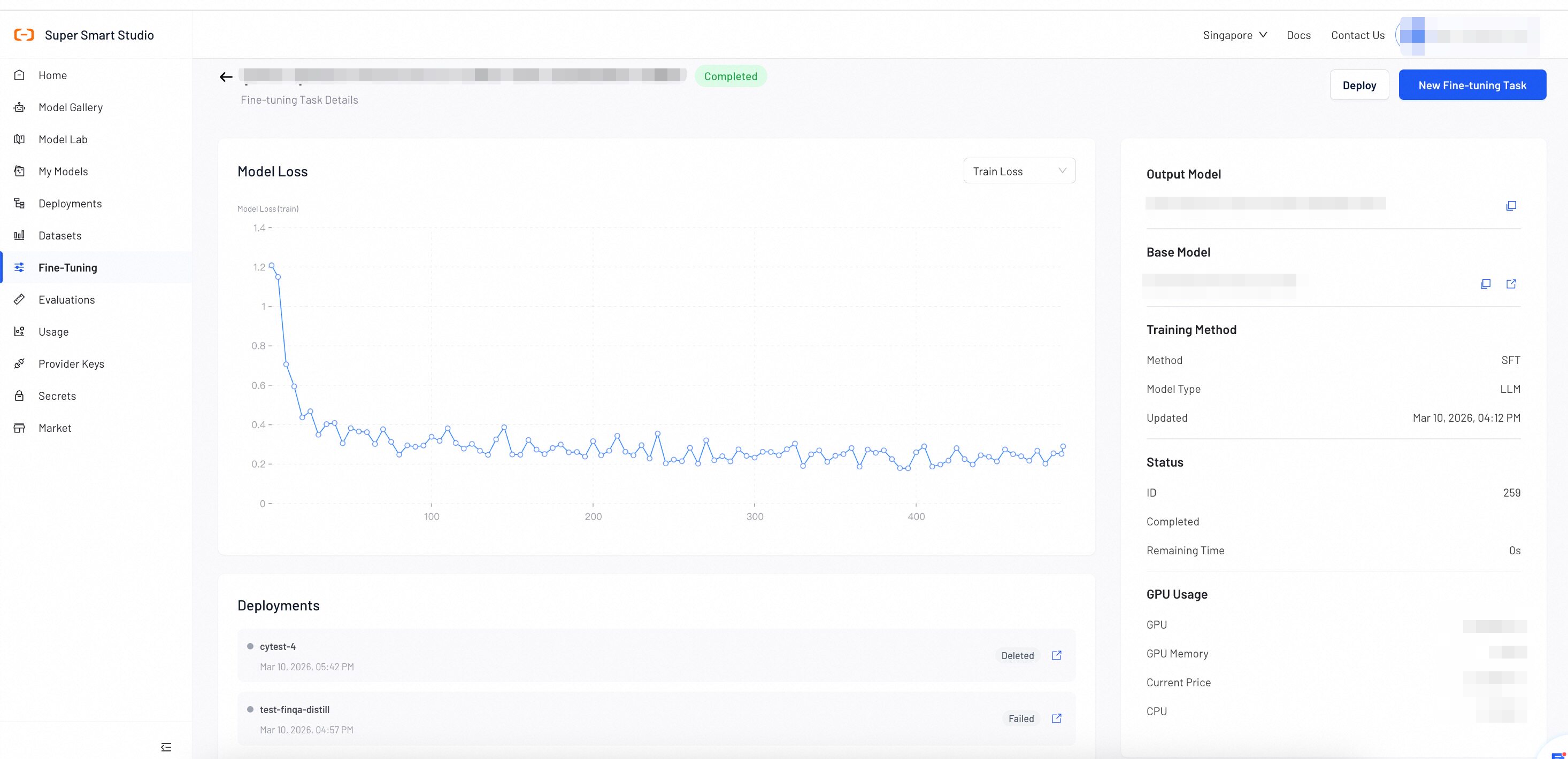
The Model Loss chart displays two metrics:
- Training Loss: Measures how well the model learns from your training data.
- Validation Loss: Measures how well the model generalizes to unseen data.
- If both losses decrease steadily, your model is learning well. Continue training.
- If training loss decreases but validation loss increases, your model may be overfitting. Stop training and deploy the current model.
- If both losses remain high or increase, your training data or configuration may need adjustment. Review your dataset and parameters.
Vision Model Parameter Guidelines
-
Start with defaults: Default values are optimized for vision tasks
-
MAX_PIXELS: Controls image resolution processing - higher values preserve detail but increase memory usage
-
Adjust learning rate: Lower for stable training, higher for faster convergence
Next Steps
Once training is complete, deploy your fine-tuned vision model to a production endpoint for real-world usage.
Call your fine-tuned vision models through the unified API endpoint.