Deploy From Hugging Face
Deploy models directly from Hugging Face without manual download.
Prerequisites
Before you begin, ensure you have the following:
-
Hugging Face Model ID: The unique identifier for the model you want to deploy.
-
Hugging Face Access Token: (Optional) Required only if the model is private or gated.
Step 1: Specify Model Information
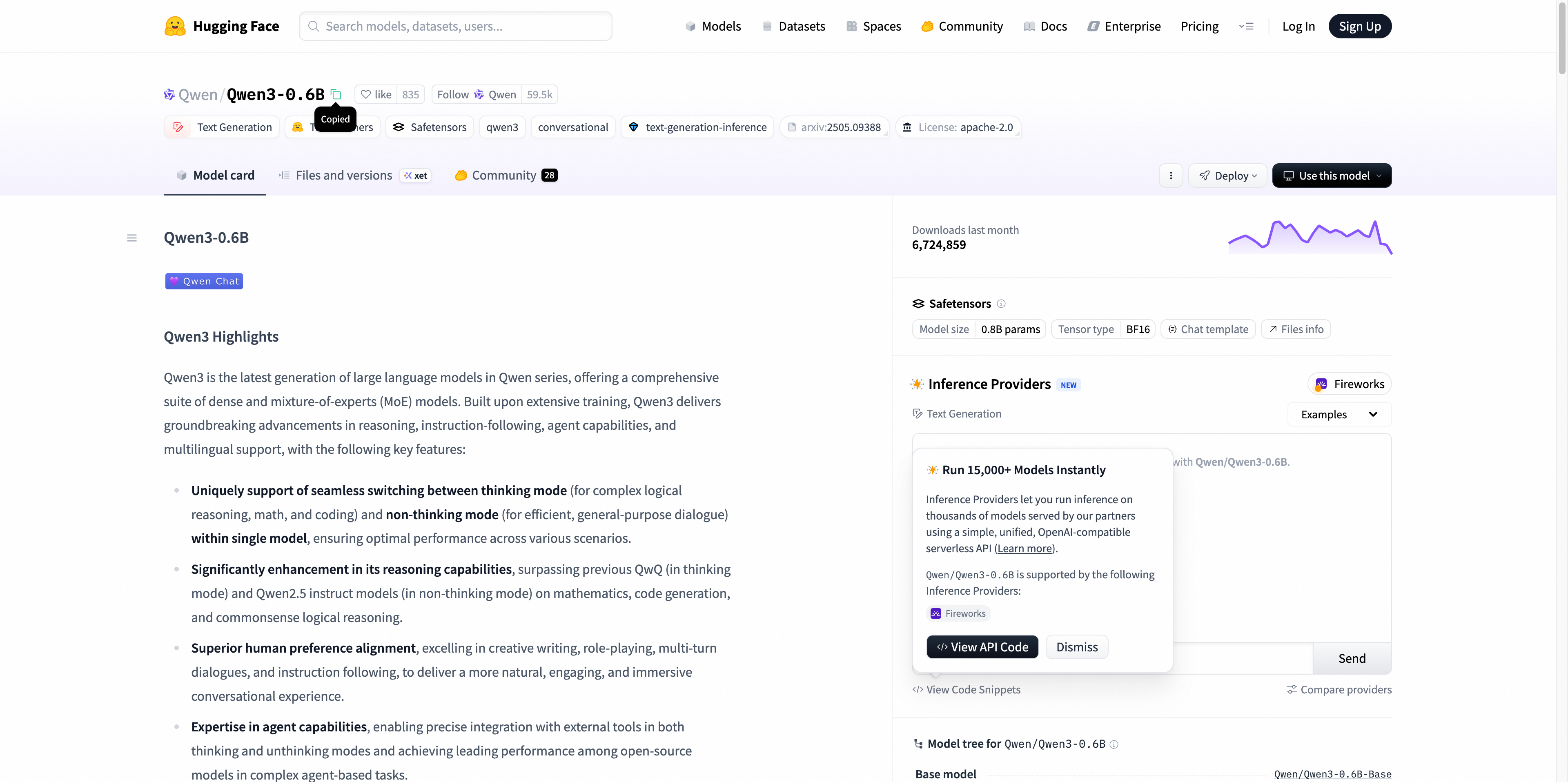
- Model ID: Enter the Hugging Face Model ID.
- Browse models on the Hugging Face Model Hub.
- Click the model you want to use.
- Copy the repository name from the page URL— format: org-or-username/model-name.
-
Type: Select
LLM,VLM,Text-to-Image,Image-to-Image,Text-to-VideoorImage-to-Video. -
Framework: Choose the inference framework (e.g., vLLM, SGLang).
-
Version: Select the framework version.
-
Access Token (Optional): If the model is private, paste your access token here.
How to get your Access Token?
- Sign in to your Hugging Face account.
- Go to Settings → Access Tokens.
- Click New token, choose a Name, set the desired Permissions (at least read for model downloads), and click Generate token.
- Copy the token (format: hf_xxxxxxxxxxxxxxxxxxxxxxxxxxxxxxxxxx).
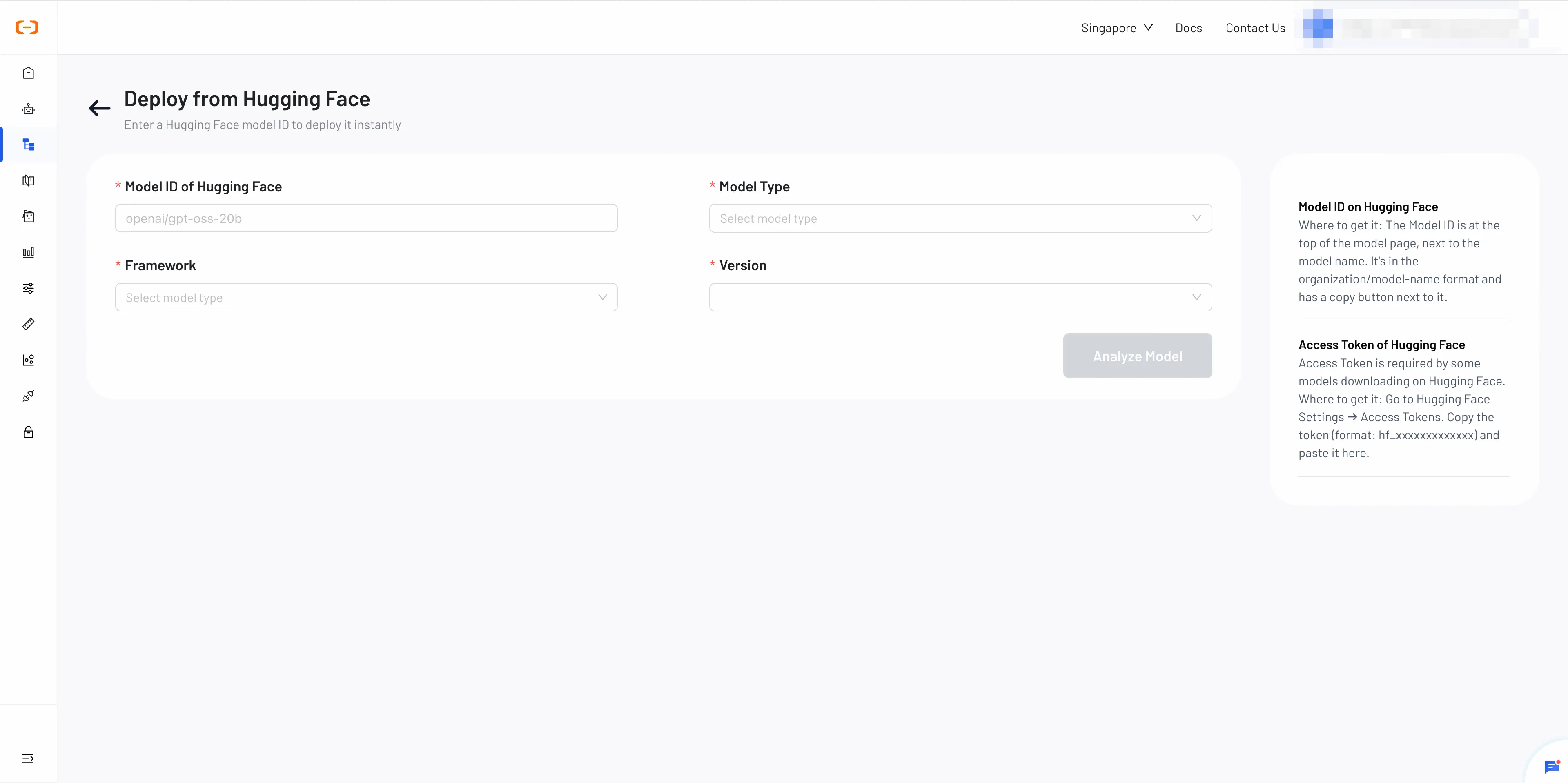
Once complete, click Analyze Model to proceed.
Step 2: Configure and Review Deployment
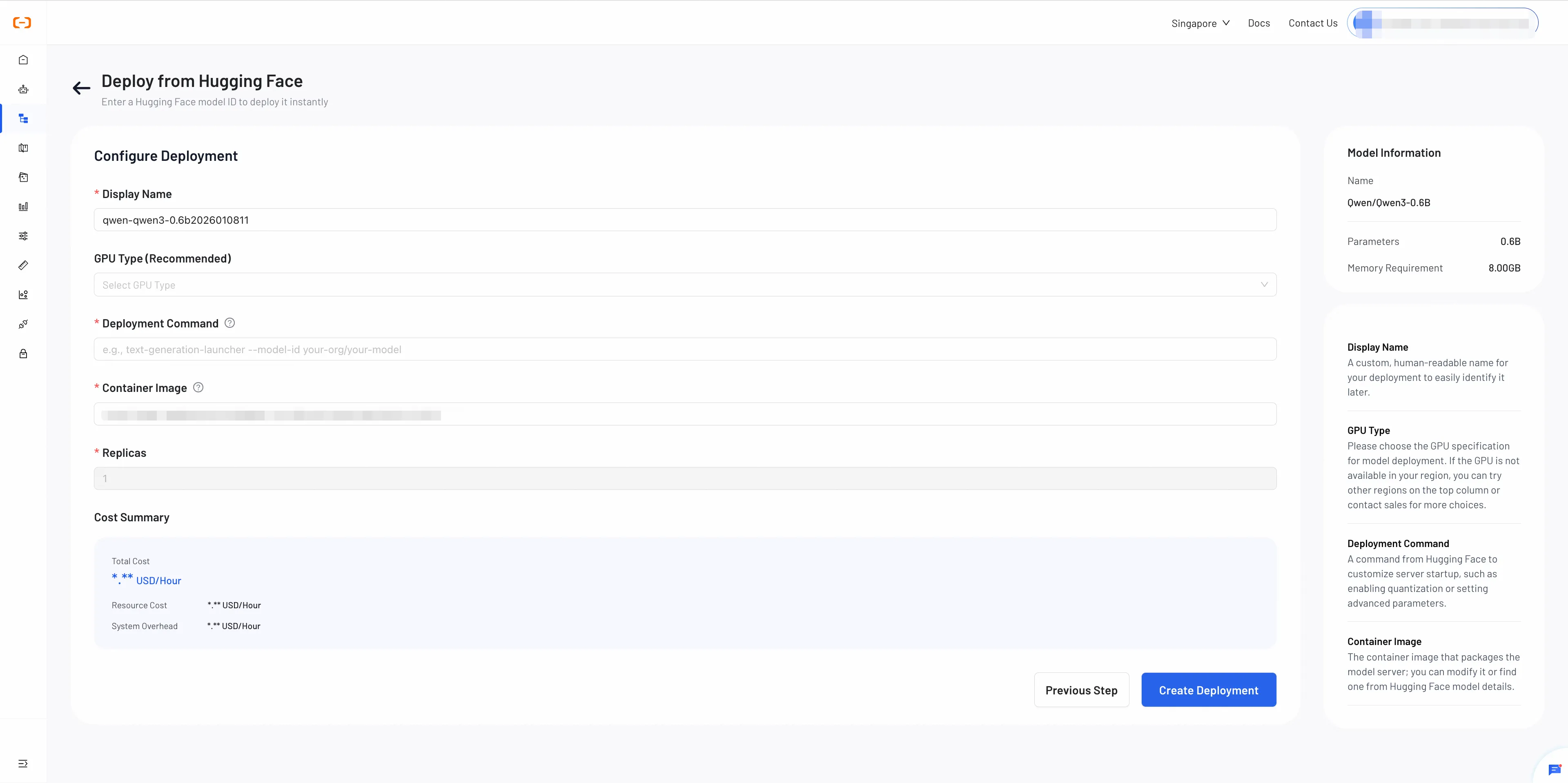
Review the model information and configure your deployment settings.
-
Display Name: Assign a descriptive name to your deployment.
-
GPU Type: Select a suitable GPU type for your model.
Note: Available GPU types and inventory may vary by region. If the GPU is unavailable in your region, you can contact us for assistance.
-
Deploy Command: The command used to start your model service.
How to configure:
- Refer to your container image's documentation for the required startup command.
- For Hugging Face Text Generation Inference images, a common example is:
text-generation-launcher --model-id <model-id> --port 8080- Replace
<model-id>with your Hugging Face model repository ID.
- Container Image: A Docker or OCI image containing all the runtime environment to deploy your model. You can choose from the following options:
- Recommended Image: A platform-optimized image automatically selected based on your model and framework. Recommended for most users.
- Hugging Face Image:
An official inference image from the Hugging Face Container Registry (ghcr.io). For more details, refer to the documentation.
Example: ghcr.io/huggingface/text-generation-inference:latest - Custom Image:You can use your own custom-built image if it meets the model’s runtime requirements.
- Replicas: The number of model instances to run. More replicas means better load balancing and higher availability.
Review and Deploy
Cost Summary
- GPU Compute Cost
- System Overhead (currently $0)
Note: Model download and storage fees are not included in the Cost Summary.
To request a discount, click "Ask for Discount." Otherwise, the list price will apply.
Step 3: Monitor Status and Troubledshoot
After deploying, this step guides you on how to check the deployment status and troubleshoot if the service runs into any issues.
Understanding Deployment Statuses
Here are the statuses your deployment may go through:
- Downloading: The system is downloading the model files from their source.
- Deploying: The system is now provisioning the GPU, starting the container, and running the deploy command.
- Ready: Your service is online, healthy, and ready to accept inference requests.
- Failed: The deployment encountered an error and could not start.
- Stopping: The service is in the process of shutting down and releasing its resources.
- Stopped: The service is offline and is not consuming any GPU resources.

Troubleshoot
1. Error 404: Hugging Face Model Not Found
Hugging Face Model Download Failed: Request failed with status code 404 (Not Found).
- Reason: The provided Hugging Face Model ID is incorrect, or it points to a model that has been made private or deleted.
- Solution:
Verify that the Model ID is spelled correctly (e.g.,
Qwen/Qwen2.5-1.5B-Instruct) and that the model's page on the Hugging Face Hub is public and accessible.
2. Error 401: Hugging Face Authorization Failed
Hugging Face Model Download Failed: Request failed with status code 401 (Unauthorized).
- Reason: The provided Hugging Face Access Token is incorrect, has expired, or you have not been granted access to a private or gated model.
- Solution: Ensure your Hugging Face Access Token is correct. If you are accessing a gated model, confirm on its Hugging Face page that your account has been granted access.
3. Error 403: Sales of this resource are temporarily suspended
403: Sales of this resource are temporarily suspended.
- Reason: The selected GPU type is temporarily unavailable in the current region due to high demand and insufficient resources.
- Solution:
- Try deploying the model in a different region where resources may be available.
- If the issue persists, please contact our support team for assistance.
4. Error: Account has an outstanding balance
Account has an outstanding balance.
- Reason: Your account balance is insufficient to cover the cost of creating or running the deployment.
- Solution: Navigate to the Billing section of your account dashboard and add funds to your balance.
5. Error: Your account information is incomplete
Your account information is incomplete.
- Reason: Your account has not completed the required identity or information verification process.
- Solution: Navigate to the Alibaba Cloud Account Settings page and complete the required identity verification.