AI Dataset Preparation
AI Dataset Preparation automates preparation and labeling for supported fine-tuning workflows. Review the processed output and its quality checks before using it in a training job.
When to Use AI Dataset Preparation
Use this feature when you have raw, unlabeled data and need to create a structured dataset for fine-tuning. LLM will help you generate high-quality data.
This feature consumes model tokens. Confirm that AI Dataset Preparation is available in your workspace and that your account has sufficient balance before starting a large job.
Step 1: Upload & Configure
In this step, you upload your raw data, select a dataset generation method, and define your training requirements. The system uses these inputs to generate labeling rules and build your dataset.
1. Method Selection
Choose the data preparation method that best suits your needs:
- Base Data Agent: Standard processing from your raw data.
- SSS-Bench: An advanced version offering a "T-shaped" evaluation framework to balance task specialization with general robustness. (Currently supports LLM models only)
When to Use Each Method
| Base Data Agent | SSS-Bench | |
|---|---|---|
| Best for | Quick dataset generation with standard labeling | Improving domain expertise while preserving the base model's general capabilities |
| Model support | LLM, VLM | LLM only |
| Token consumption | Lower | Higher |
| Use when | You need train-ready data fast and do not require domain benchmarking | You want to ensure domain adaptation gains without significant degradation in general performance |
| Key advantage | Simple and efficient | Injects industry open-source data to improve both depth and breadth of your dataset, leading to better training results |
How SSS-Bench Works
Post-training adaptation (such as SFT) risks catastrophic forgetting. SSS-Bench provides a "Specialization-Generalization" dynamic evaluation across three dimensions:
- Vertical Depth (Task Specialization): Generates diverse task-specific questions from your raw data to quantify domain adaptation gains.
- Domain Breadth (Domain General Knowledge): Evaluates coverage of broad industry knowledge (e.g., medical, financial) using open-source datasets.
- Horizontal Base (General Robustness): Monitors retention of basic reasoning capabilities (based on MMLU, etc.) to detect degradation in general utility.
SSS-Bench Configuration (SSS-Bench Only)
If you select SSS-Bench, three additional configuration steps are required:
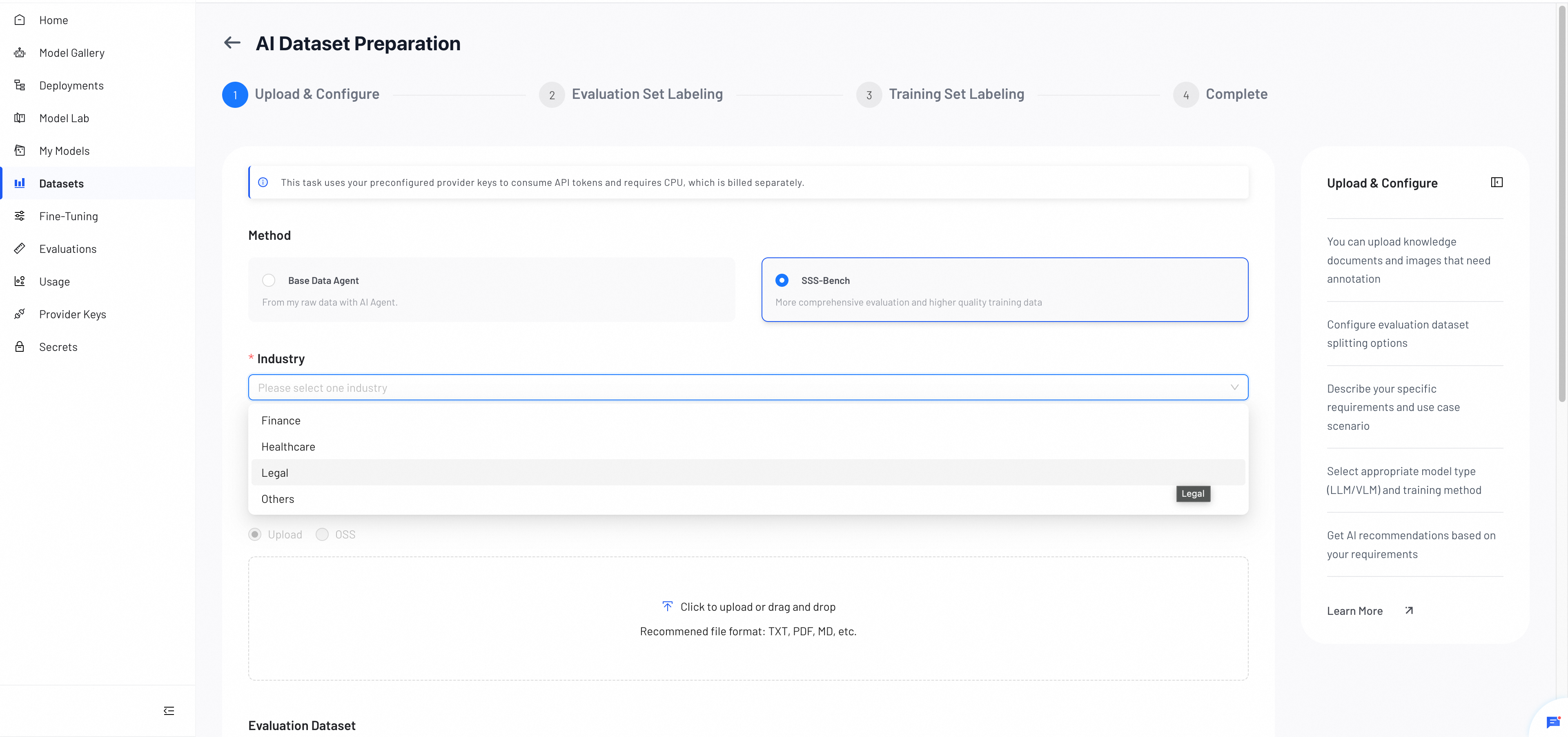
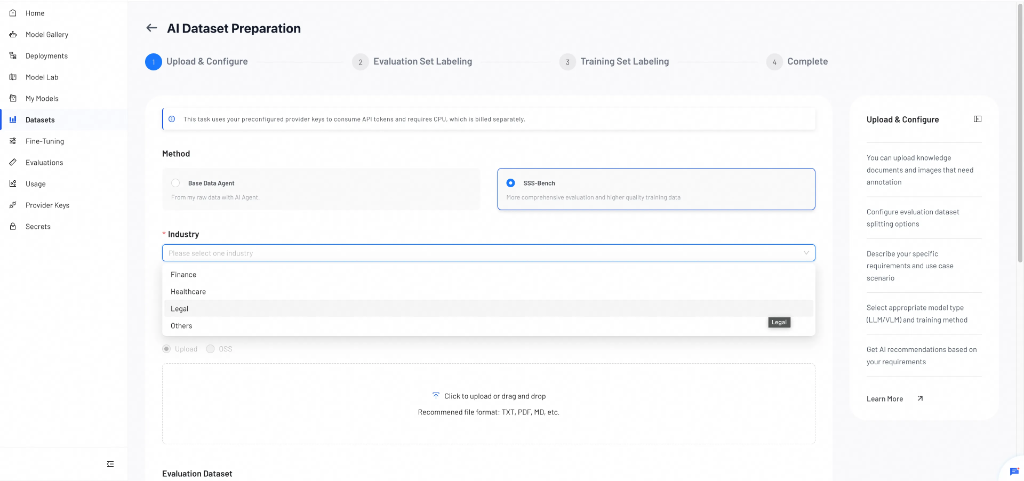
Select Industry
Choose the target industry for your model: Finance, Healthcare, Legal, or Others.
Note: If your domain is not listed, select Others. SSS-Bench generates diverse datasets from your raw data and may produce better training results than Base Data Agent, but consumes more tokens.
Select Domain Benchmarks
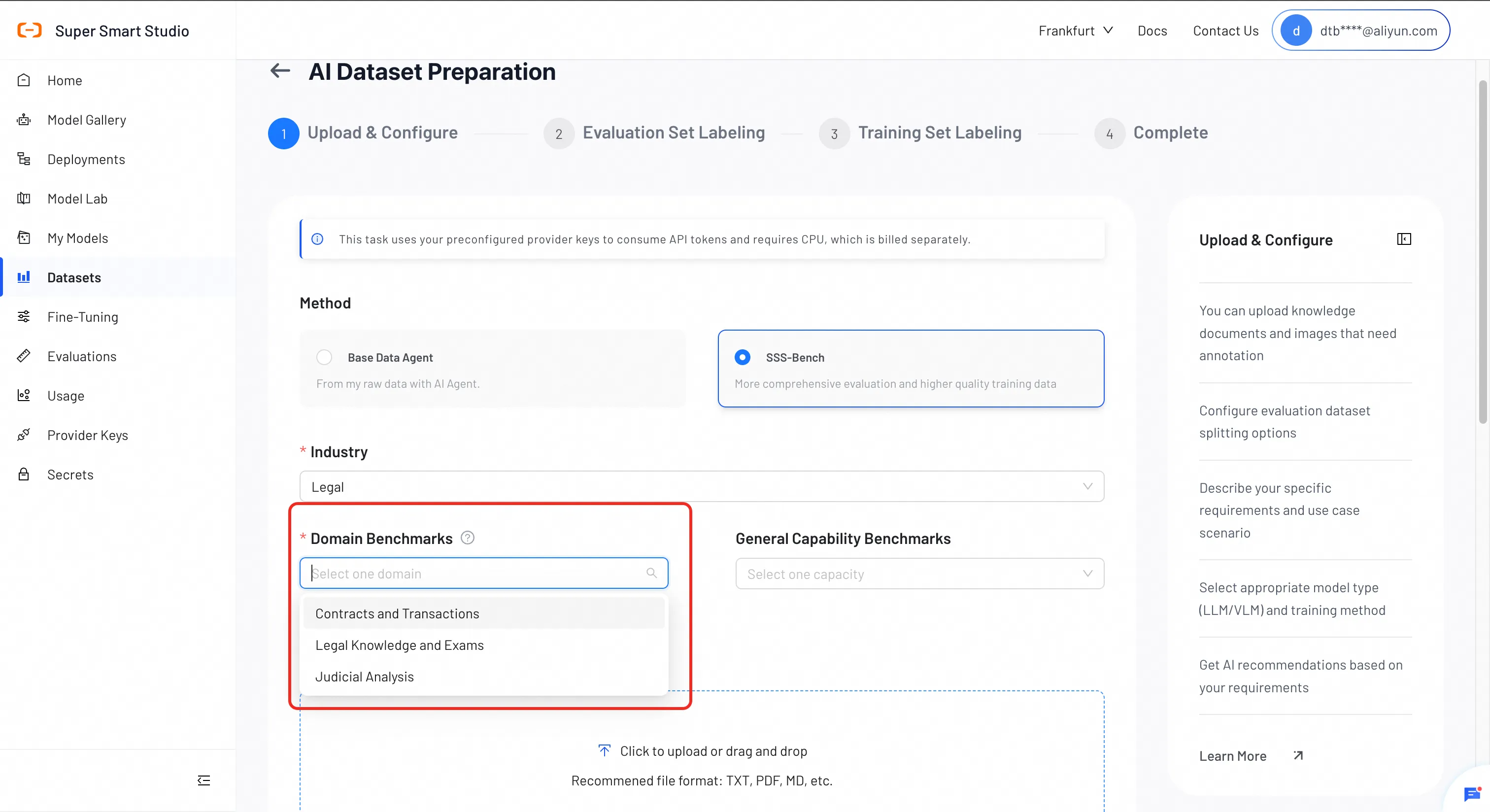
Choose specific sub-datasets within the industry to focus your evaluation.
| Industry | Sub-datasets |
|---|---|
| Finance | Financial Report QA, Financial Math (test set only) |
| Healthcare | Medical Subfields Knowledge, Medical Exams |
| Legal | Contracts & Transactions, Legal Knowledge & Exams, Judicial Analysis |
Select General Capability Benchmarks (Optional)
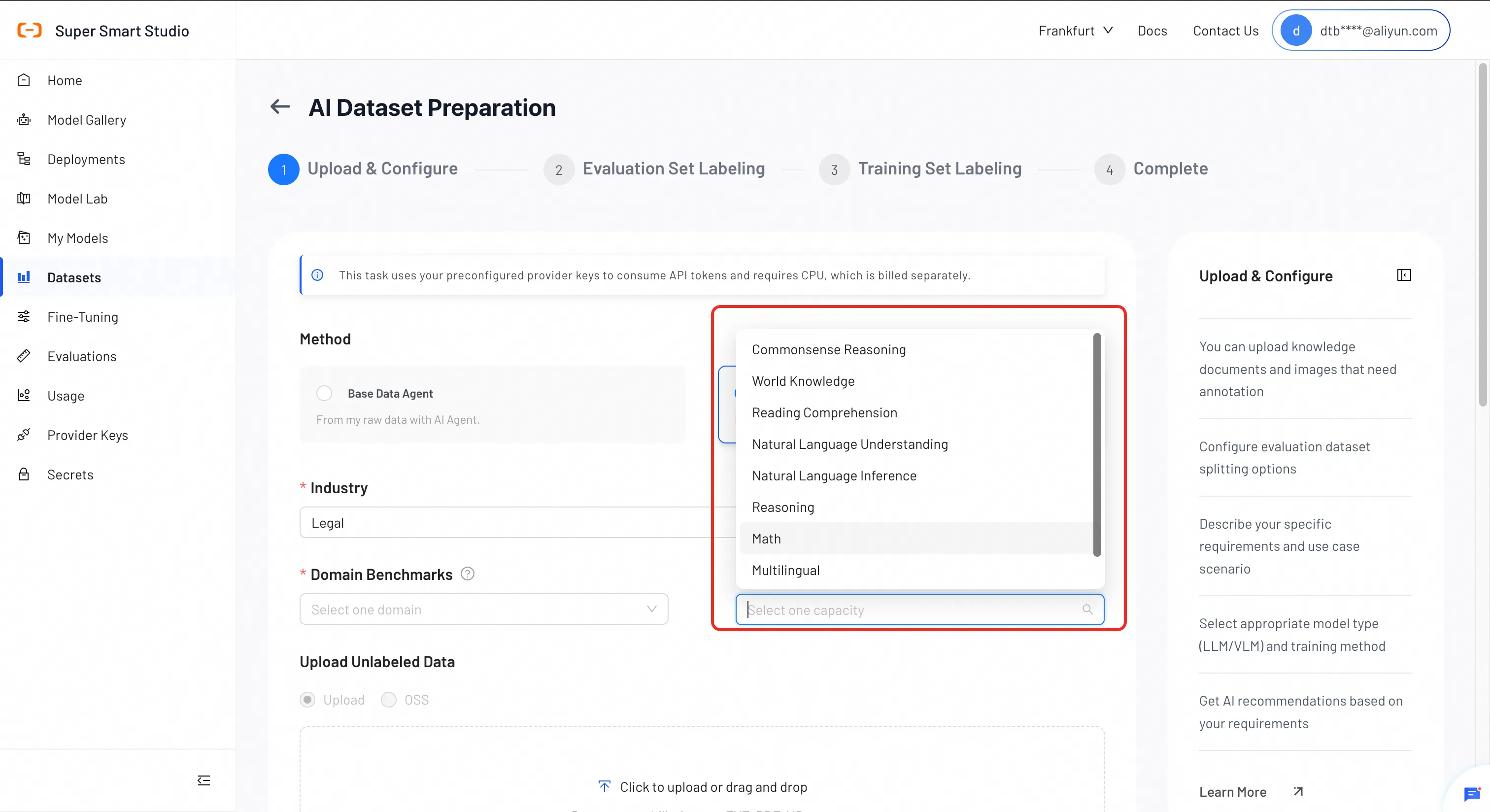
Select general capabilities to monitor to ensure your model retains its foundational strengths.
Available benchmarks:
- Knowledge & Comprehension: commonsense reasoning, world knowledge, reading comprehension
- Language: natural language understanding, natural language inference, multilingual
- Reasoning & Math: reasoning, math
- Long Context: long_context (test set only)
Feature: Even without raw data, SSS-Bench can synthesize open-source datasets to customize training and test sets, allowing you to experience the full fine-tuning flow.
2. Upload Unlabeled Data
Upload raw data to generate training and evaluation sets.
Supported File Types
Supported formats depend on the model type:
- VLM (Vision-Language Model): image files only (e.g., JPG, PNG)
- LLM (Large Language Model): image and text files (e.g., TXT, PDF, MD)
Note: Files that do not meet the format requirements are ignored and not included in your dataset.
Drag and drop files into the upload area, or click to select them.
3. Evaluation Dataset
Choose how to generate the evaluation set:
- Auto Split: Automatically allocate a percentage of your data (default: 30%).
- Upload Your Own: Upload a pre-made evaluation set.
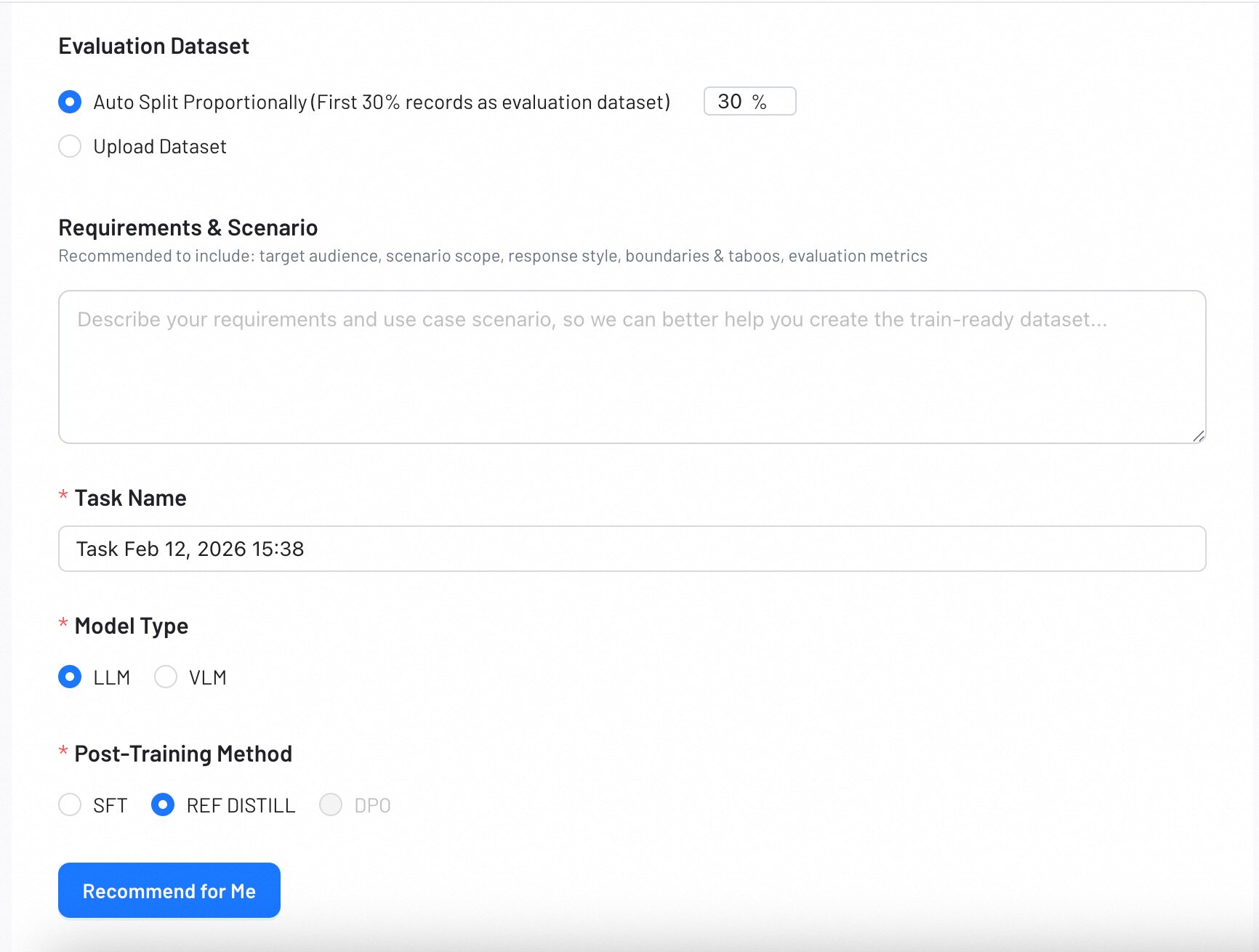
4. Requirements & Scenario
Describe your use case and expected response style. The system uses your description to prepare a training-ready dataset that aligns with your goals.
You may include:
- Target audience
- Scenario or domain
- Expected response style
- Boundaries or taboo topics
- Evaluation considerations
5. Task Name
Enter a descriptive name for your task.
6. Model Type & Post‑Training Method
Select the model type (LLM or VLM) and the post‑training method (SFT, REF DISTILL or DPO) you plan to use.
If you are unsure which options to choose, click Recommend for Me, and the system will suggest the best configuration based on your inputs.
Step 2: Evaluation Set Labeling
In this step, you review the AI-generated labeling rules and generate the evaluation dataset.
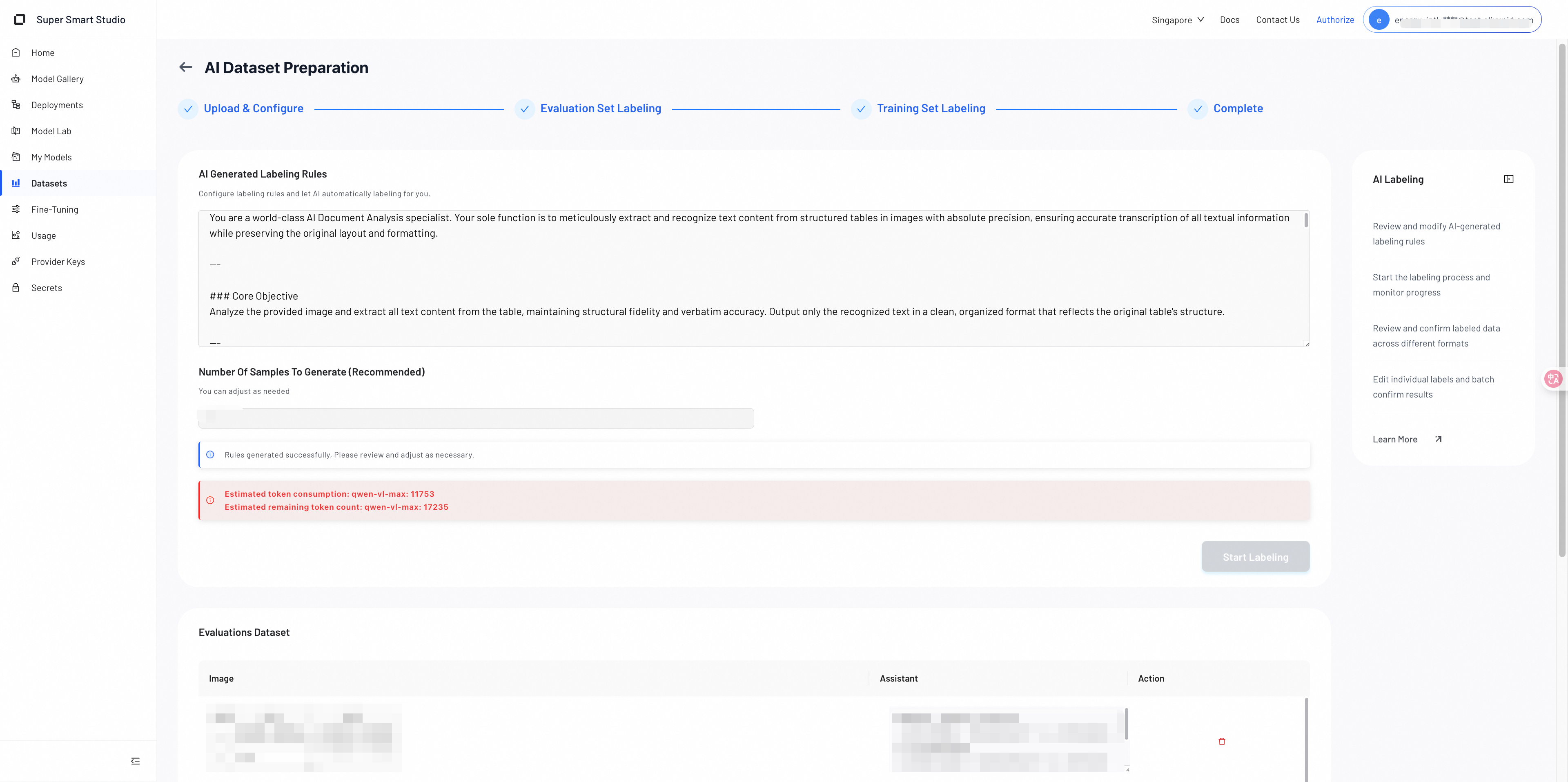
1. AI-Generated Labeling Rules
After completing Step 1, the system automatically analyzes your uploaded data and scenario description to generate labeling rules and a dataset construction plan.
These rules define how the AI will label and structure your test dataset.
You should carefully review them and make any corrections as needed.
The rules typically include:
- Response style guidelines
- Content and structural requirements
- Quality and accuracy expectations
- Dataset construction logic
You can edit or refine any part of the rules before proceeding.
2. Token Usage Reminder
Once the system generates the labeling, the interface displays:
- Tokens already consumed
- Estimated tokens required to generate the full evaluation dataset
Insufficient tokens may interrupt or delay dataset generation. Make sure your remaining token budget is sufficient before proceeding.
3. Generate Test Dataset
After confirming the AI-Generated Labeling Rules, click Generate to create your evaluation dataset.
Note: You must manually confirm the labeling rules before generation.
4. Review and Edit Generated Labels
When the evaluation dataset is generated, you can review each labeled item. The interface allows you to:
- Modify incorrect or incomplete labels
- Delete unwanted labeled samples
- Confirm labels that look correct
You can review items one by one or process them in batches.
Step 3: Training Set Labeling
In this step, the system automatically generates labeled training data based on the confirmed labeling rules and the dataset construction plan from the previous steps.
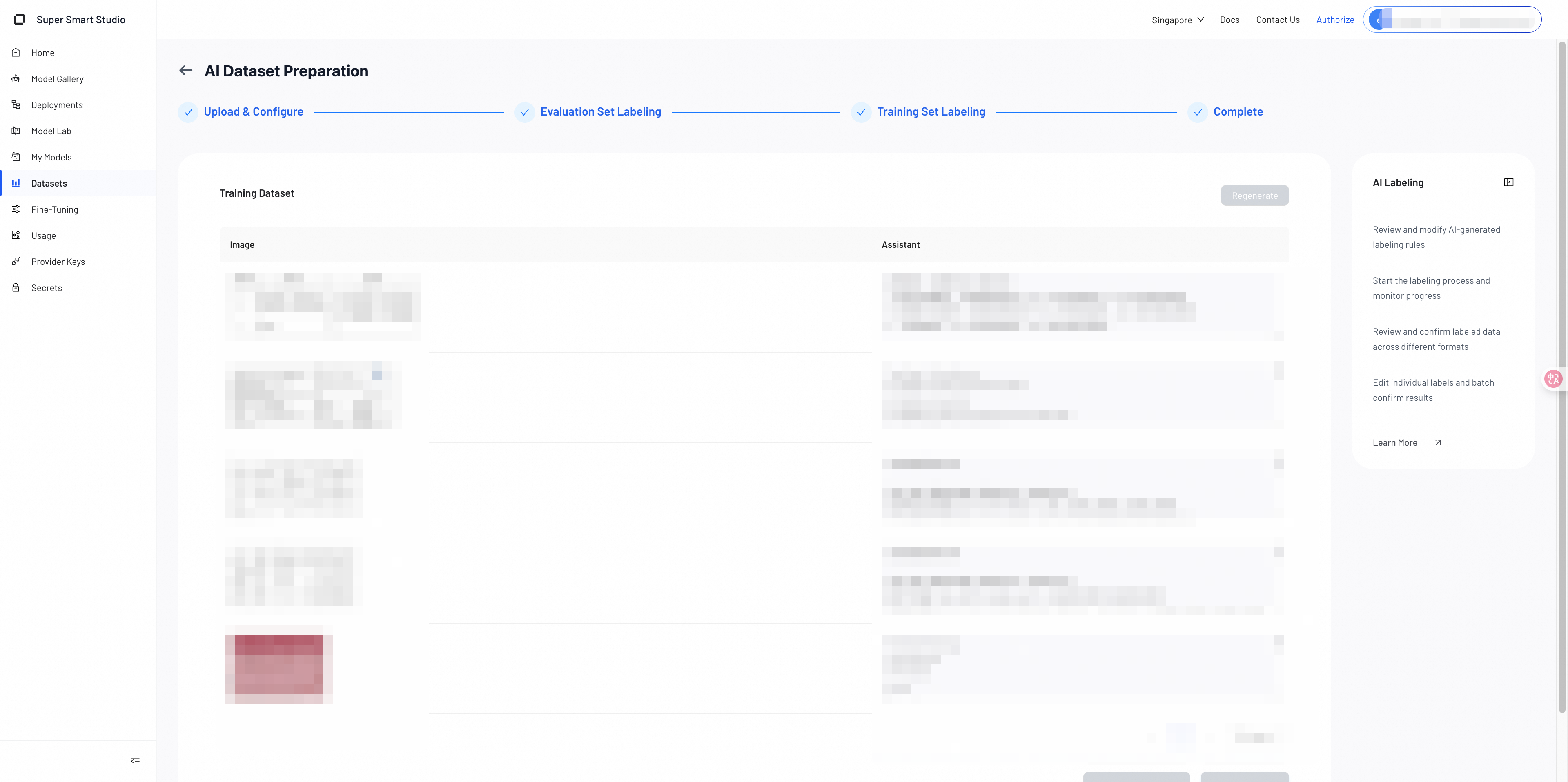
1. Auto‑Generated Training Data
The model produces labeled outputs in bulk. The output format matches your selected training model and method.
Review the generated results to ensure they meet your expectations.
2. Regenerate If Needed
If the generated labels are inaccurate, incomplete, or misaligned with your rules, you can click Regenerate.
The system will recreate the training labels for the dataset based on the same rules. Use this option whenever you feel the overall quality needs improvement.
3. Proceed When Satisfied
Once you confirm the training labels are correct, continue to the Complete step to finalize your dataset.
Step 4: Complete
In the final step, you review and confirm your fully processed dataset. Once confirmed, your dataset is ready for training.
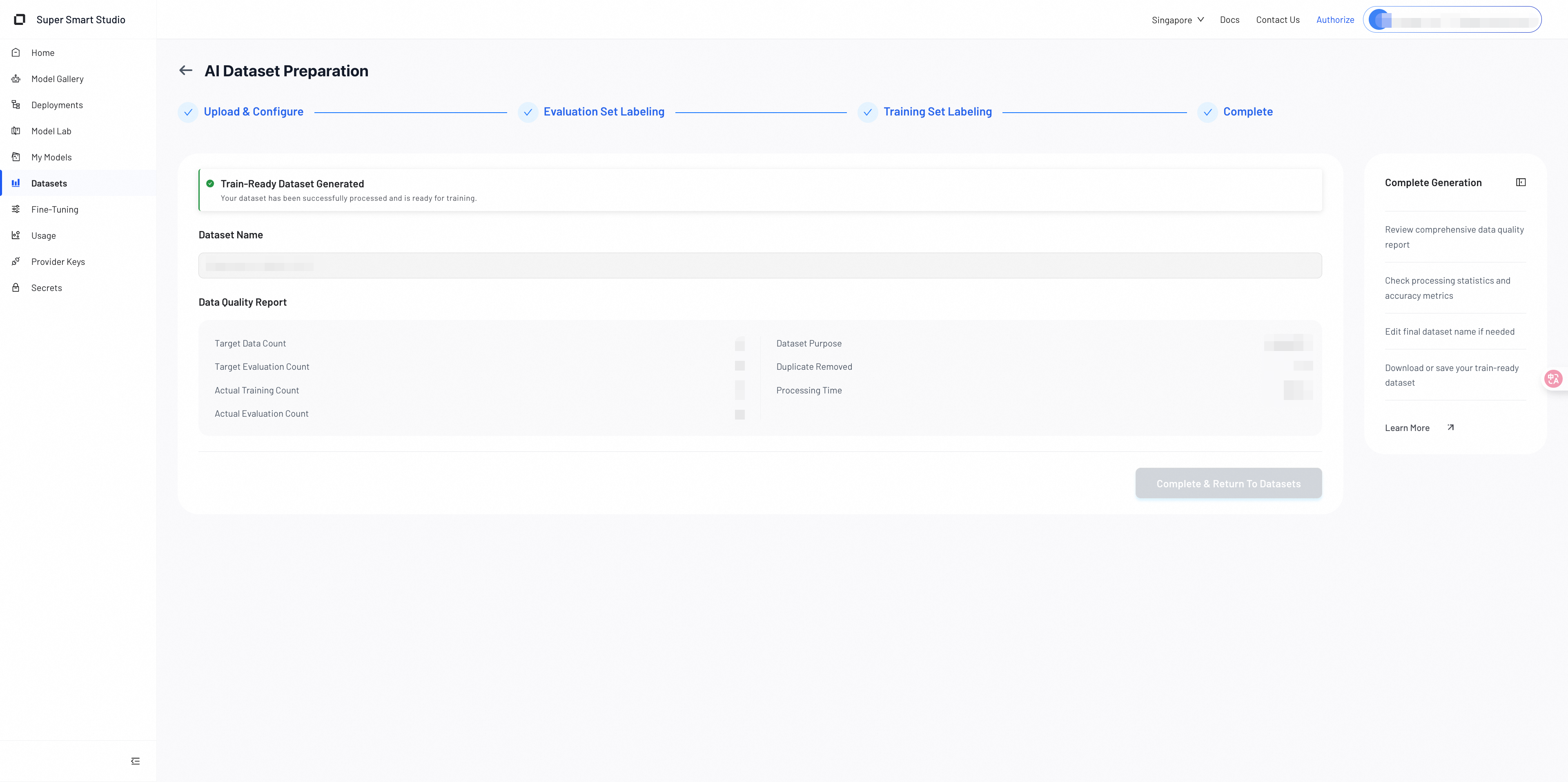
1. Final Dataset Overview
After the system generates the training set and evaluation set, a summary of your completed dataset appears.
The summary includes key information such as:
- Dataset name
- Target vs. actual training sample counts
- Target vs. actual evaluation sample counts
- Number of duplicates removed
- Dataset purpose
- Total processing time
Review the summary to verify that the dataset meets your expectations.
2. Review Data Quality Report
The data quality report shows how the system constructed the dataset and whether the output aligns with your initial requirements.
If needed, you can still update the dataset name at this stage.
3. Finalize the Dataset
When everything looks correct, click Complete & Return to Datasets.
You can then download, store, or use your newly generated train‑ready dataset for further fine‑tuning.
Next Steps
Use your created dataset to fine-tune models for better performance on your specific tasks.
Evaluate your models using your dataset. SSS-Bench datasets support granular reporting on Specialization, Domain Knowledge, and General Robustness.