AI Auto Evaluation
AI Auto Evaluation tests your model using custom datasets, with LLM-as-Judge scoring and customizable metrics. Ideal for real-world or domain-specific testing.
Step 1: Configure Basic Settings
Configure the evaluation type, model(s), and judge model for your evaluation.
- Display Name: Enter a name for this evaluation task.
- Evaluation Method: Choose how to evaluate your model.
- Evaluation Type: Select Single or Comparative.
- Model: Select an available model from your current workspace.
- Judge Model (LLM-as-Judge): Select a judge model to compare the model’s predicted answers against the ground truth answers.
Tip: For Comparative Evaluation, select two models to evaluate side by side.
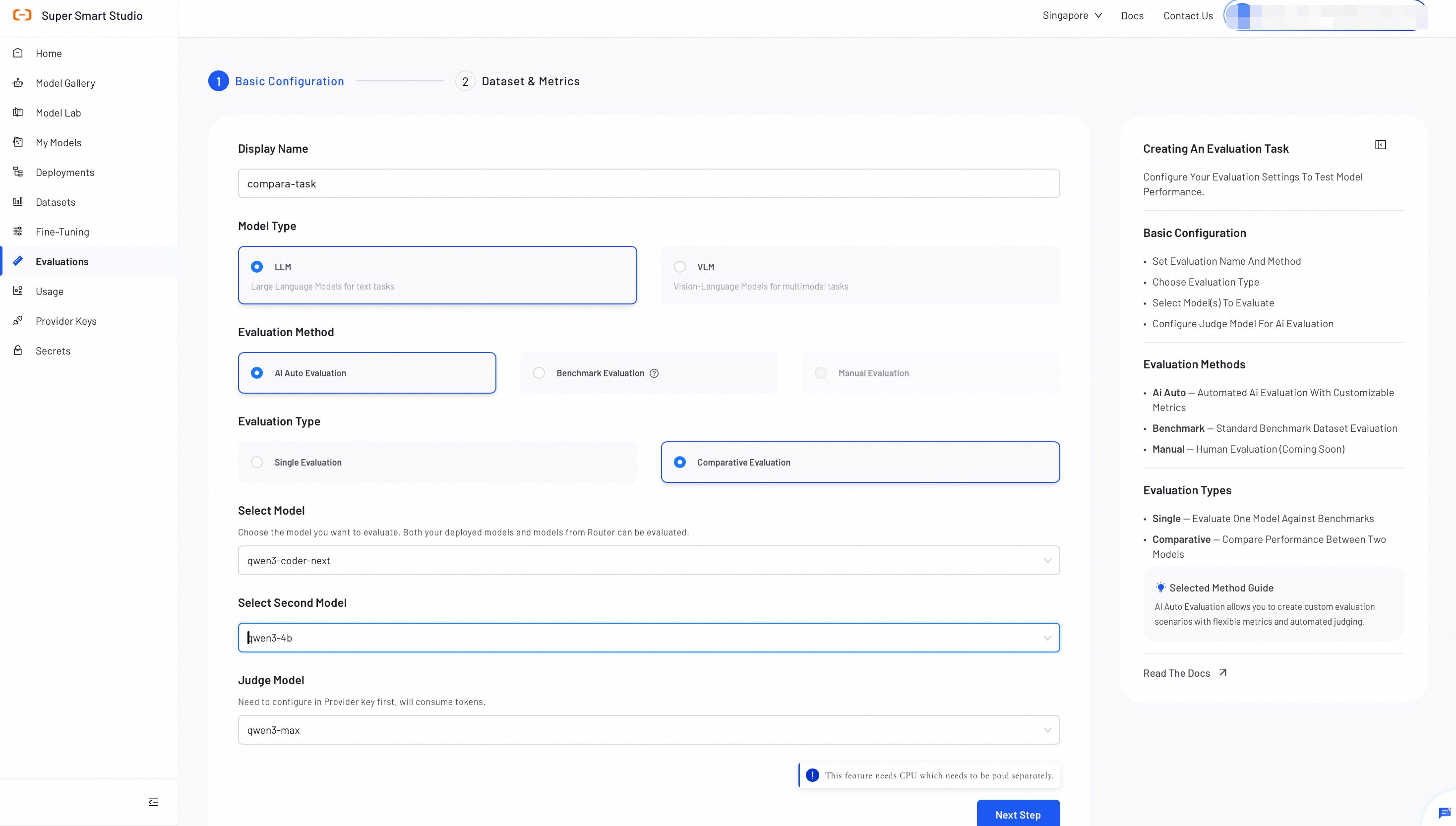
The evaluated model and Judge Model can consume a large number of tokens. Confirm that both models are available and that your account has sufficient balance before proceeding.
Step 2: Configure Datasets & Metrics
Upload an evaluation dataset and define the metrics for evaluating model performance.
1. Dataset Setup
Upload the dataset you want to use for evaluation:
- Use OSS: Provide the OSS path to your JSONL dataset.
- Select Existing Dataset: Choose an existing dataset from the console.
- Create Dataset: Create a new evaluation dataset. For best results, use the AI Data Prep Tool to prepare your evaluation data.
All datasets must be in JSONL format. For detailed format requirements and examples, refer to the Dataset Format Requirements guide below.
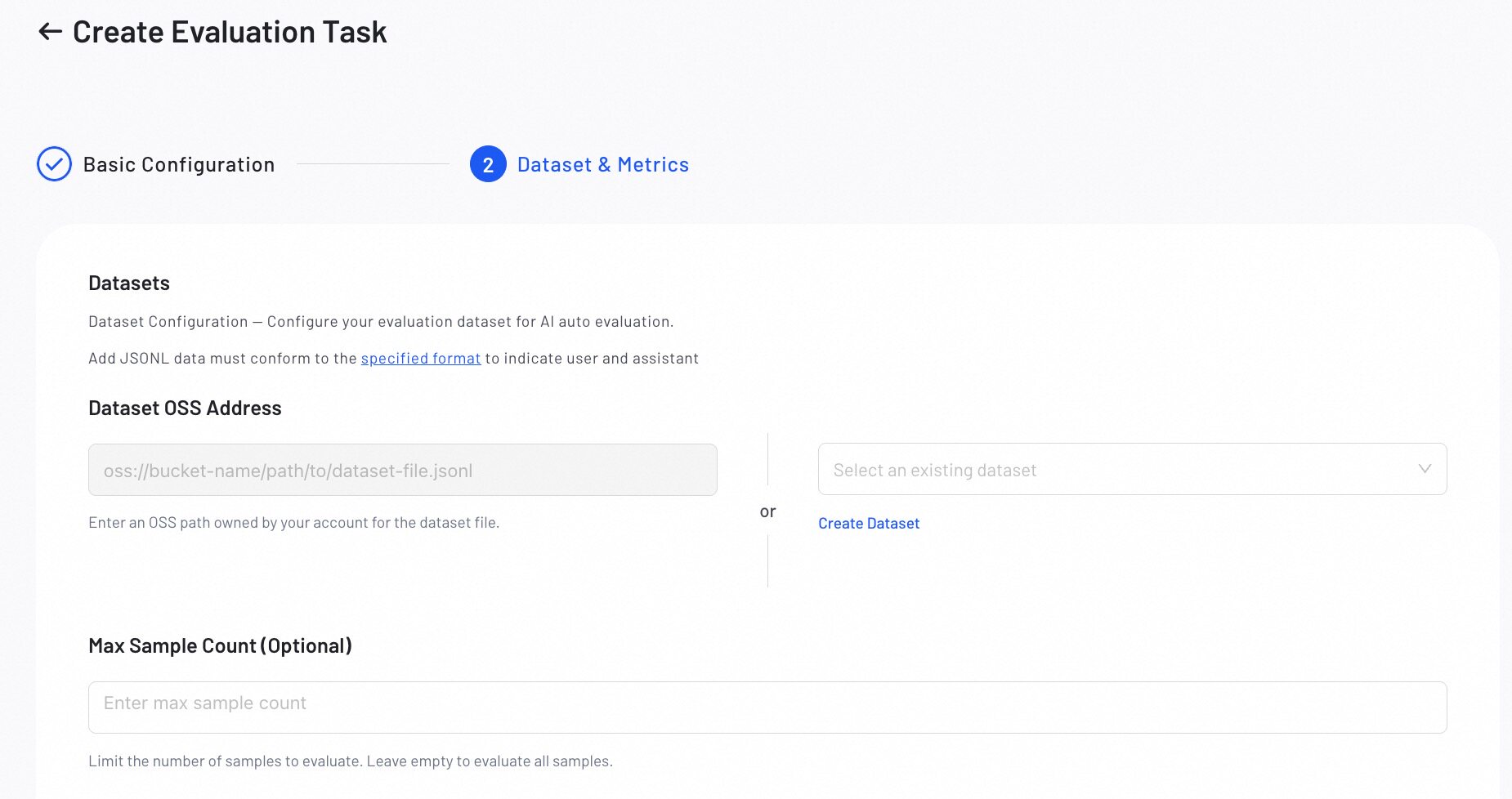
- MAX-Sample Count (Optional): Set the maximum number of samples to evaluate, leave empty to evaluate all samples.
2. Metrics Configuration
Define the evaluation scene and select the metrics for evaluating model performance.
- Select a Scene best suits your evaluation needs:
| Scene | Description |
|---|---|
| Definitive Questions | Evaluates responses to questions that have standard, verifiable answers. |
| Open-ended QA | Evaluates responses to questions that do not have a single correct answer, such as creative or subjective tasks. |
Scene Description: Review and edit the scene description to provide more specific context for the evaluation task.
- Configure metrics for your selected scene:
- Predefined Metrics: Select predefined metrics to evaluate the model.
- Custom Metrics: Create custom metrics to meet specific needs (e.g, Instruction Following, Safety).
- Weight Distribution: Assign a weight to each metric.
Preview the system prompt and user prompt template to understand how your model will be evaluated before execution.

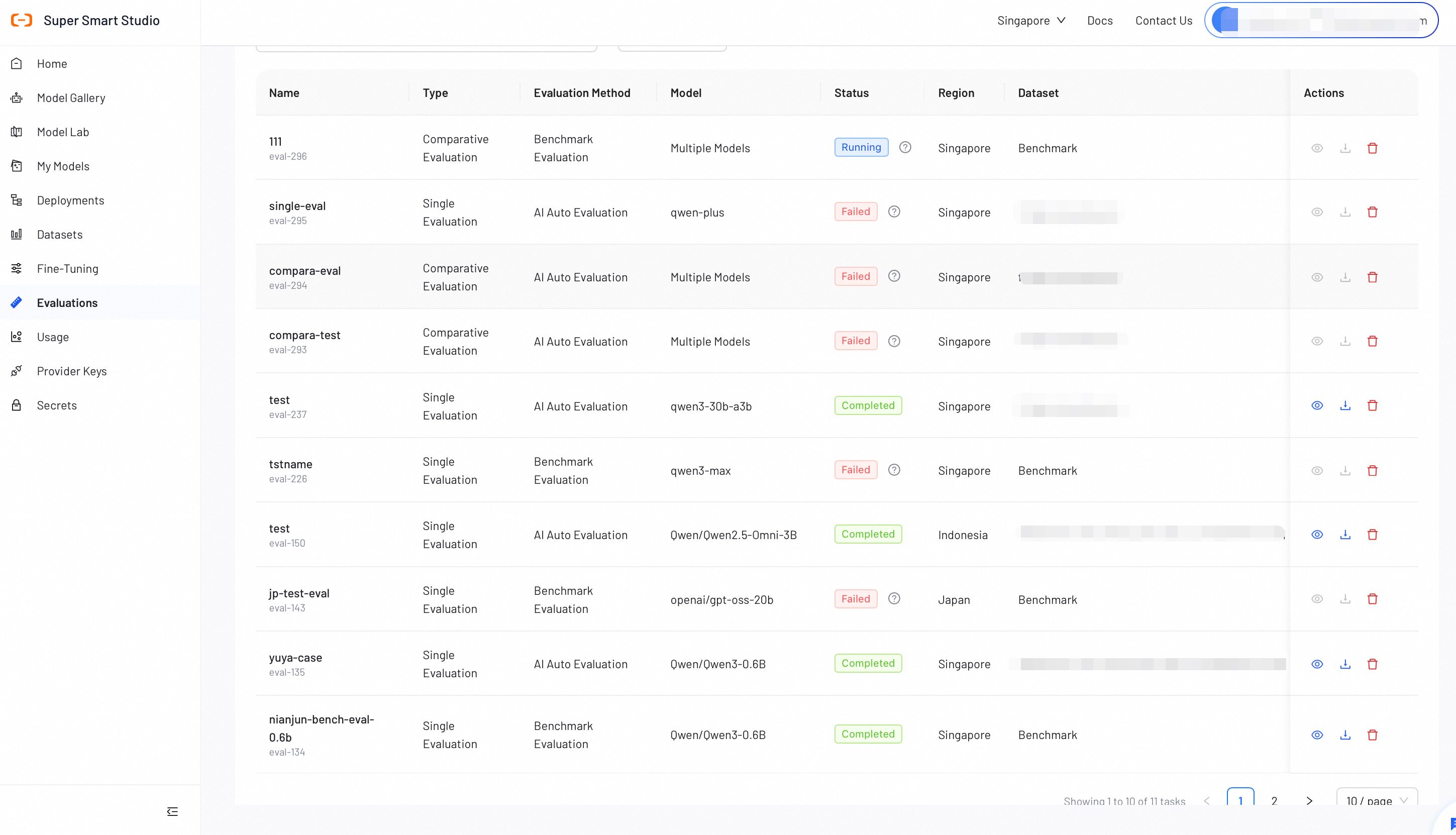
Verify all configurations, then click Start Evaluation. The evaluation progress will display in the list.
Step 3: View Evaluation Report
After an AI Auto evaluation job completes, review the detailed report to analyze model performance. The report layout adapts for Single or Comparative evaluations.
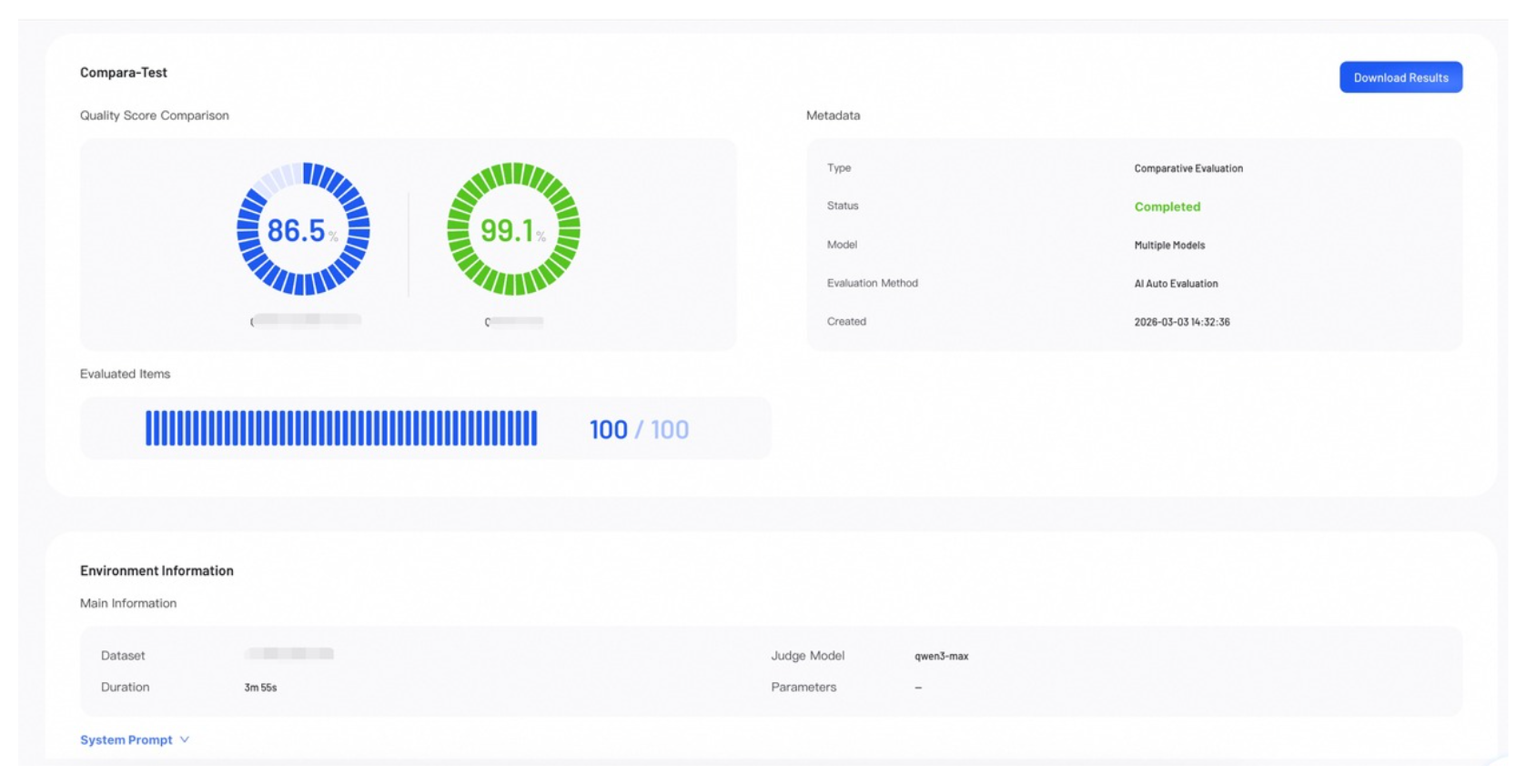
Score Overview
The Score Overview section provides a high-level summary of the evaluation results.
- Quality Score: Represents the model's overall weighted score. In a Comparative Evaluation, scores for all models appear side-by-side.
- Evaluated Items: Shows the number of data samples evaluated out of the total.
- Metadata: Lists key information about the job.
- Download Results: Click to download the complete evaluation results.
Performance Metrics
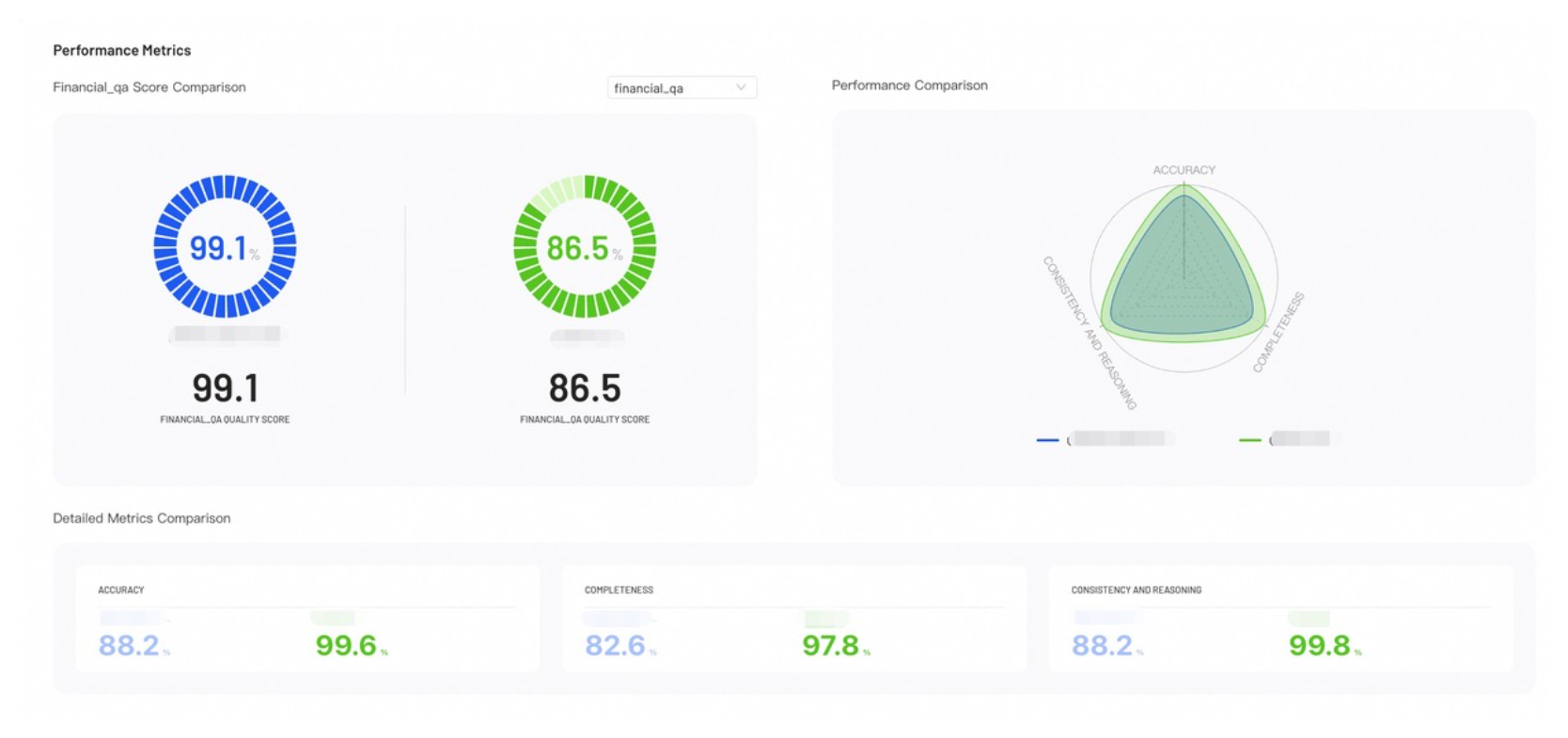
Performance Metrics provides visual insights into your evaluation results, helping you identify where each model excels.
- Score Comparison: Displays the accuracy of the model across different questions and benchmark categories.
- Performance Comparison: The radar chart compares model capabilities across all configured metrics.
- Detailed Metrics Comparison: Lists the exact numerical scores for each evaluation metric across all models.
Case Analysis
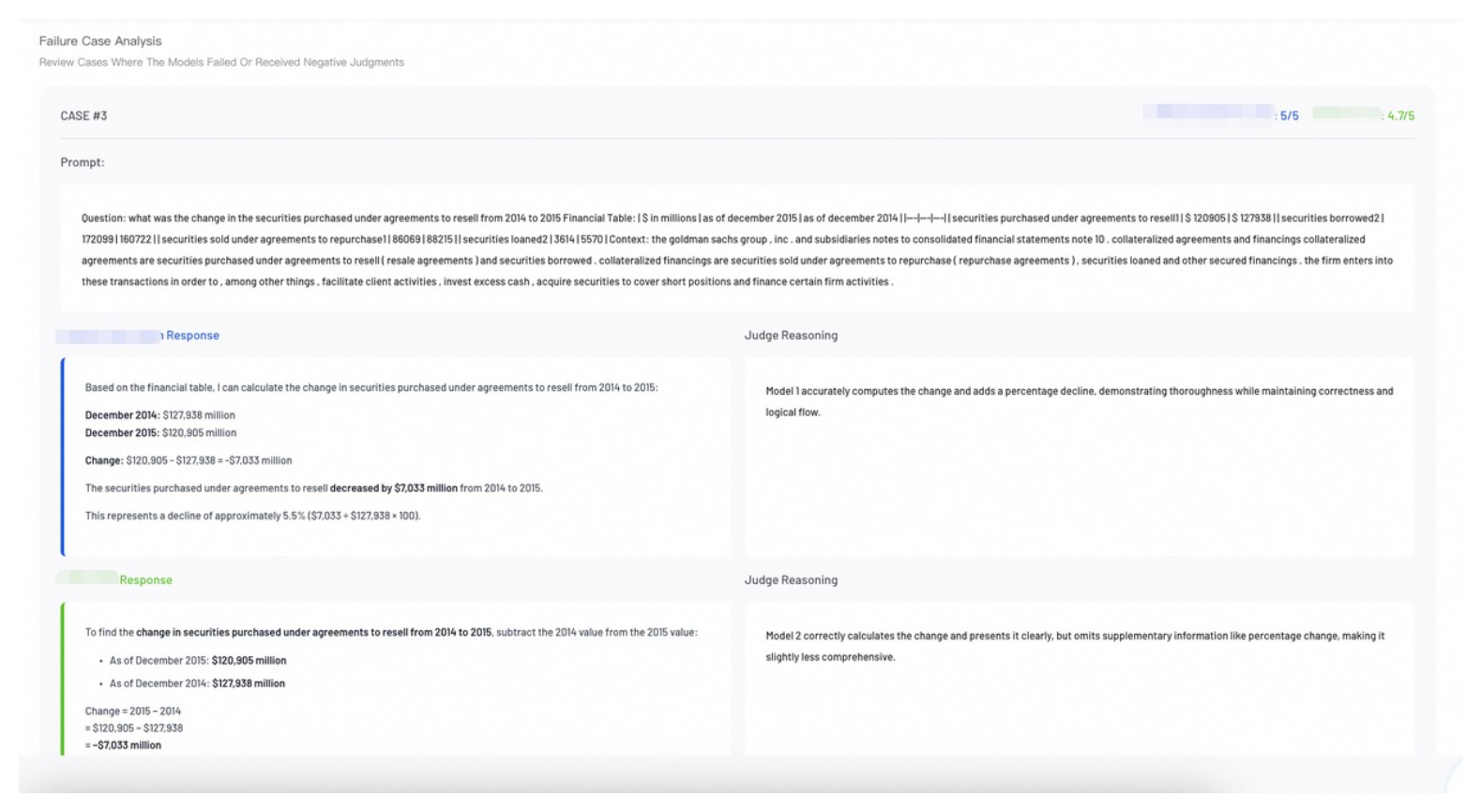
Review individual evaluation cases to perform error analysis and understand specific model behaviors.
Single Evaluation: The report defaults to Failure Case Analysis, highlighting low-performance samples.
Comparative Evaluation: The default Side-by-Side View shows how different models responded to the same prompt. Review the judge's score and reasoning for each response to understand performance differences.
Analysis & Recommendations (Comparative Evaluation Only)
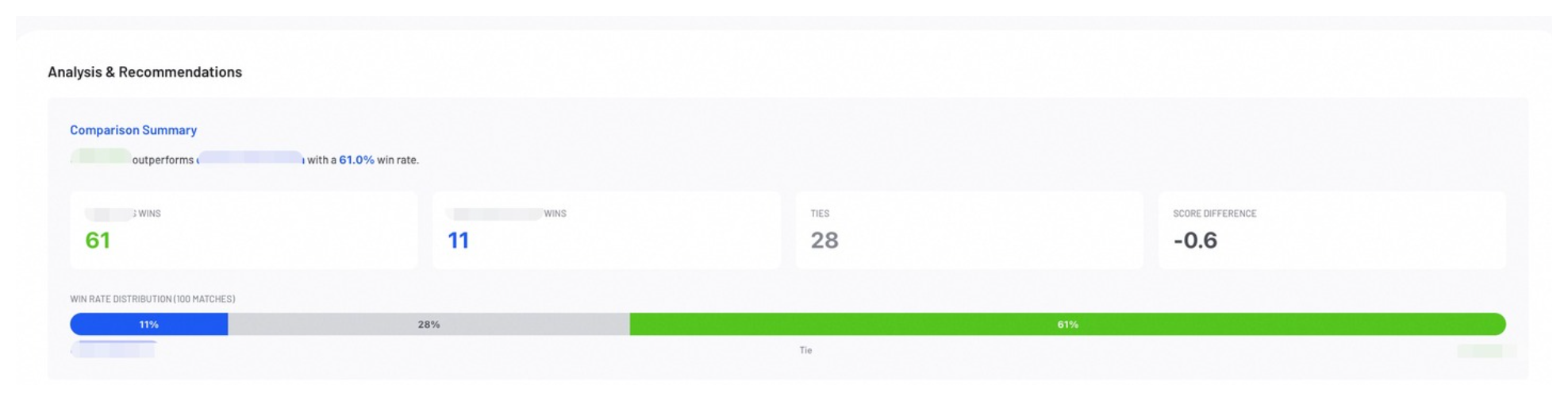
The Analysis & Recommendations section provides a model recommendation based on the comparison.
Dataset Format
Select the appropriate dataset format based on your evaluation type to ensure compatibility.
Datasets for AI-Auto evaluation must align with the format generated by the AI-Data-Prep tool.
- LLM Format - base data agent
- LLM Format - sss bench
- VLM Format
{
  "init": {                                  // Initial version
    "messages": [                            // Conversation list
      { "role": "user", "content": "..." },  // User question
      { "role": "assistant", "content": "..." } // Model answer
    ],
    "question_type": "fact_retrieval",       // Question type
    "config_post_training_method": "sft",    // Training method
    "metadata": {                            // Metadata
      "entity": "...",                       // Core entity
      "entities_used": ["..."]               // List of entities used
    }
  },
  "confirm": "confirmed",                    // Review status
  "refined": {                               // Refined version
    "messages": [                            // Same structure as init.messages
      { "role": "user", "content": "..." },
      { "role": "assistant", "content": "..." }
    ]
  }
}
  {
    "init": {
      "messages": [
        { "role": "user", "content": "..." },
        { "role": "assistant", "content": "..." }
      ],
      "question_type": "domain_benchmark",
      "config_post_training_method": "sft",
      "metadata": {
        "source": "benchmark",
        "benchmark_type": "domain",
        "benchmark_name": "judicial_analysis",
        "industry": "legal"
      }
    },
    "confirm": "confirmed",
    "refined": {
      "messages": [
        { "role": "user", "content": "..." },
        { "role": "assistant", "content": "..." }
      ]
    }
  }
{
  "init": {
    "messages": [
      {
        "role": "system",
        "content": "System prompt (Role definition)"
      },
      {
        "role": "user",
        "content": "User instruction (Detailed task rule description + Processing instruction)"
      },
      {
        "role": "assistant",
        "content": "Model's initial output (First generated HTML code)"
      }
    ],
    "image_path": "Input image file path"
  },
  "confirm": "confirmed | rejected",          // Review status
  "refined": {
    "messages": [
      {
        "role": "system",
        "content": "System prompt (Same as init)"
      },
      {
        "role": "user",
        "content": "User instruction (Same as init)"
      },
      {
        "role": "assistant",
        "content": "Model's refined/corrected output (Final confirmed HTML code)"
      }
    ],
    "image_path": "Input image file path (Same as init)"
  }
}
Next Steps
Create or refine datasets to enhance your next training or evaluation run.