Create Dataset
Learn how to create and manage datasets for training and evaluation purposes.
For detailed information about fine-tuning methods, see the Fine‑Tuning documentation.
Dataset Creation Methods
Smart Studio offers multiple ways to create datasets for training your models.
Upload your existing datasets in various formats including JSON, CSV, TXT, and more.
Features:
- Multiple file formats
- Batch upload support
- Data validation
Let AI automatically prepare and label your datasets with intelligent data processing.
Features:
- Automated labeling
- Smart data splitting
- Quality assurance
Manual Upload Configuration
Select your dataset settings and upload your data.
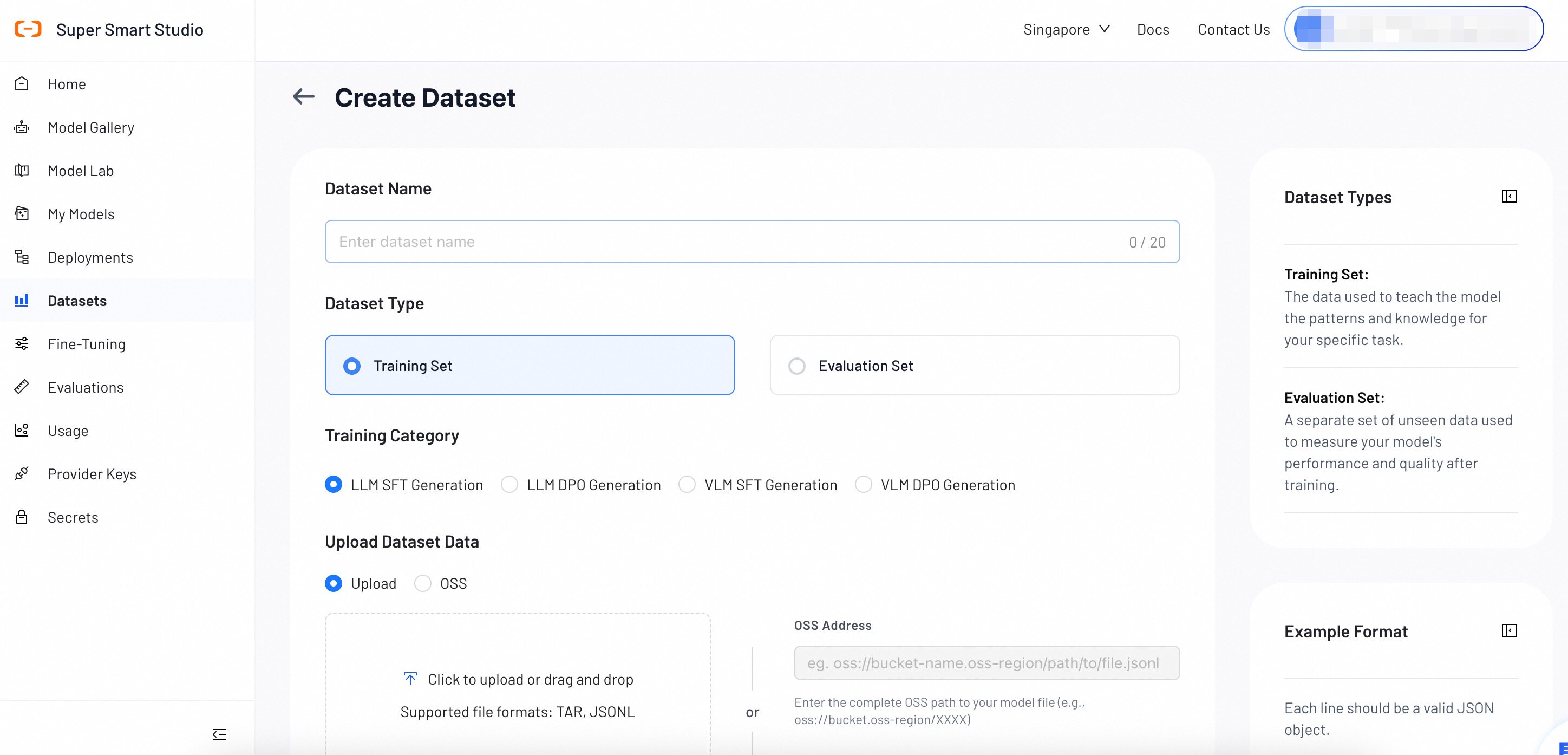
Dataset Name
Enter a name for your dataset. We recommend including a version number to distinguish between datasets.
Example: qwen-sft-v1, qwen-dpo-v2
Dataset Type
Select the type of dataset you want to create.
- Training Set: The data used to teach the model patterns and knowledge for your specific task.
- Evaluation Set: A separate set of unseen data used to measure your model's performance after training.
Training Category
Select a training category that matches your fine-tuning task. The required data format depends on the category you choose. See Data Format Reference for details.
- LLM SFT Generation: Supervised fine-tuning for large language models.
- LLM DPO Generation: Preference alignment training for large language models.
- VLM SFT Generation: Supervised fine-tuning for vision-language models.
- VLM DPO Generation: Preference alignment training for vision-language models.
Upload Method
You can upload your dataset in one of two ways.
Local Upload
Click the upload area or drag and drop your file. Supported formats: TAR, JSONL.
OSS
Enter the full OSS path to your dataset file.
Format: oss://bucket-name.oss-region/path/to/file.jsonl
Data Format Reference
The required data format depends on the training category you selected. Each line should be a valid JSON object.
LLM SFT Generation
{
  "messages": [
    {"role": "system", "content": "<system>"},
    {"role": "user", "content": "<query1>"},
    {"role": "assistant", "content": "<response1>"},
    {"role": "user", "content": "<query2>"},
    {"role": "assistant", "content": "<response2>"}
  ]
}
LLM DPO Generation
{
  "messages": [
    {"role": "system", "content": "<system>"},
    {"role": "user", "content": "<query1>"},
    {"role": "assistant", "content": "<response1>"},
  ],
 "rejected_response": "<reject_response>"
}
VLM SFT Generation
{
  "messages": [
    {"role": "system", "content": "<system>"},
    {"role": "user", "content": "<query1>"},
    {"role": "assistant", "content": "<response1>"},
  ],
 "images": ["/xxx/x.jpg", "/xxx/x.png"]
}
The <image> placeholder in the user content is optional. If included, the number of <image> placeholders must match the number of paths in the images array.
VLM DPO Generation
{
  "messages": [
    {"role": "system", "content": "<system>"},
    {"role": "user", "content": "<query1>"},
    {"role": "assistant", "content": "<response1>"},
  ],
 "images": ["/xxx/x.jpg", "/xxx/x.png"],
 "rejected_response": "<reject_response>"
}
Note: The
<image>placeholder in the user content is optional. If included, the number of<image>placeholders must match the number of paths in the images array.
Manage Datasets
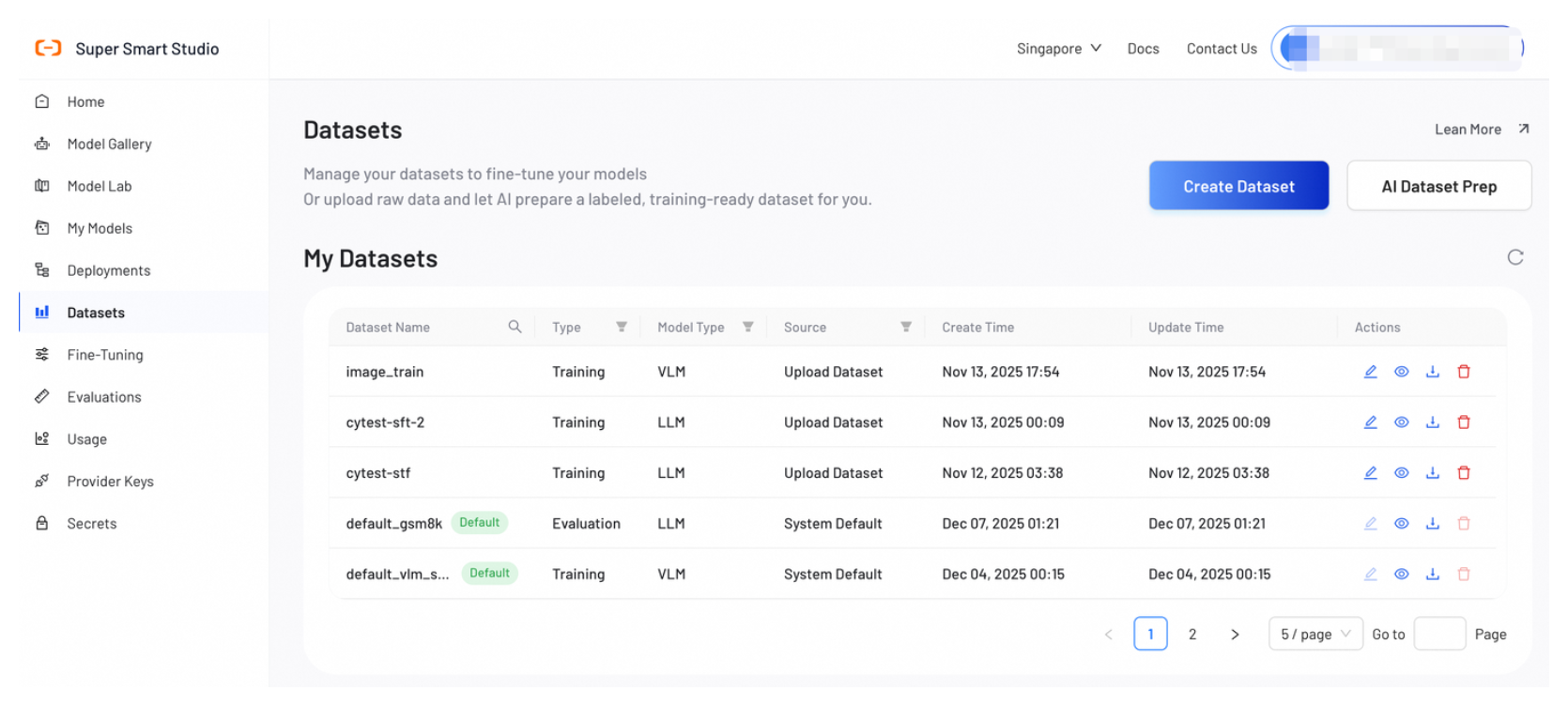
My Datasets page lists all datasets that you create. Use this page to view dataset details, edit configurations, and delete datasets you no longer need.
Next Steps
Use your created dataset to fine-tune models for better performance on your specific tasks.
Evaluate your models using your dataset to measure performance and accuracy.