Manage Datasets
View, search, filter, download, edit, and delete your datasets from the Datasets dashboard. This page is your central hub for managing both manually uploaded datasets and AI-prepared datasets.
My Datasets
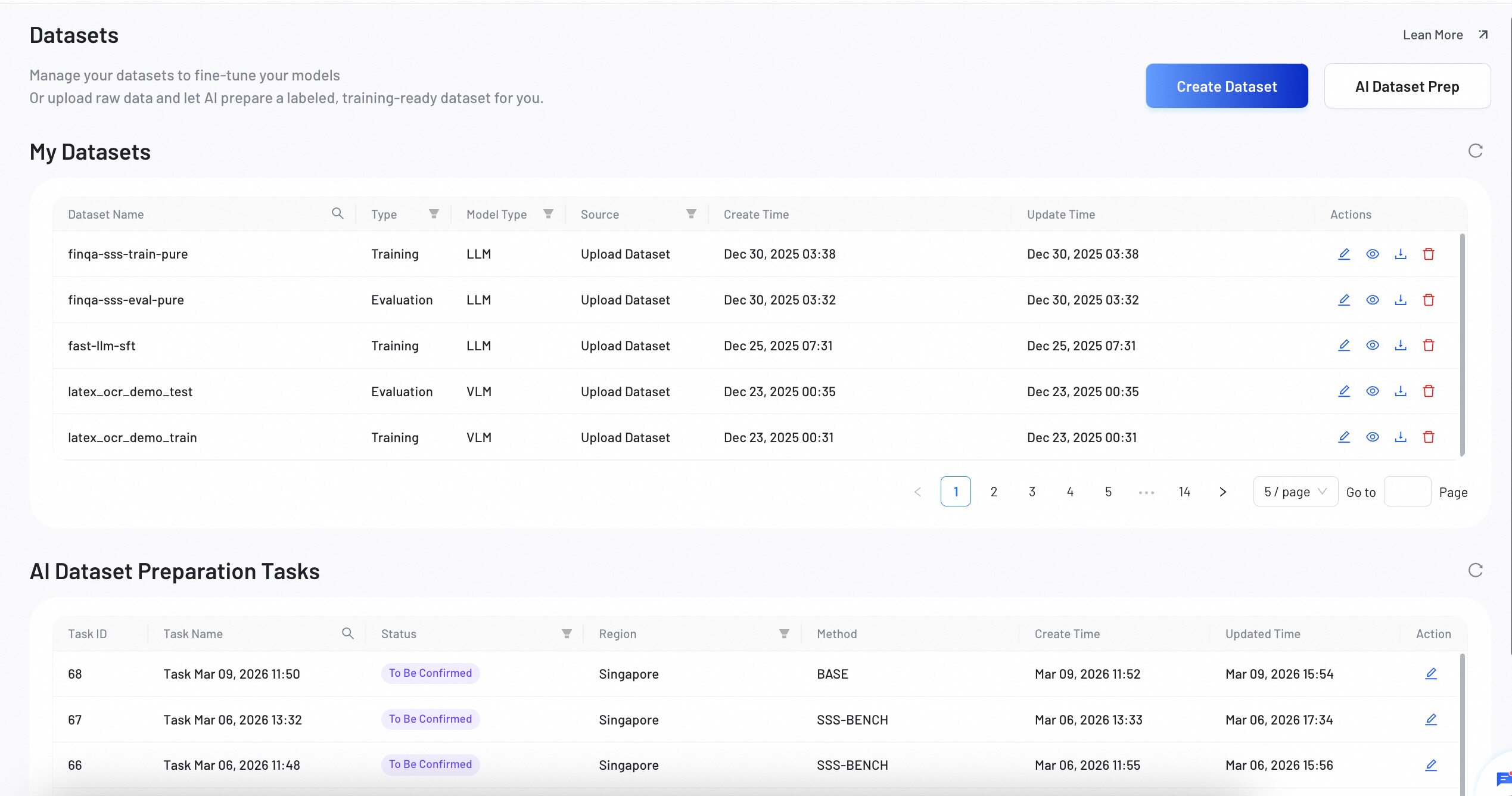
The My Datasets table lists every dataset you own, including those created manually and those generated by the AI preparation pipeline.
Filtering and Searching
You can narrow down the dataset list using column-level filters:
- Dataset Name — Click the search icon in the column header, type a keyword, and press Enter.
- Type — Filter by
TrainingorEvaluation. - Model Type — Filter by
LLMorVLM. - Source — Filter by
Upload Dataset,OSS Dataset,AI Dataset, orSystem Default.
System default datasets cannot be edited or deleted. They serve as reference examples for data format and structure.
Actions
Each dataset row provides the following actions:
- Edit — Opens the dataset in edit mode where you can update the name, type, category, and files. Not available for system default datasets.
- View Details — Opens the Dataset Detail page with overview and data preview tabs.
- Download — Downloads all files associated with the dataset. If the dataset contains multiple files, each file is downloaded sequentially.
- Delete — Permanently removes the dataset. A confirmation dialog appears before deletion. Datasets currently linked to a training job cannot be deleted.
AI Dataset Preparation Tasks
The AI Dataset Preparation Tasks table tracks all tasks created through the AI Dataset Preparation workflow.
Task Status Reference
| Status | Meaning |
|---|---|
| Initializing | The system is auto-configuring and generating labeling rules. |
| To Be Confirmed | Labeling rules are ready for your review. Action required. |
| AI Labeling | The AI is generating labeled data for your evaluation or training set. |
| Dataset Preparing | The system is merging results and saving the final dataset. |
| Completed | The task finished successfully. Your dataset is ready. |
| Failed | An error occurred during processing. Click Edit to review and retry. |
Filtering
- Task Name — Click the search icon, type a keyword, and press Enter.
- Status — Filter by one or more status values.
- Region — Filter by cloud region (Singapore, Frankfurt, Hong Kong, USA-east, Malaysia, Japan).
Dataset Detail
Overview Tab
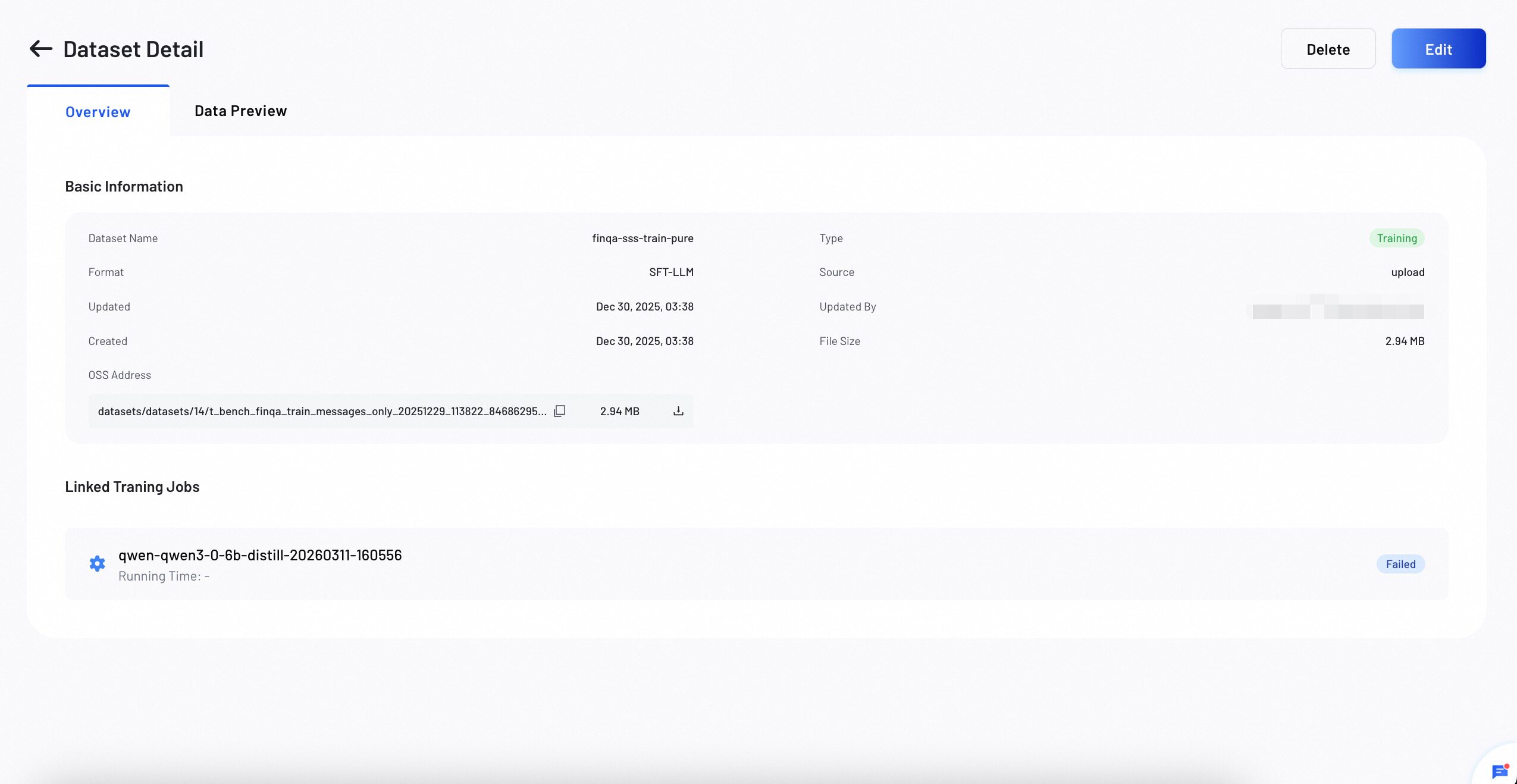
The Overview tab displays basic metadata and storage information for the dataset.
OSS Addresses:
Each file in the dataset is listed with its full OSS path. You can:
- Copy the OSS path to your clipboard by clicking the copy icon.
- Download individual files by clicking the download icon.
Linked Training Jobs:
If the dataset is being used in any fine-tuning training jobs, they appear here with the job name, running time, and current status.
Data Preview Tab
The Data Preview tab lets you inspect the actual content of your dataset files.
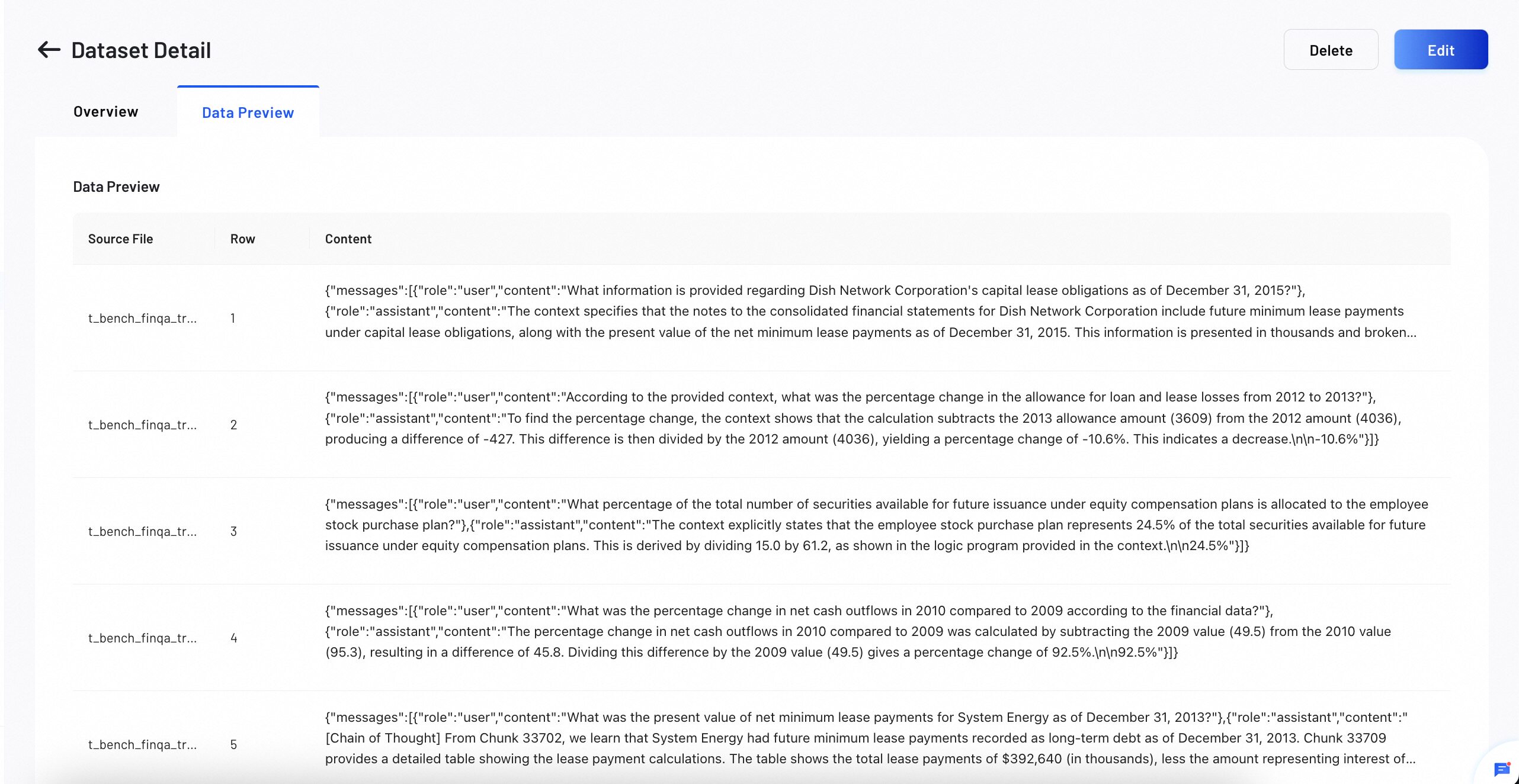
Data preview is available for JSONL-format datasets only. Other file formats display a "format not supported" notice.
Edit a Dataset
To edit an existing dataset:
- In the My Datasets table, click the Edit icon in the Actions column.
- The Create Dataset form opens pre-filled with the current configuration.
- Modify the dataset name, type, training category, or upload new files as needed.
- Click Save & Update to apply your changes.
Delete a Dataset
To delete a dataset:
- Click the Delete icon in the Actions column, or click Delete on the Dataset Detail page header.
- A confirmation dialog appears: "Are you sure you want to delete this dataset?"
- Click Delete to confirm.
If the dataset is currently linked to an active training job, the deletion fails with a message: "This dataset is in use and cannot be deleted."
Next Steps
Learn how to create a new dataset by uploading files or providing an OSS path.
Let AI automatically prepare, label, and optimize your datasets from raw data.