How to Call Unified API
Learn how to configure API keys and call the Unified API to integrate AI models into your applications. This guide provides step-by-step instructions for setting up authentication and accessing code examples.
The Unified API provides a consistent interface for accessing various AI models deployed on Smart Studio. Follow these steps to get started with API integration.
Step 1: Configure API Key
Before calling the API, you need to create and configure an API key for authentication. The API key ensures secure access to your deployed models and tracks usage for billing purposes.
Access the Secrets Menu
To create a new API key, navigate to the "Secrets" menu located in the bottom-left corner of the platform interface.

Create New API Key
Create a new API key to authenticate your API requests. Configure the key's settings to control access to your resources.
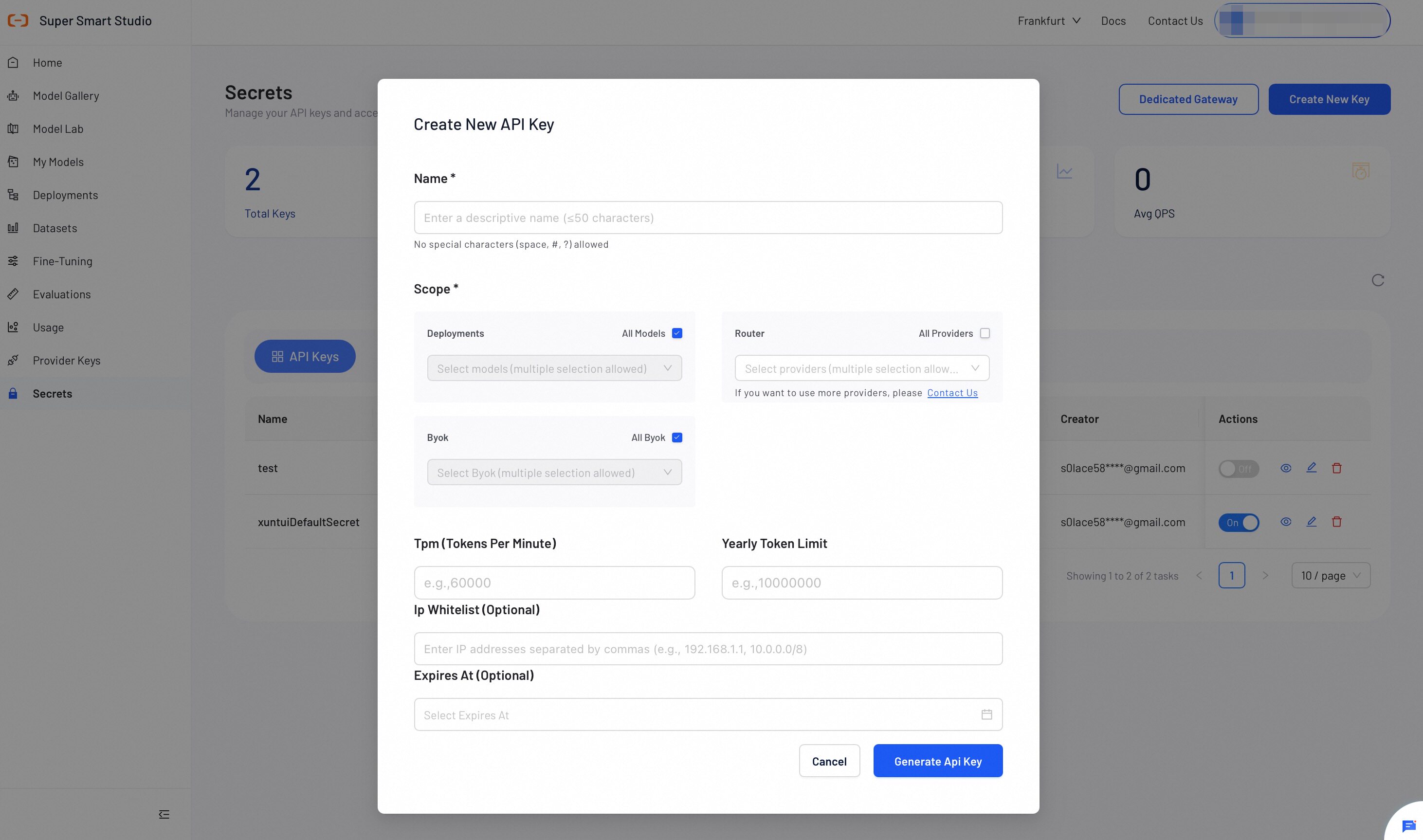
Name: Enter a descriptive name for the API key. Special characters (space, #, ?) are not allowed.
Scope
Configure which resources this API key can access:
- Deployments: Select specific deployed models or check All Models to grant access to all deployments.
- Router: Select the routing provider. To add more providers, contact us.
- BYOK: Select specific BYOK configurations or check All BYOK to grant access to all.
Usage Limits
- TPM (Tokens Per Minute): Maximum tokens processed per
minute (e.g.,
60000). - Yearly Token Limit: Maximum total tokens allowed per
year (e.g.,
10000000).
Security Settings (Optional)
- IP Whitelist: Restrict access to specific IP addresses.
Enter addresses separated by commas (e.g.,
192.168.1.1, 10.0.0.0/8). - Expires At: Set an expiration date for the API key.
Important: Store your API-KEY in a safe place. For security reasons, never expose it in public environments or shared documents.
Step 2: View Code Examples
After creating your API key, you can access ready-to-use code examples that demonstrate how to integrate with your deployed models. These examples include proper authentication and API call patterns.
Access Code Examples
Code examples are available in the deployment details page for each of your deployed models. These examples show you exactly how to use your API key to make requests.
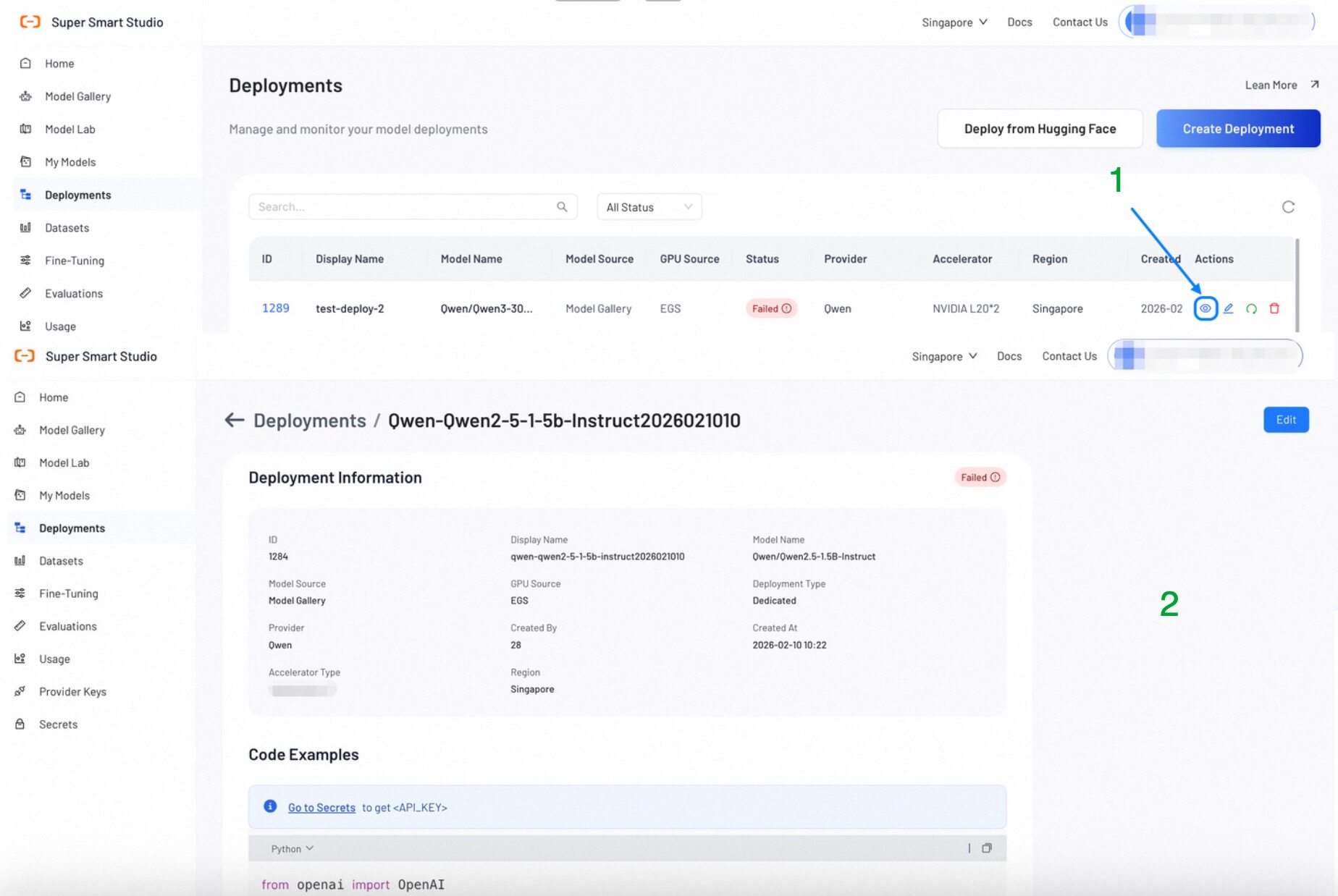
Code Examples section in deployment details with API key integration
-
Navigate to Deployment Details
Go to your Deployments page and click on a specific deployment to view its details
-
Find Code Examples Section
Look for the "Code Examples" section within the deployment details page
-
Copy and Customize
Copy the provided code examples and replace the placeholder API key with your actual key
Example Code Structure
The code examples typically include the following components:
from openai import OpenAI

client = OpenAI(
    api_key="<API_KEY>",
    base_url="https://rpgateway.console.alibabacloud.com/v1"
)

response = client.chat.completions.create(
    model="@sss/Qwen/Qwen3-0.6B-Base",
    messages=[
        {"role": "system", "content": "You are a helpful assistant."},
        {"role": "user", "content": "how are you"}
    ],
    temperature=0.7,
    max_tokens=150
)
- API Key: Replace
<API_KEY>with your actual API key from Secrets - Base URL: The unified endpoint for all API calls
- Model: Specific model identifier for your deployment
Next Steps
- Store API keys securely and never expose them in client-side code
- Implement proper error handling for API requests
- Monitor your API usage to optimize costs and performance
- Use appropriate rate limiting to avoid exceeding API quotas