Manage Deployments
View, monitor, and manage all your model deployments from the Deployments dashboard. This page provides centralized control over deployment lifecycle operations including stopping, restarting, editing, and deleting deployments.
Before You Begin
- Open Self-Deploy → Deployments in the same account and region used to create the service.
- Check the current status before choosing a lifecycle action.
- Treat stop and delete operations as disruptive.
Deployment List
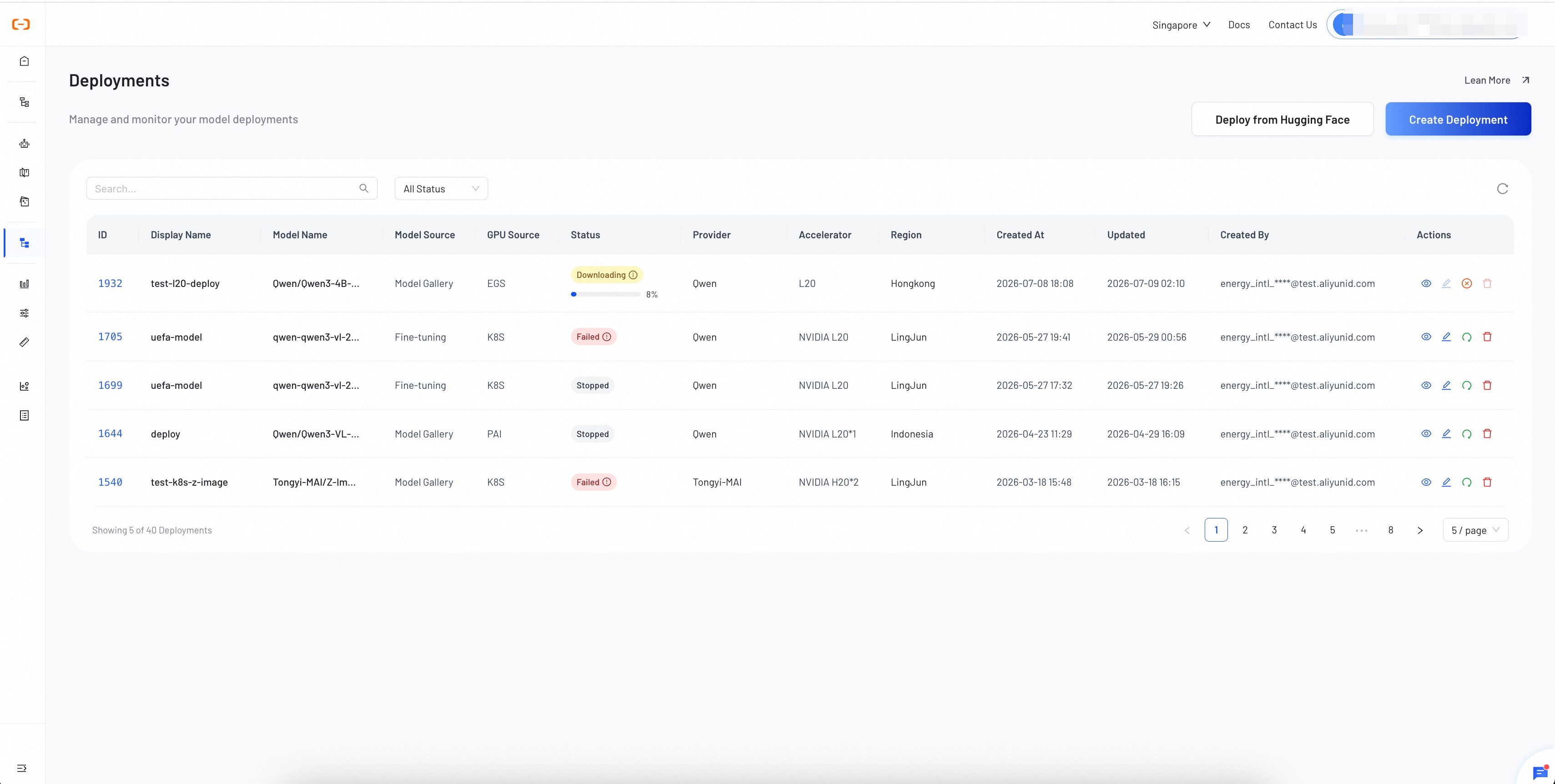
The deployment list displays all your deployments in a table with filtering, searching, and quick actions.
Search and Filter
You can narrow down the deployment list using:
- Keyword Search — Type a keyword in the search bar and press Enter or click the search icon to filter by deployment name, model name, or ID.
- Status Filter — Use the status dropdown to filter by a specific status: Downloading, Deploying, Ready, Failed, Stopping, or Stopped. Select All Status to clear the filter.
- Refresh — Click the refresh icon to reload the list with the latest data.
Status Reference
Each deployment transitions through the following statuses during its lifecycle:
| Status | Description |
|---|---|
| Downloading | The system is downloading model files from the source repository. |
| Deploying | The system is provisioning GPU resources, starting the container, and running the deployment command. |
| Ready | The deployment is online and its serving workload is available. |
| Failed | The deployment encountered an error and could not start. Hover over the status badge to see the error message. |
| Stopping | The service is shutting down and releasing GPU resources. |
| Stopped | The service is offline and not consuming any GPU resources. |
When a deployment is in Failed status, an error icon appears next to the status badge. Hover over it to view the specific error message. Common causes include insufficient GPU resources, model download failures, or configuration errors.
View Deployment Details
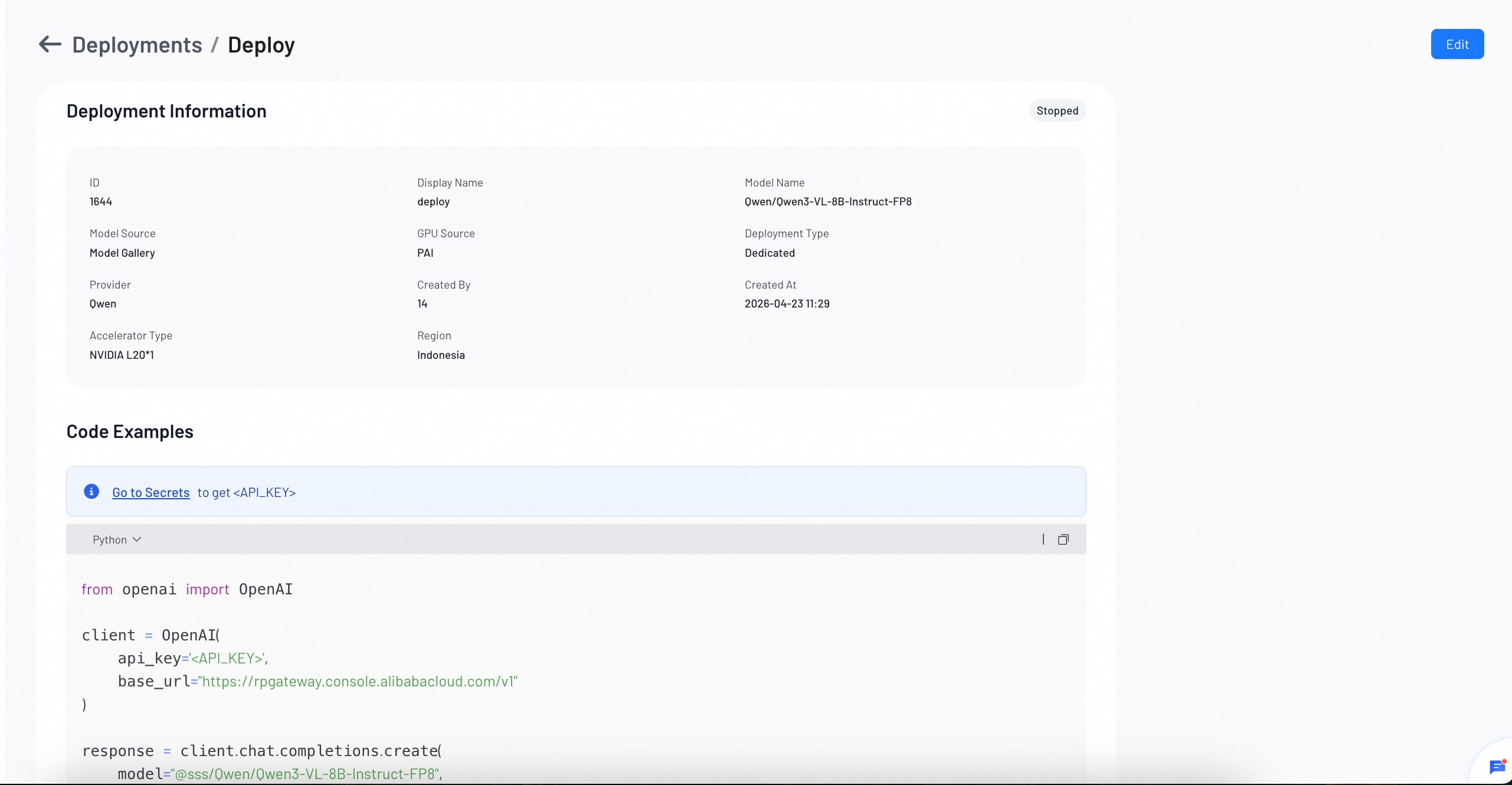
Click the eye icon in the Actions column to open the deployment detail page.
Edit Deployment
Click the edit icon in the Actions column to modify a deployment. Editing is only available when the deployment is in Ready, Failed, or Stopped status.
Currently, only the Display Name can be modified after deployment. To change GPU type, replicas, or other resource settings, you need to delete and recreate the deployment.
Stop a Deployment
Click the pause icon in the Actions column to stop a running deployment. Stopping is available when the deployment is in Ready or Deploying status.
When you stop a deployment:
- The status transitions to Stopping, then to Stopped.
- All GPU resources are released and billing stops.
- The deployment configuration is preserved and can be restarted later.
Restart a Deployment
Click the restart icon in the Actions column to restart a stopped or failed deployment. The system re-provisions GPU resources and starts the deployment process.
Delete a Deployment
Click the delete icon in the Actions column to permanently remove a deployment. Deleting is only available when the deployment is in Failed or Stopped status.
You cannot delete a deployment that is currently in Ready, Deploying, Downloading, or Stopping status. Stop the deployment first before deleting.
Verify a Lifecycle Action
After an action, refresh the deployment list and wait for its terminal status:
| Action | Expected result |
|---|---|
| Stop | The status progresses through Stopping to Stopped. |
| Restart | The service progresses through deployment states to Ready, or reports Failed with an error. |
| Edit | The deployment details show the updated display name. |
| Delete | The stopped or failed deployment no longer appears in the list. |
Troubleshooting
An action is unavailable
Compare the current status with the restrictions in this guide. Wait for an in-progress transition to finish, or stop a running deployment before deleting it.
A restart reaches Failed
Open the error shown beside the status. Confirm the model still exists and the activated cluster has enough GPU capacity. Return to Create Deployment when the resource configuration must change.
Next Steps
Learn how to deploy models from the Model Gallery or your own custom models.