Payment Services
The Payment Services tab manages billing integrations for your platform. Connect payment gateways to enable your customers to purchase credits and pay for API usage.
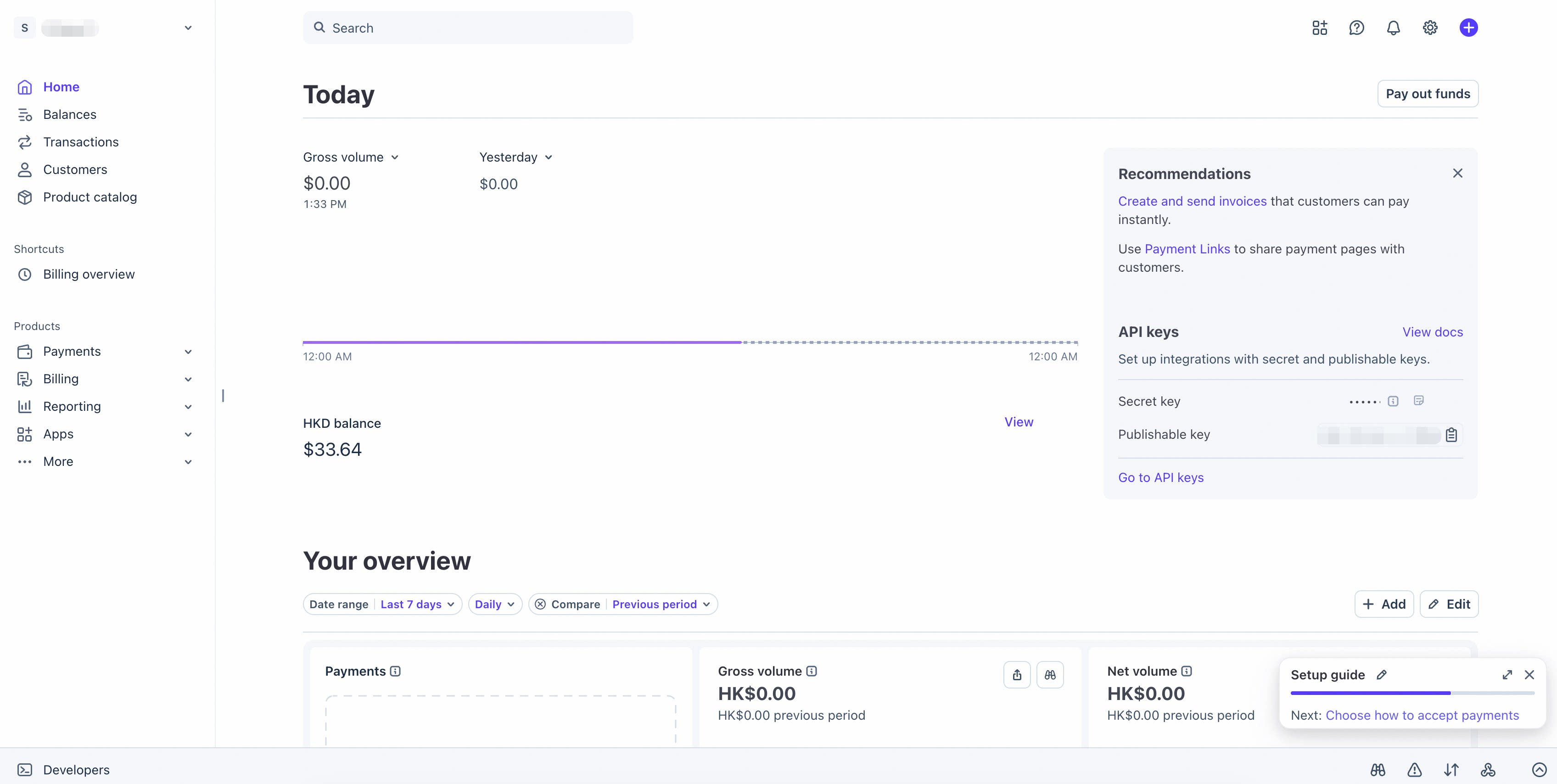
Step 1: Access the Stripe dashboard
- Sign up or log in to https://dashboard.stripe.com/
Step 2: Obtain the API credentials
-
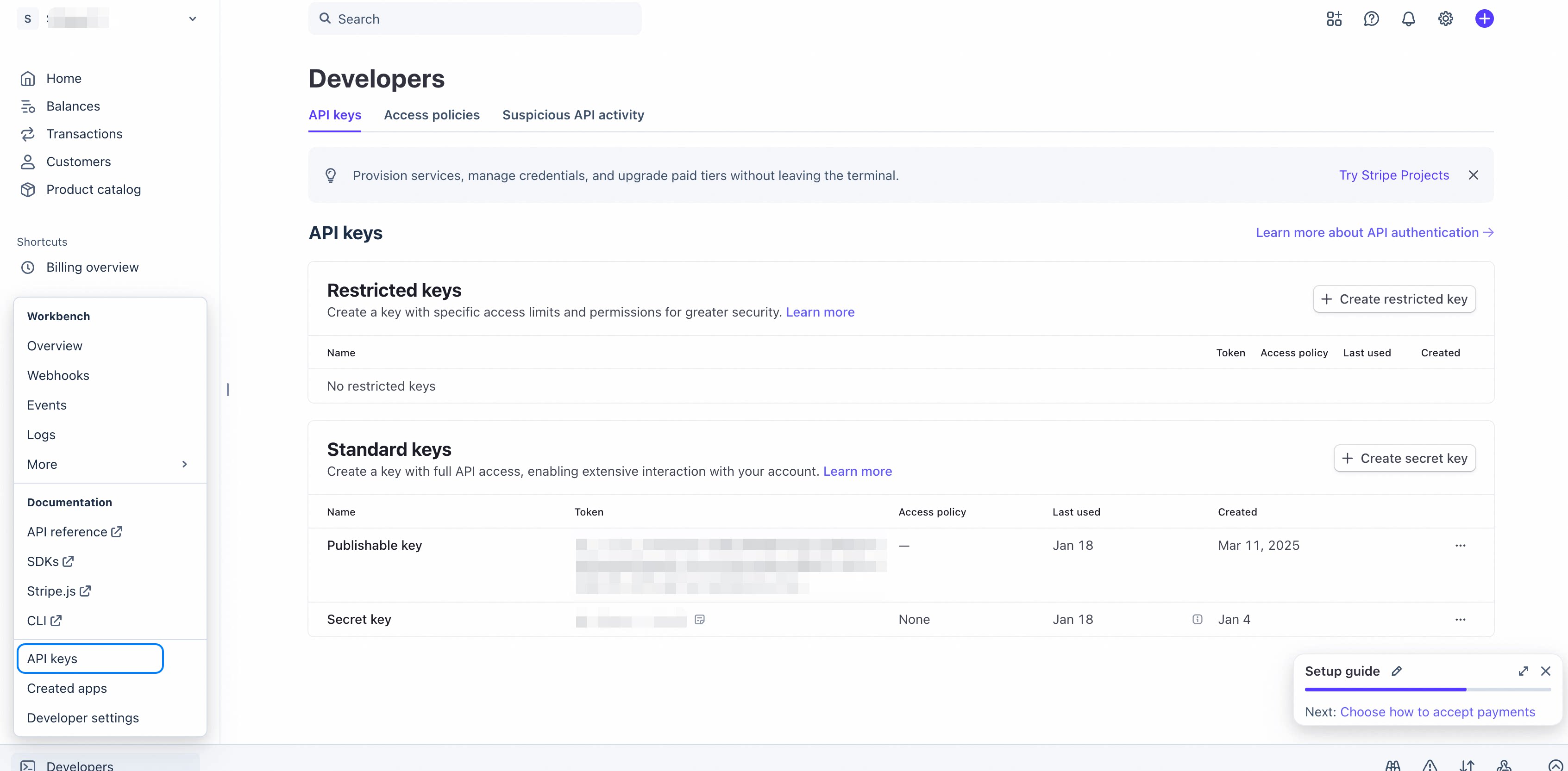
Go to Stripe Dashboard → Developers → API keys
-
Copy the secret key (Note: test mode starts with
sk_test_, production mode starts withsk_live_)
Step 3: Create products
Create products in Stripe:
-
Go to Stripe Dashboard >
Product Catalog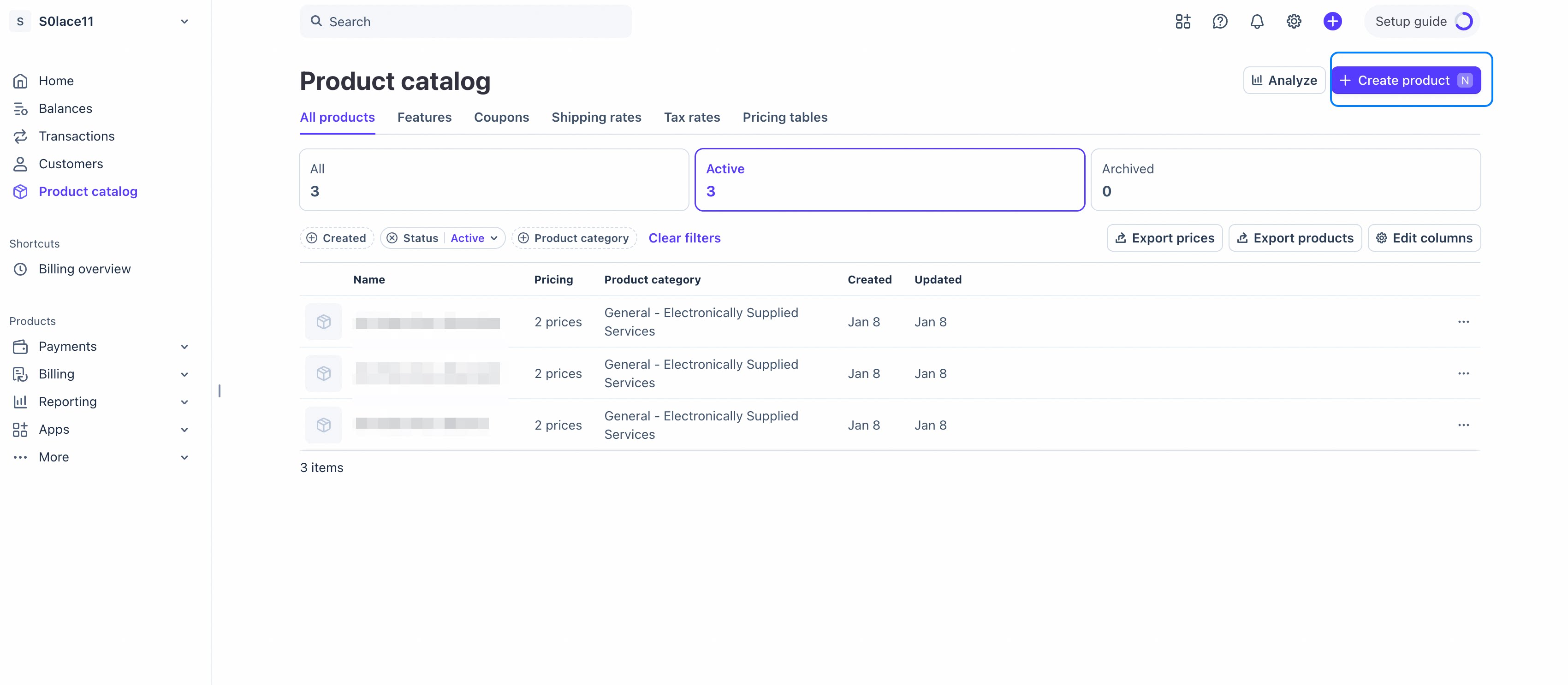
-
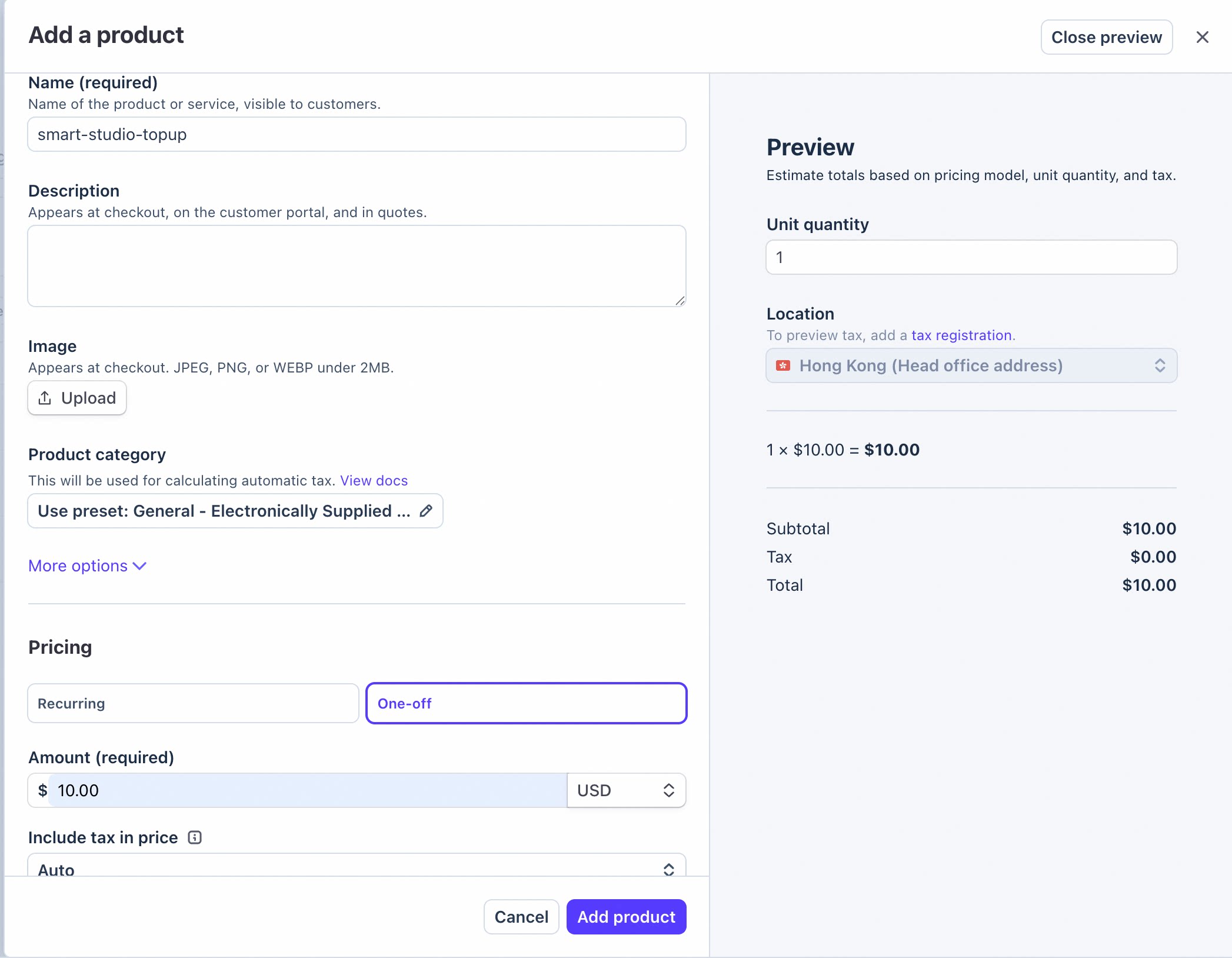
Create product:
-
Enter your product name
-
Select
One-off -
Amount: xxx, choose your currency (USD)
-
Add product
-
-
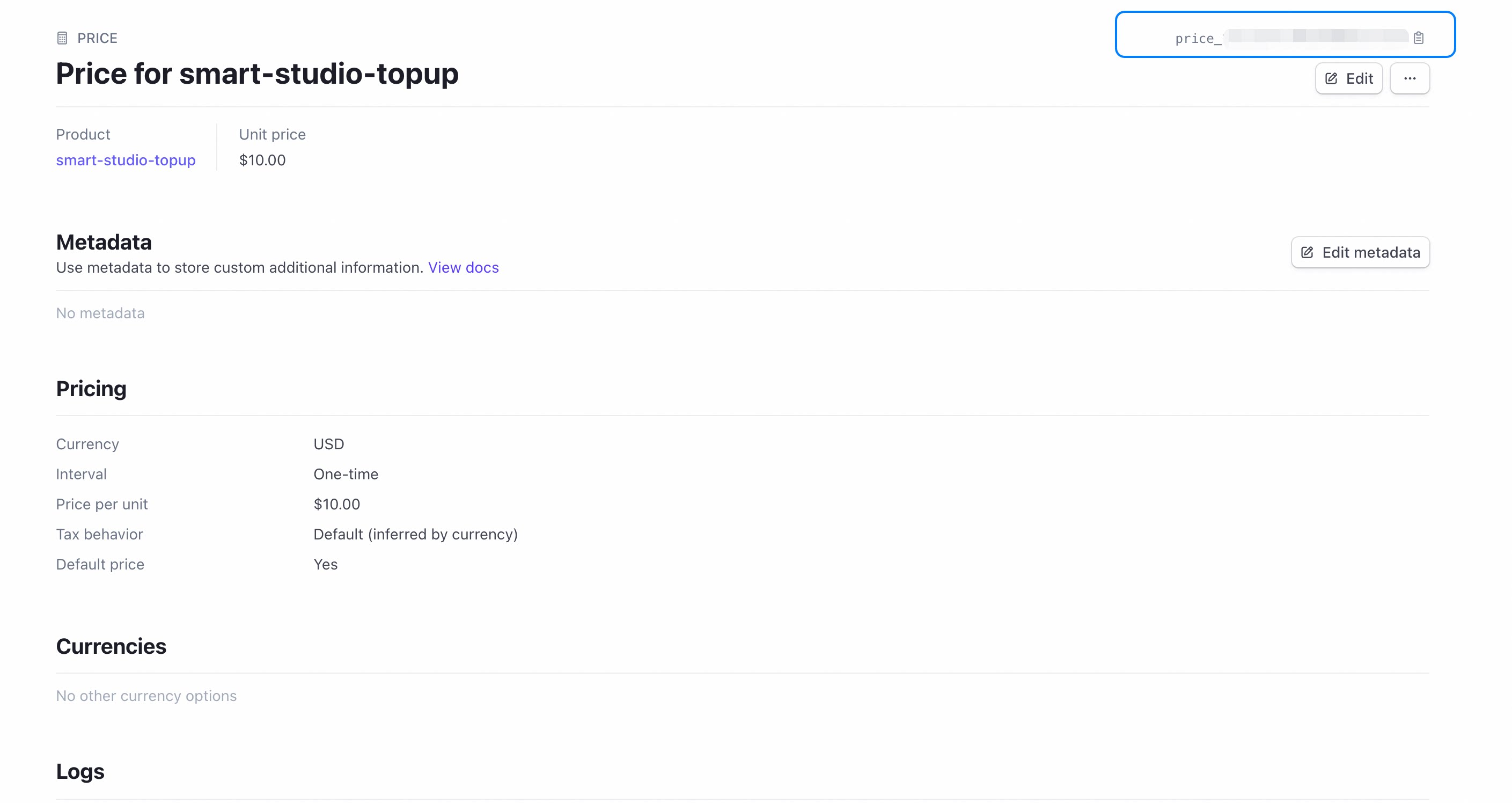
After creating, click your product and Unit price, save and copy the Product Price ID (starts with
price_)
Step 4: Set up webhooks
-
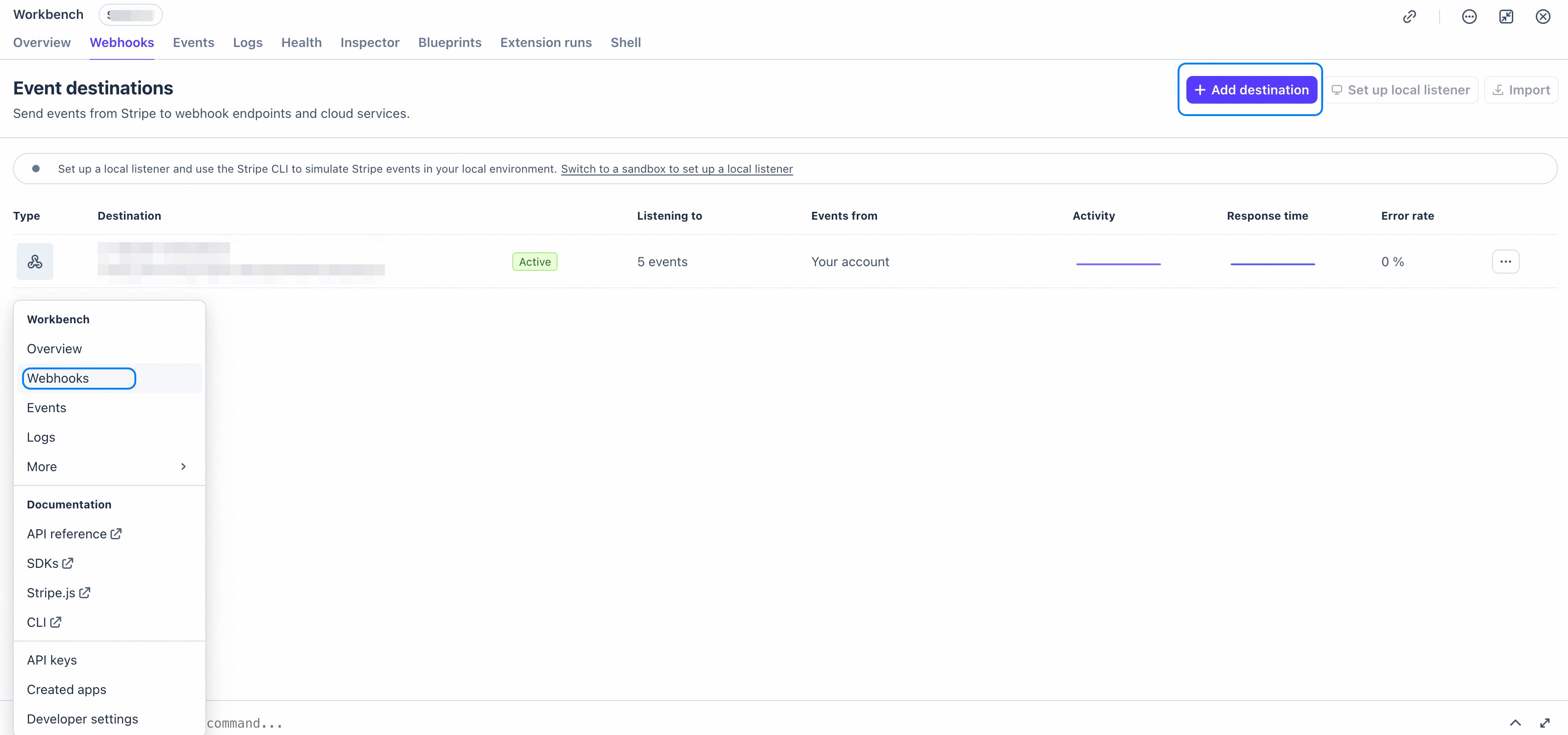
In the left menu, go to Developers → Webhooks, and click + Add endpoint.
-
Enter the Endpoint URL:
-
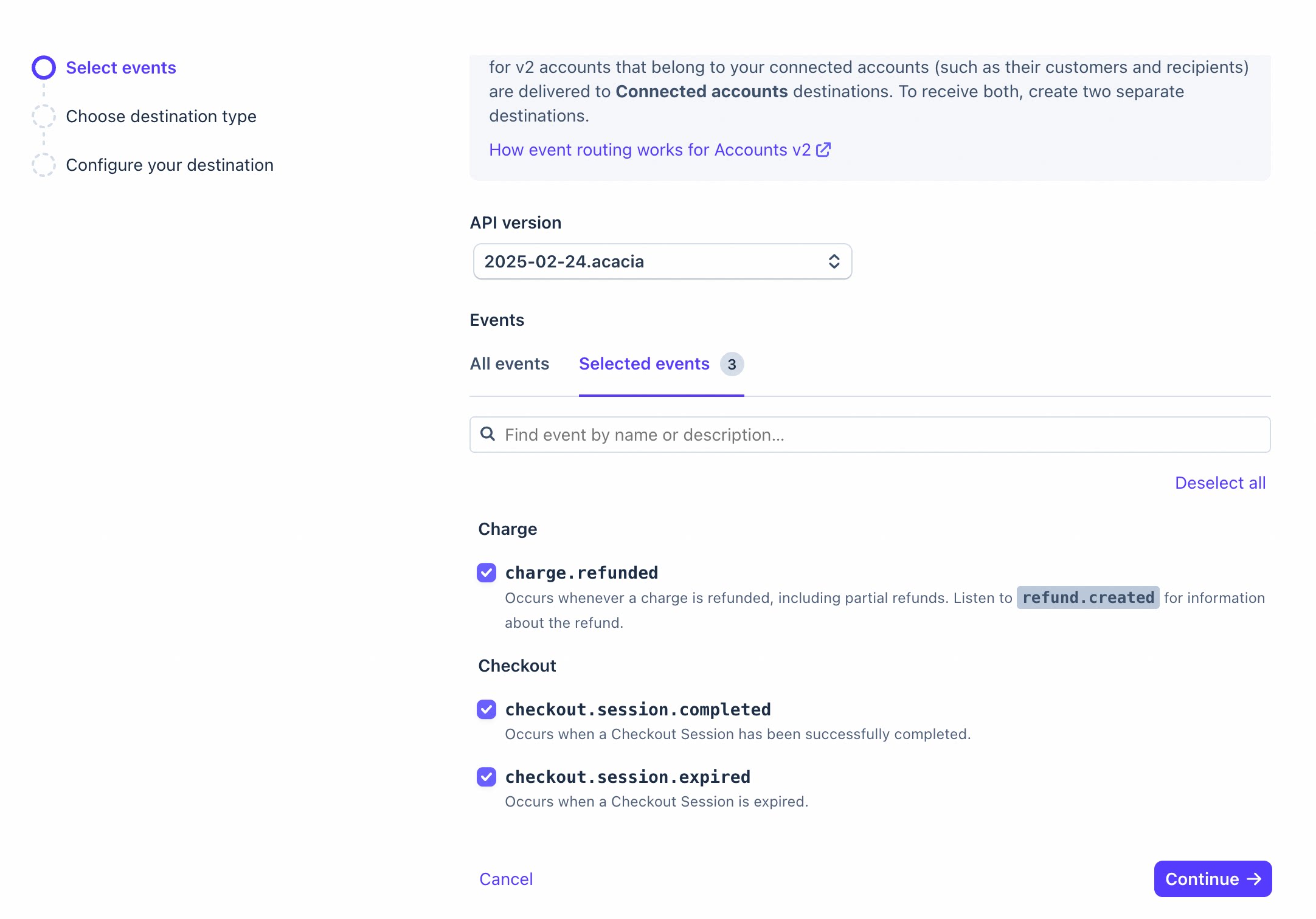
Select the events to listen to. Recommended minimum set:
-
checkout.session.completed -
checkout.session.expired -
charge.refunded
-
-
Choose destination type: Webhook Endpoint.
-
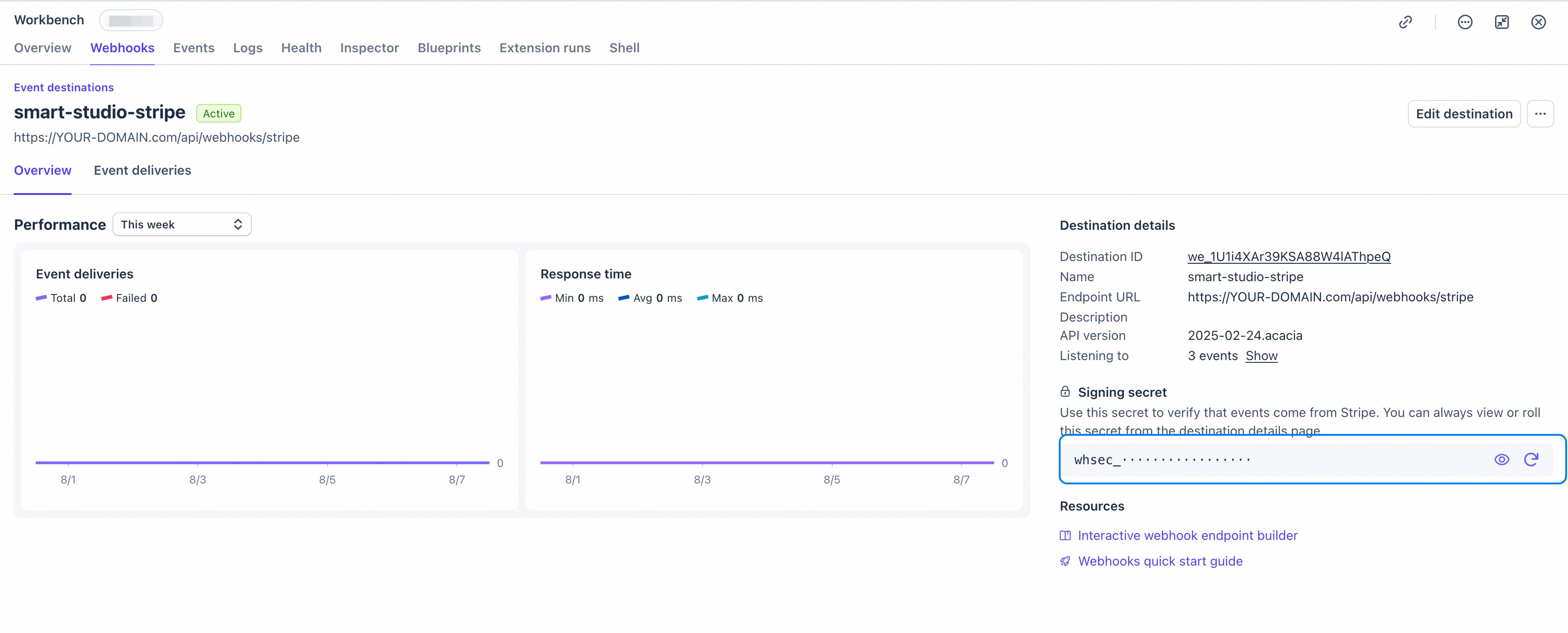
Enter you destination name and Endpoint URL (
https://YOUR-DOMAIN.com/api/webhooks/stripe)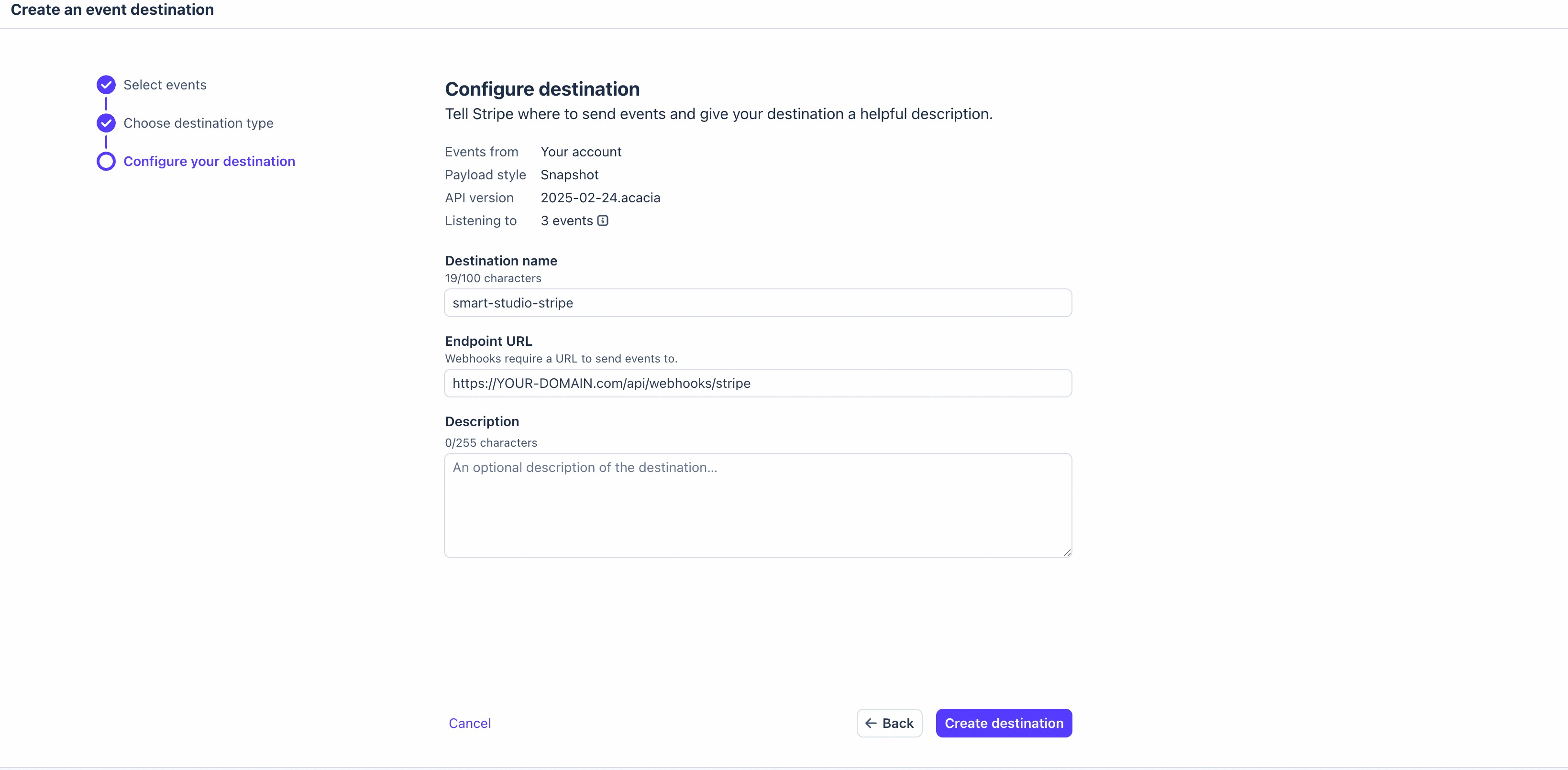
-
On the endpoint detail page, click Reveal next to Signing secret (starts with
whsec_). Copy it — it is required to verify webhook signatures.
Step 5: Configure the application
-
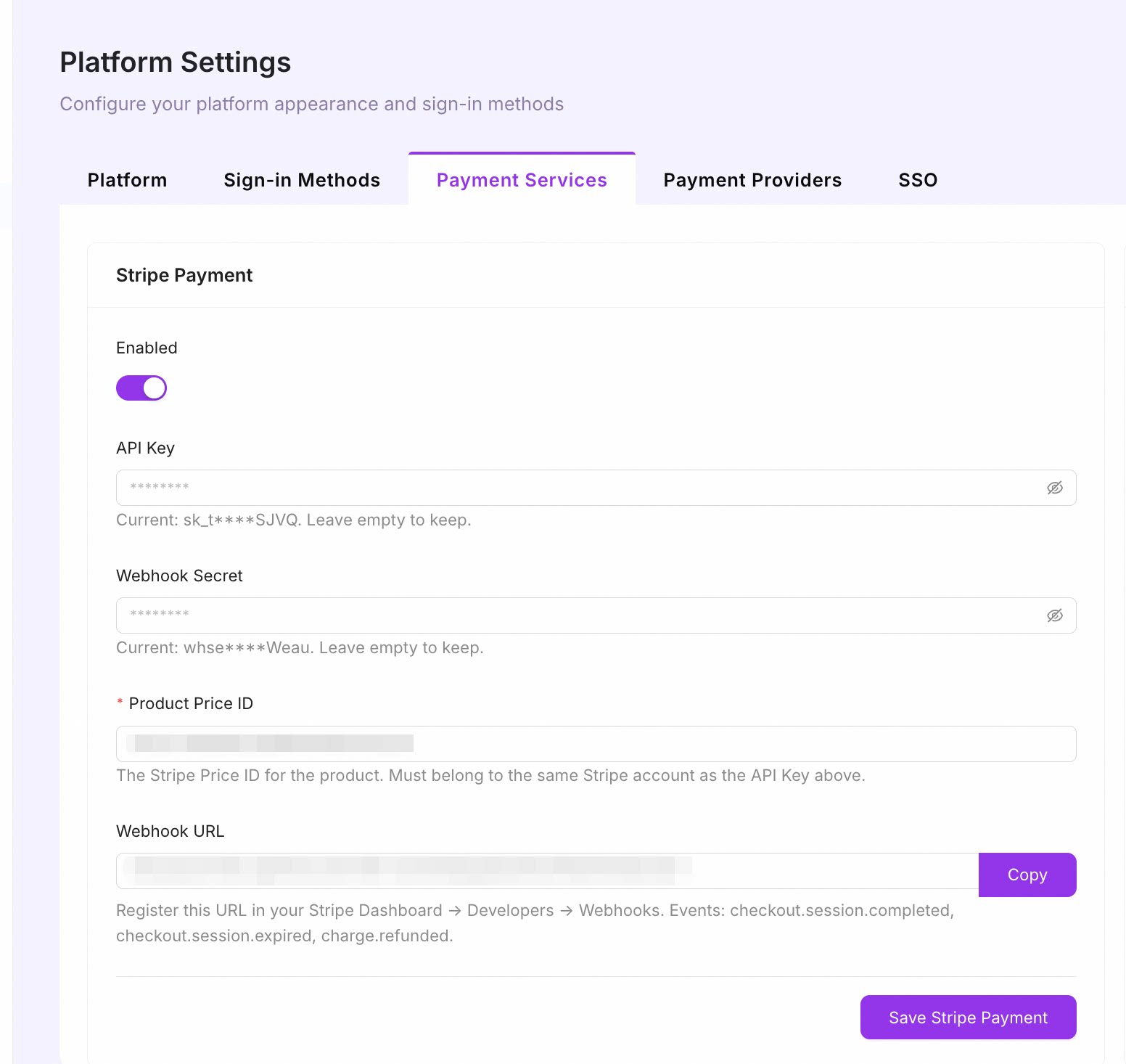
Navigate to Smart Studio Platform Settings → Payment Services → Stripe in your application (or edit environment variables / config):
-
API KEY= your secret key (Note: test mode starts withsk_test_, production mode starts withsk_live_) -
WEBHOOK_SECRET= your webhook signing secret (starts withwhsec_) -
Product Price ID= your product price id (starts withprice_) -
Webhook URL= your webhook url
-
-
Save the configuration.
Test cards
To test Stripe integration, use Stripe's test mode and test credit cards:
-
4242 4242 4242 4242 - Successful payment
-
4000 0000 0000 3220 - Requires 3D Secure authentication
-
4000 0000 0000 9995 - Insufficient funds failure
You can find more about Stripe test cards in the Stripe documentation.
Best practices
-
Protect API keys: Never expose your Stripe secret key in client-side code
-
Validate webhook signatures: Always verify the signature of webhook events
-
Handle errors gracefully: Provide user-friendly error messages when payments fail
-
Test webhooks thoroughly: Ensure all webhook events are handled correctly
References
Tips
- Payment service webhook URLs must be publicly reachable; use the test button to verify connectivity.
- Always test payment flows in sandbox mode before enabling production keys.
- You can enable multiple payment gateways simultaneously.
Next Step
Continue with Payment Providers.