Pricing
The Pricing page allows administrators to manage model list prices and configurations for the platform. It provides a comprehensive view of all available models, their pricing tiers, and resale status—controlling which models are visible to end customers and at what cost.
Access requires the Pricing permission and is hidden for system tenants (banSystem).
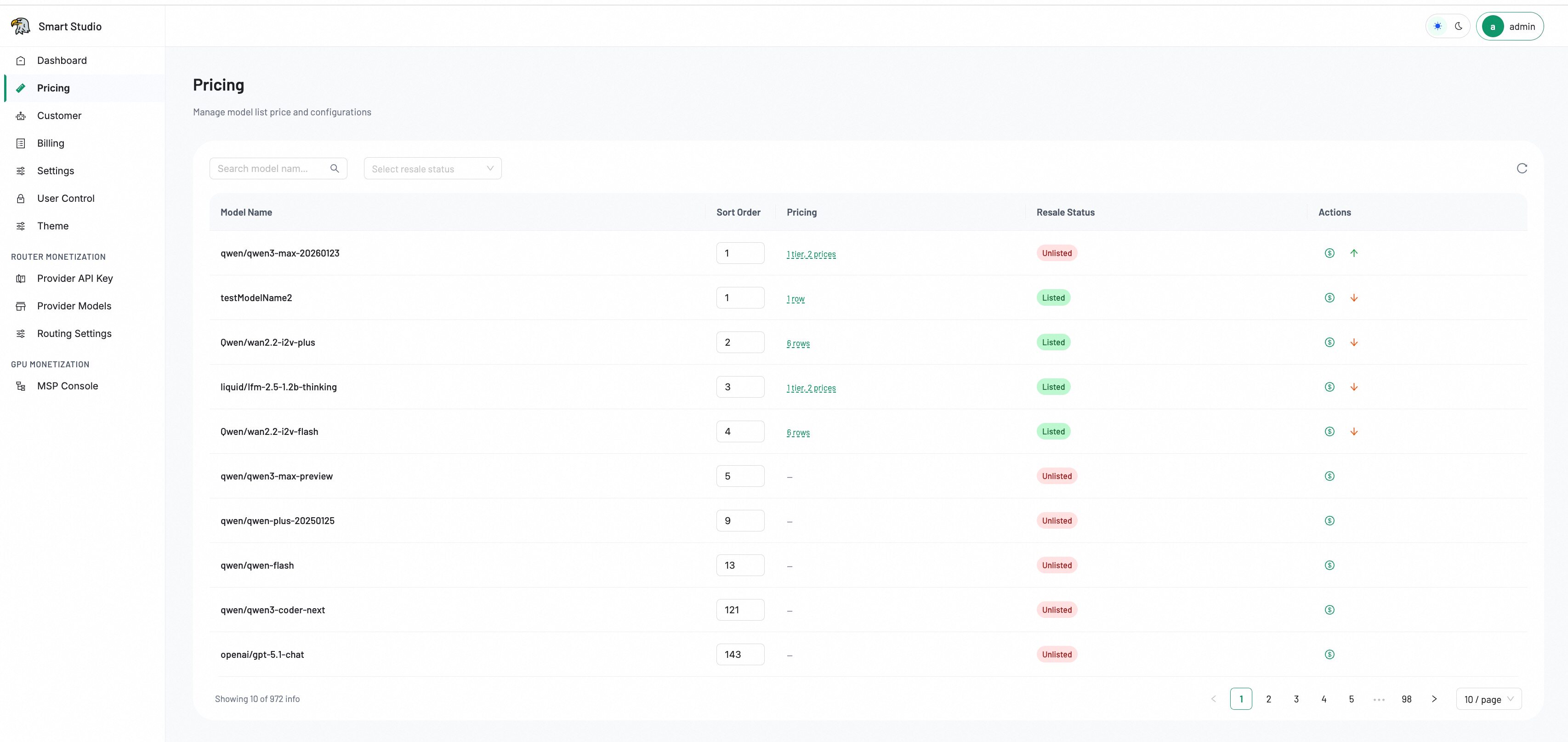
Overview
The Pricing page displays a searchable, filterable table of all models configured in the platform. The subtitle "Manage model list price and configurations" reflects the page's dual responsibility: setting prices and controlling model visibility.
Search and filters
Three filter controls at the top of the page help narrow the model list:
- Search model name — Free-text search to find a specific model by name.
- Select model type — Dropdown filter by model category (e.g., LLM, Audio, Image, Embedding).
- Select resale status — Filter by listing state (Listed or Unlisted).
Use the refresh icon on the right to reload the latest pricing data.
Table fields
| Column | Description |
|---|---|
| Model Name | The model identifier with its provider icon. |
| Sort Order | A numeric value that controls the model's display position in customer-facing catalogs. Edit the value inline to reorder; changes are saved in batch via the Save Changes button. |
| Pricing | The pricing configuration summary (e.g., "1 tier, 11 prices"). Click the link to view or edit price details. |
| Resale Status | Indicates whether the model is Listed (visible to customers) or Unlisted (hidden from the customer catalog). |
Each row also includes a pricing action icon (dollar sign) to quickly access the pricing configuration for that model.
Manage model pricing
View pricing details
- Locate the model in the table using the search or filter controls.
- Click the pricing link (e.g., "1 tier, 11 prices") in the Pricing column.
- Review the configured price tiers, units, and effective rates.
Update a model price
- Click the pricing link or the dollar icon for the target model.
- Modify the input/output token prices, tier thresholds, or discount factors.
- Save the changes and verify the updated pricing summary in the table.
Sort models
- Edit the numeric value in the Sort Order column for one or more models.
- When changes are staged, a Save Changes (N) button appears in the toolbar.
- Click the button to batch-save all modified sort orders in a single API call.
Change resale status
- Locate the model and check its current Resale Status.
- Toggle between Listed and Unlisted states:
- Listed (green badge) — The model is visible to customers in the API catalog and can be consumed.
- Unlisted (red badge) — The model is hidden from customers and cannot be selected for API calls.
- Confirm the status change takes effect immediately.
Before you start
- Identify whether the change applies to the platform catalog or one specific customer.
- Confirm the model, pricing units, effective price, and intended listing state.
- Record the existing value before making changes for audit purposes.
- Coordinate with customer-facing teams if changing a Listed model's pricing.
Supported automation
The current AdminClient exposes provider-model listing and pricing, price factors, user-model prices, listing state, and discounts. See Admin Pricing — TypeScript or Python.
Verify the result
Reopen the affected model's pricing configuration and confirm the saved value and listing state. For customer-specific pricing, verify through the customer's pricing view before exposing changes to production traffic.
Tips
- Models with no pricing configured (shown as "—") cannot be billed—set pricing before listing.
- Use the Unlisted status to stage new model pricing without customer visibility during testing.
- Multi-tier pricing allows volume discounts—configure higher tiers with lower per-unit costs to incentivize usage.
- Review pricing changes during low-traffic periods to minimize billing discrepancies.
Best practice
For end-to-end pricing workflows, see the following guides:
- Resell a Model API — Configure pricing for API reselling through Router Monetization.
- Monetize Your GPUs — Configure pricing for self-deployed GPU model services.
Next Step
Use Customer for customer ownership or Provider Models for the routed model catalog.