Provider Models
Provider Models defines the model catalog that Router Monetization can expose. The page requires the Provider Models permission and is hidden for system tenants (banSystem).
Before You Start
- Configure and test a matching Provider API Key.
- Obtain the exact upstream model name and endpoint.
- Confirm the model type and input/output capabilities supported by the provider.
Add a provider model
- Open Router Monetization → Provider Models.
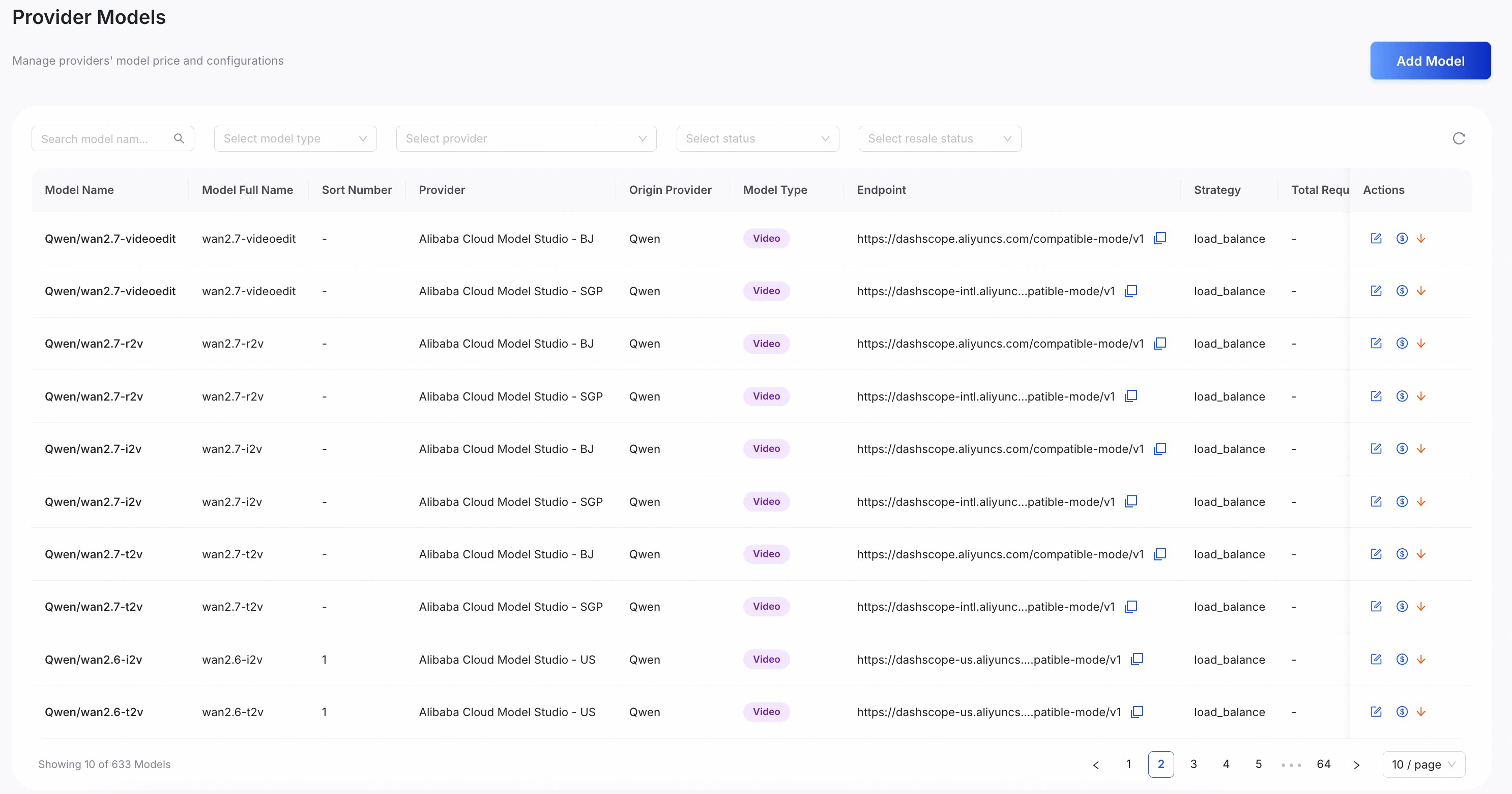
- Select Add Model.
- Complete the required fields:
| 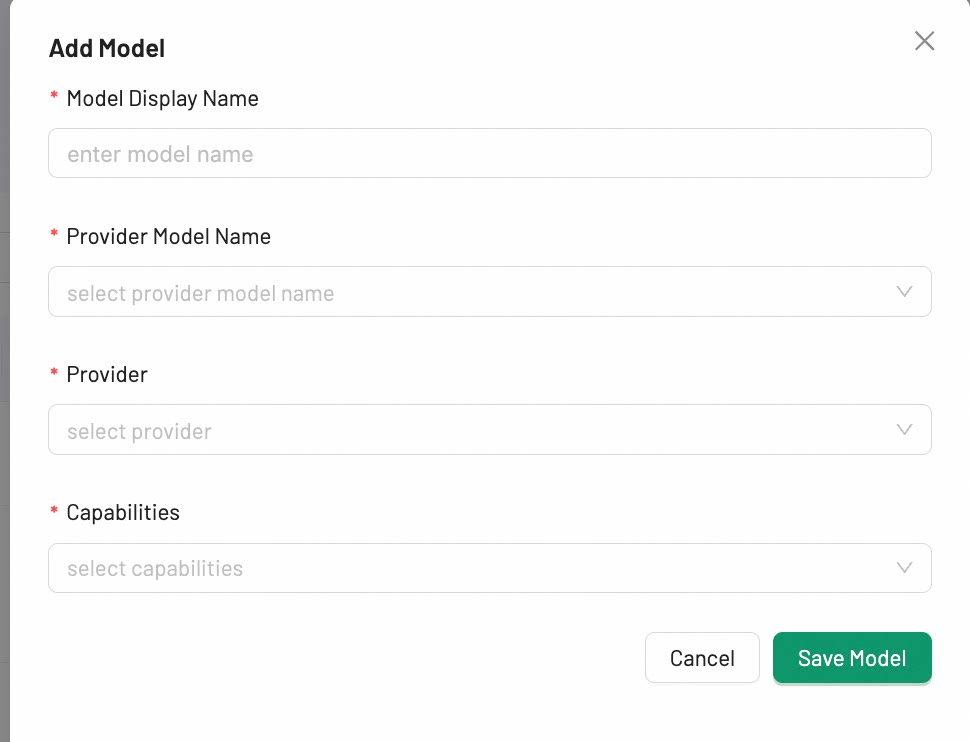 |
- Select Save Model. The model will now appear in the Provider Models list.
Define model costs
After adding a model, you must define its cost structure. This represents the price you pay to the upstream provider and is essential for profit tracking.
For most models, a single tier with a Context Range of 0 to ∞ (infinity) is sufficient. To create more complex pricing structures, such as charging different rates for larger contexts, click Add Tier.
Within each tier, fill in only the fields relevant to the model's capabilities.
|  |
You can refer to the official model pricing page for the exact cost.
After filling in the relevant cost fields, click Save. To make the model available for setting pricing and visible to customers, click List to list the model.
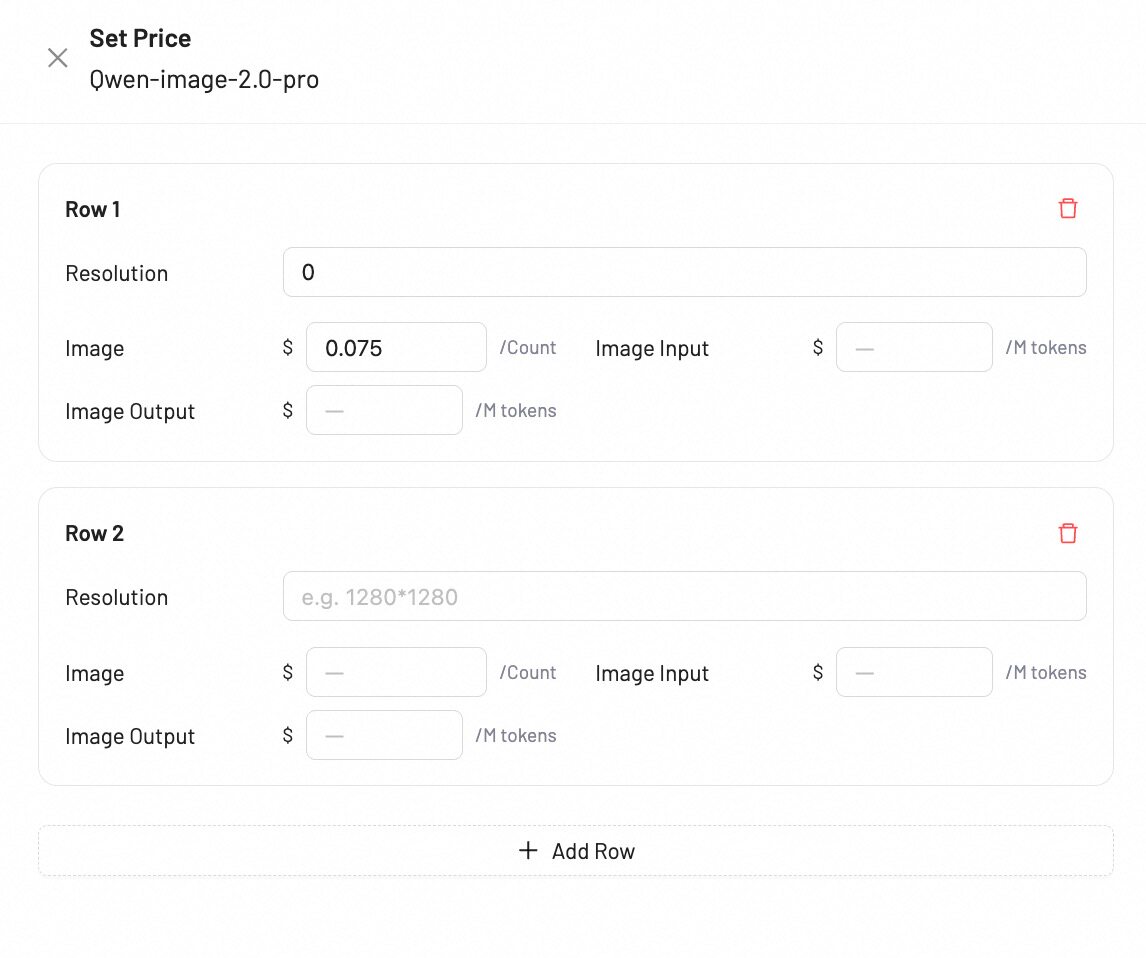
Image model pricing
For image generation models, pricing is configured per resolution tier. Each row represents a resolution level with its associated costs.
|  |
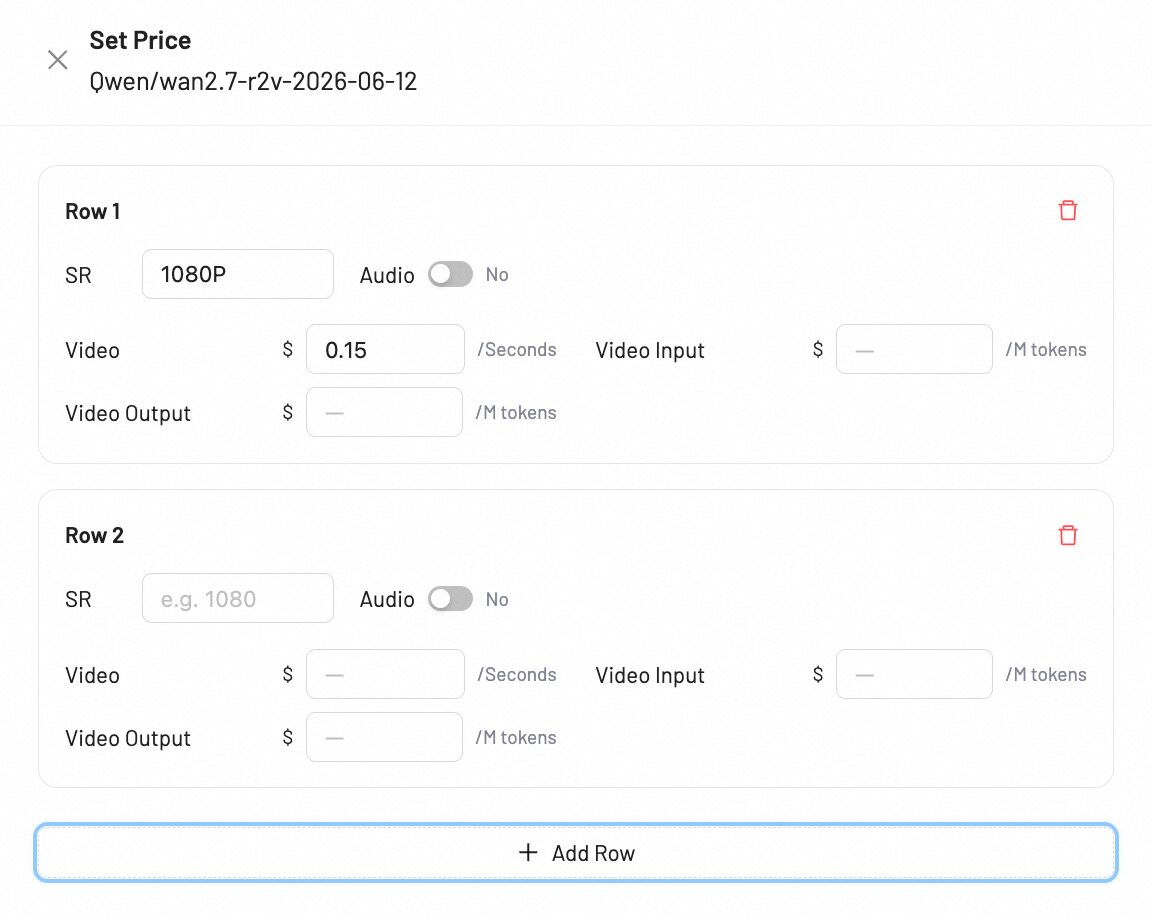
Video model pricing
For video generation models, pricing is configured per resolution tier. Each row represents a resolution level with its associated costs.
|  |
Verify the Result
The model appears in Provider Models with the expected provider, model ID, type, and capabilities. Edit the entry to correct mutable metadata; create a new entry if the immutable model ID is wrong.
Troubleshooting
- If the provider list is empty, configure a Provider API Key first.
- If the model cannot be saved, confirm every required field and use a numeric Sort value.
- If downstream routing cannot select the model, verify its endpoint, capabilities, and presence in the auto-routing pool.
Next Step
Set pricing for the model in Pricing.