Provider API Key
Provider API Key stores upstream BYOK credentials used by Router Monetization. The page requires the Provider API Key permission and is hidden for system tenants (banSystem).
Before You Start
- Obtain an upstream provider key with permission to call the models you plan to publish.
- Confirm the provider is available in this environment.
- Decide whether the key should start as Active or Inactive.
Configure a provider key
- Open Router Monetization → Provider API Key.
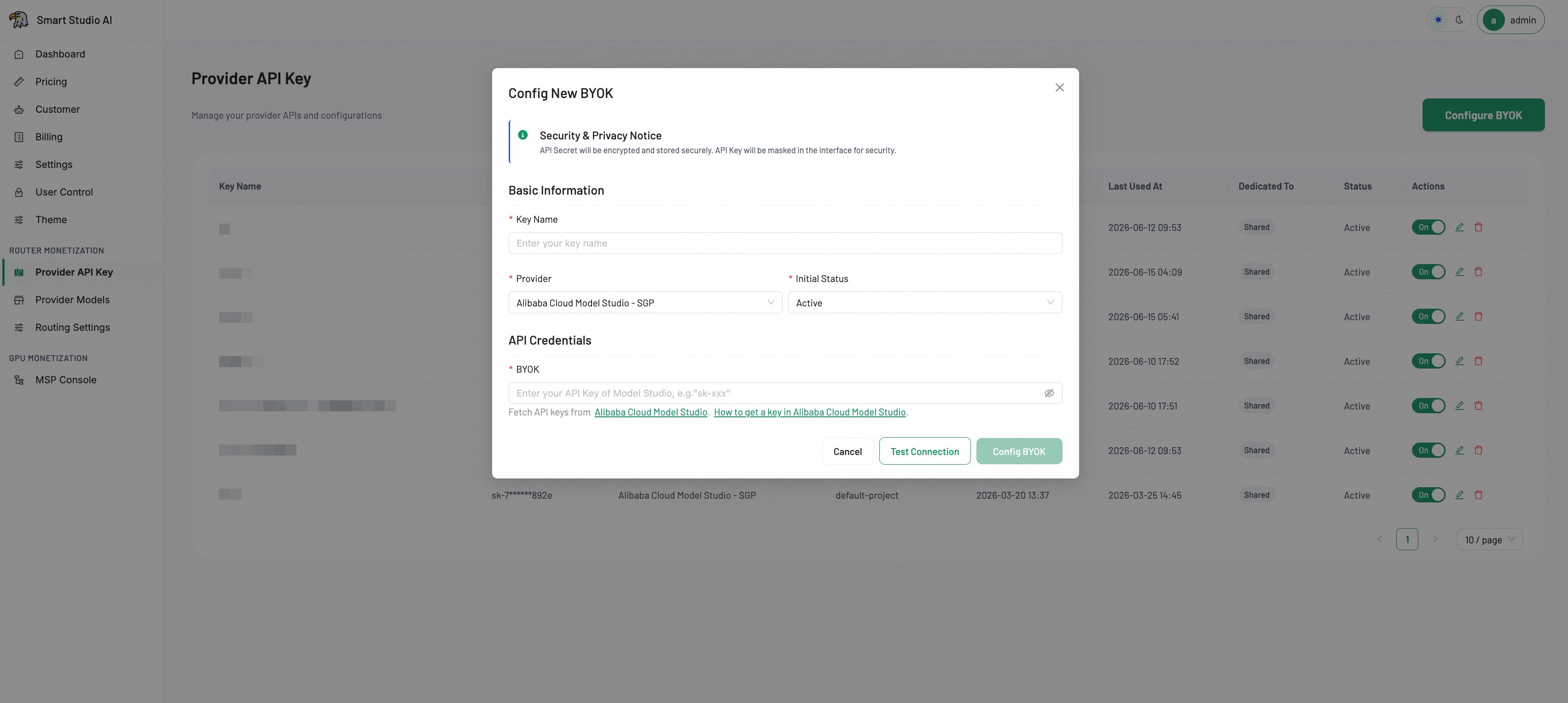
- Select Config New BYOK.
- Enter Key Name, choose Provider, and set Initial Status.
- Paste the credential into BYOK. Provider-specific format validation is applied; for example, OpenRouter keys must start with
sk-or-v1-. - Select Test Connection. The Config BYOK action remains unavailable until the test succeeds.
- Select Config BYOK and confirm that the new key appears in the list.
Protect provider credentials
Never paste a provider key into documentation, chat, screenshots, issue trackers, or logs. The Admin interface masks the stored value after configuration.
Edit BYOK
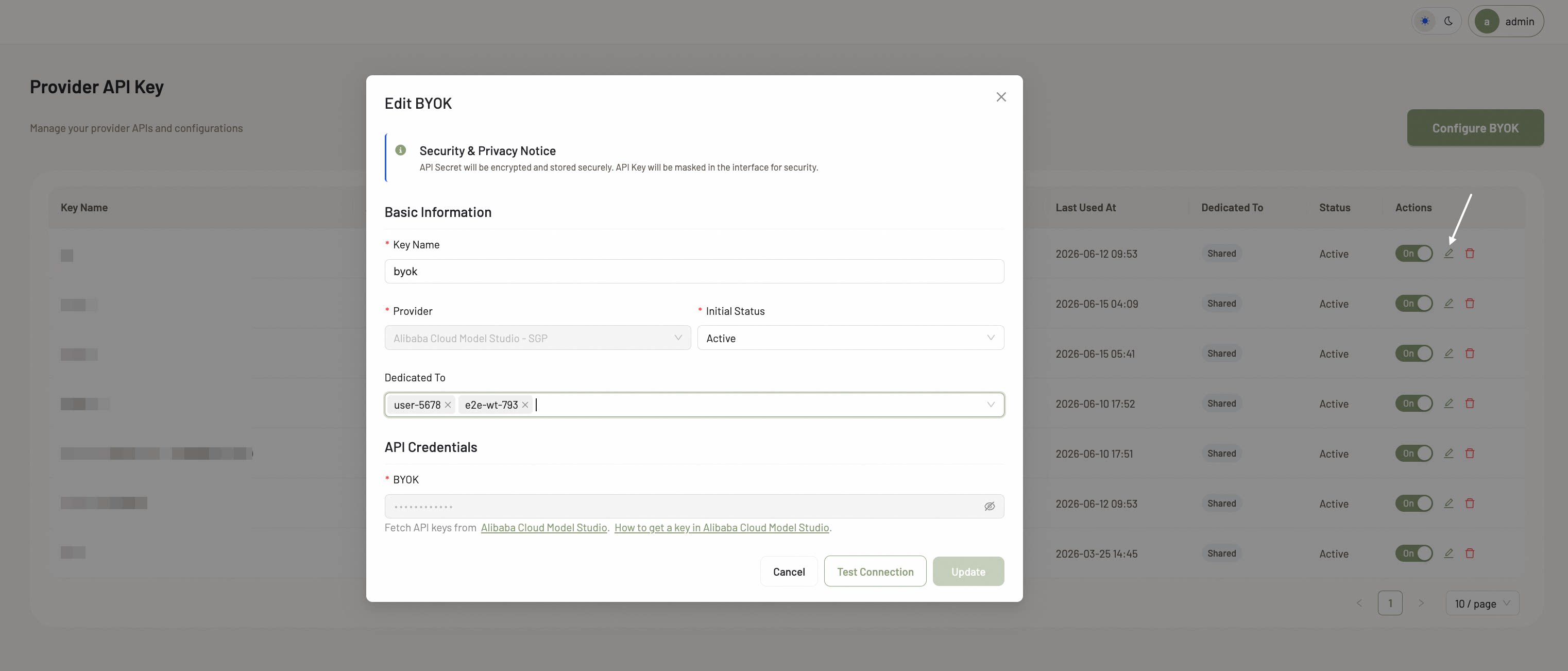
After creating a BYOK entry, you can edit its configuration at any time from the Provider API Key page.
- Key Name: Update the display name.
- Initial Status: Switch between Active and Inactive to enable or disable the key.
- Dedicated to: Specify which users are allowed to use this key. By default, the key is available to all users on your platform.
Verify the Result
- The connection test reports success.
- The key appears with the intended provider and status.
- A customer restriction is shown only when Dedicated To was configured.
Troubleshooting
- If a DashScope connection test fails, verify workspace and model permissions in Alibaba Cloud Model Studio.
- If an OpenRouter test fails, verify the key prefix and provider-side permissions.
- If Config BYOK remains disabled, test the current credential again after every credential change.
- Do not create a second key until the provider, credential format, and permissions have been checked.
Next Step
Continue to Provider Models, then add the published model to Routing Settings.