Customer Management
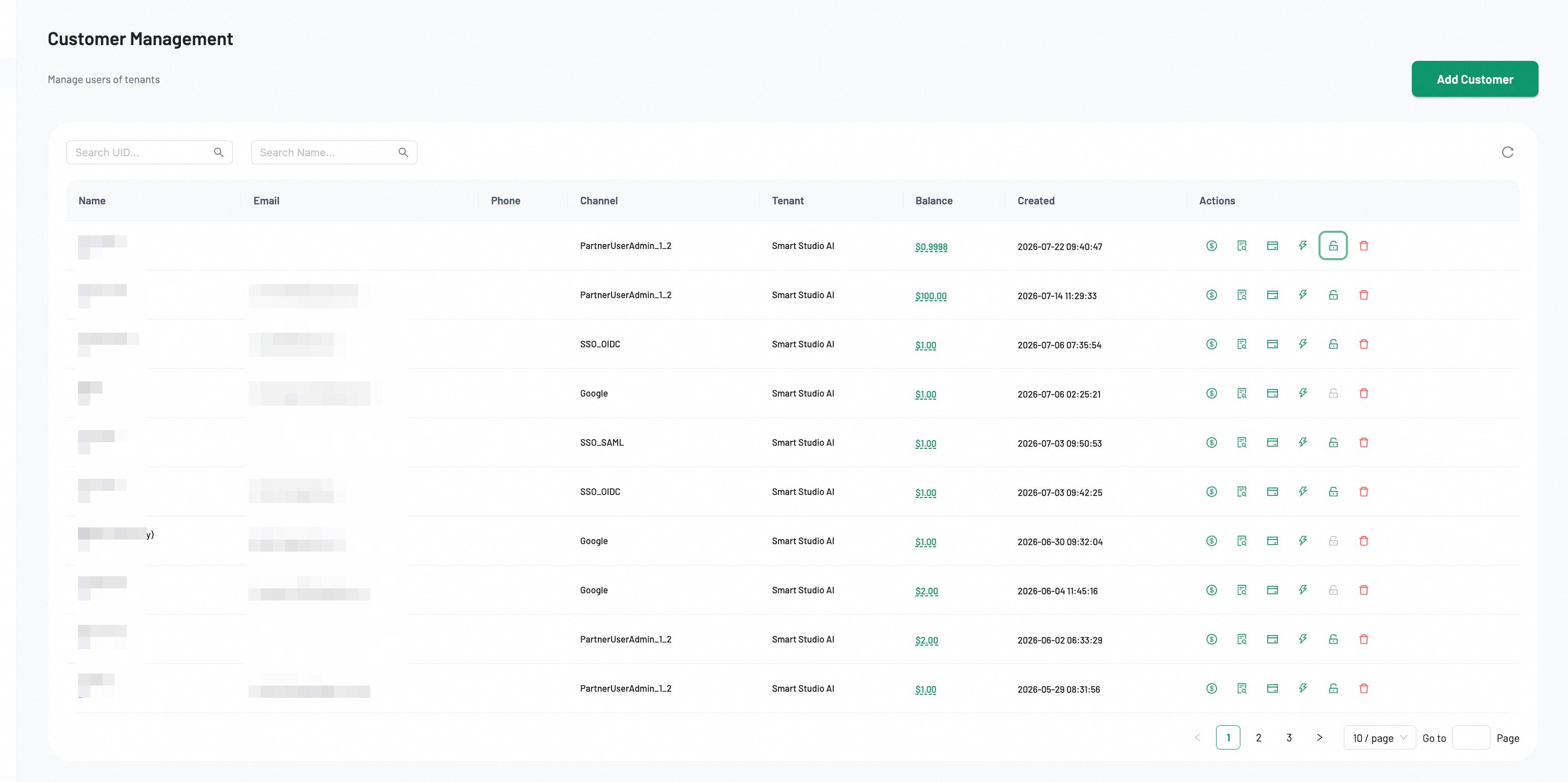
The Customer Management page provides a centralized view of all end-customer accounts registered under the current tenant. From here, administrators can create new customers, search existing records, review balances, and remove customers that are no longer active.
Access requires the Customer Management permission in the Admin panel.
Overview
Customer Management displays a paginated table of all registered customers. Each row represents a unique end-customer record with key identification and financial information. The subtitle "Manage users of tenants" indicates the scope—customers are always scoped to the active tenant context.
Before you start
- Confirm the customer identity and the tenant context you are operating in.
- Decide whether the task is customer creation, lookup, or removal.
- Review associated pricing, credits, rate limits, billing, and context requirements.
Use the refresh icon on the right to reload the latest data from the server.
Table fields
| Column | Description |
|---|---|
| Name | The customer display name and numeric UID shown below it. |
| The registered email address (may be empty for SSO-only accounts). | |
| Phone | The phone number associated with the customer, if provided. |
| Channel | The authentication channel used during registration (e.g., Google, SSO_OIDC, SSO_SAML, PartnerUserAdmin). |
| Tenant | The tenant this customer belongs to. |
| Balance | The current credit balance displayed in the tenant currency. A red balance indicates the account may be depleted. |
| Created | The timestamp when the customer account was created. |
Actions
Each customer row includes action buttons in the Actions column.
Discount price
Set per-model custom prices for a specific customer, overriding the platform standard. Use this for individual deals, volume discounts, or promotional pricing.
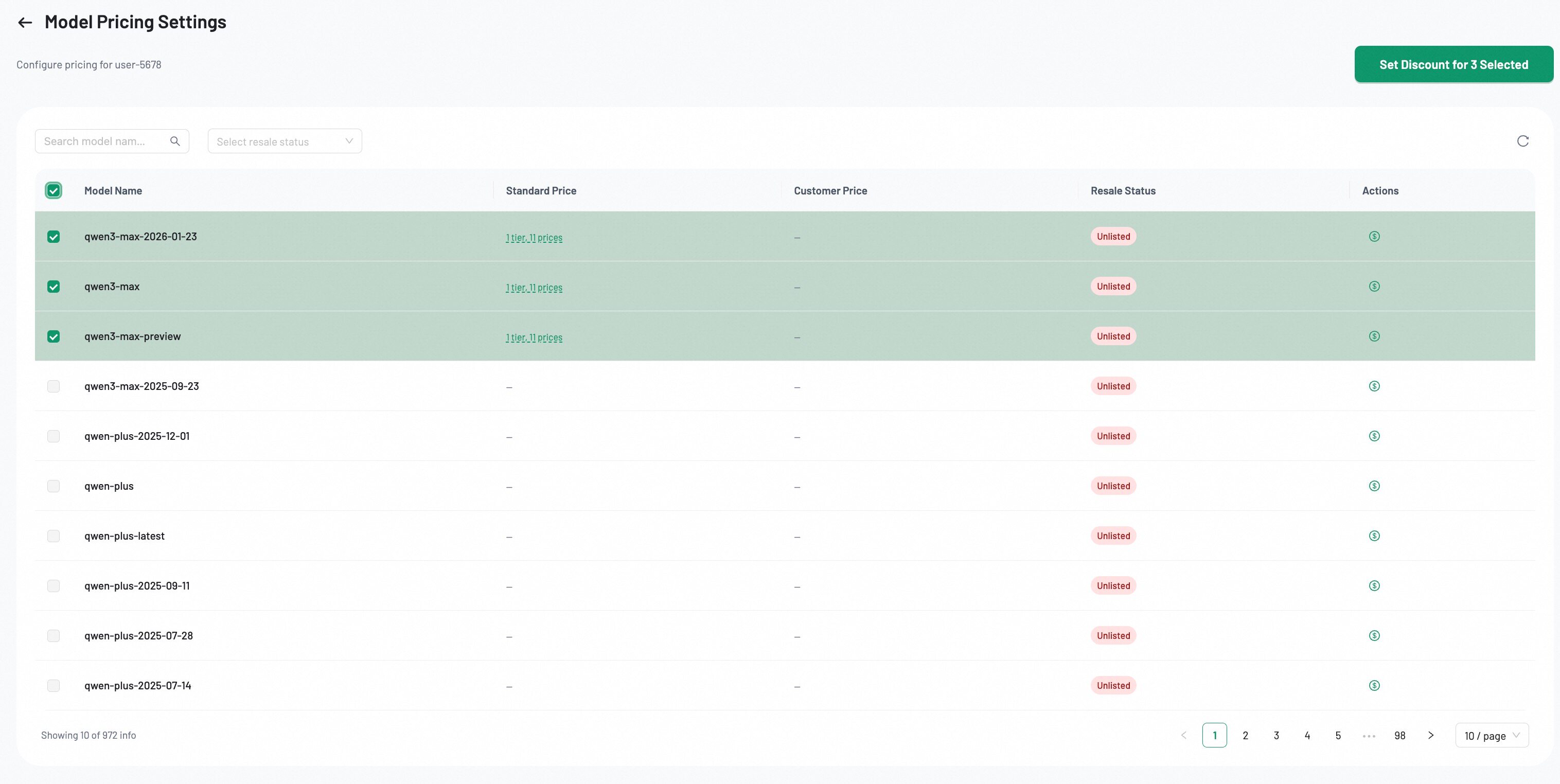
Set a custom price:
There are two methods for setting the price:
- Apply a Multiplier: Click Apply next to the Reference Prices. Enter a multiplier in the dialog. For example,
0.8is a 20% discount. The system then calculates and populates the price fields.
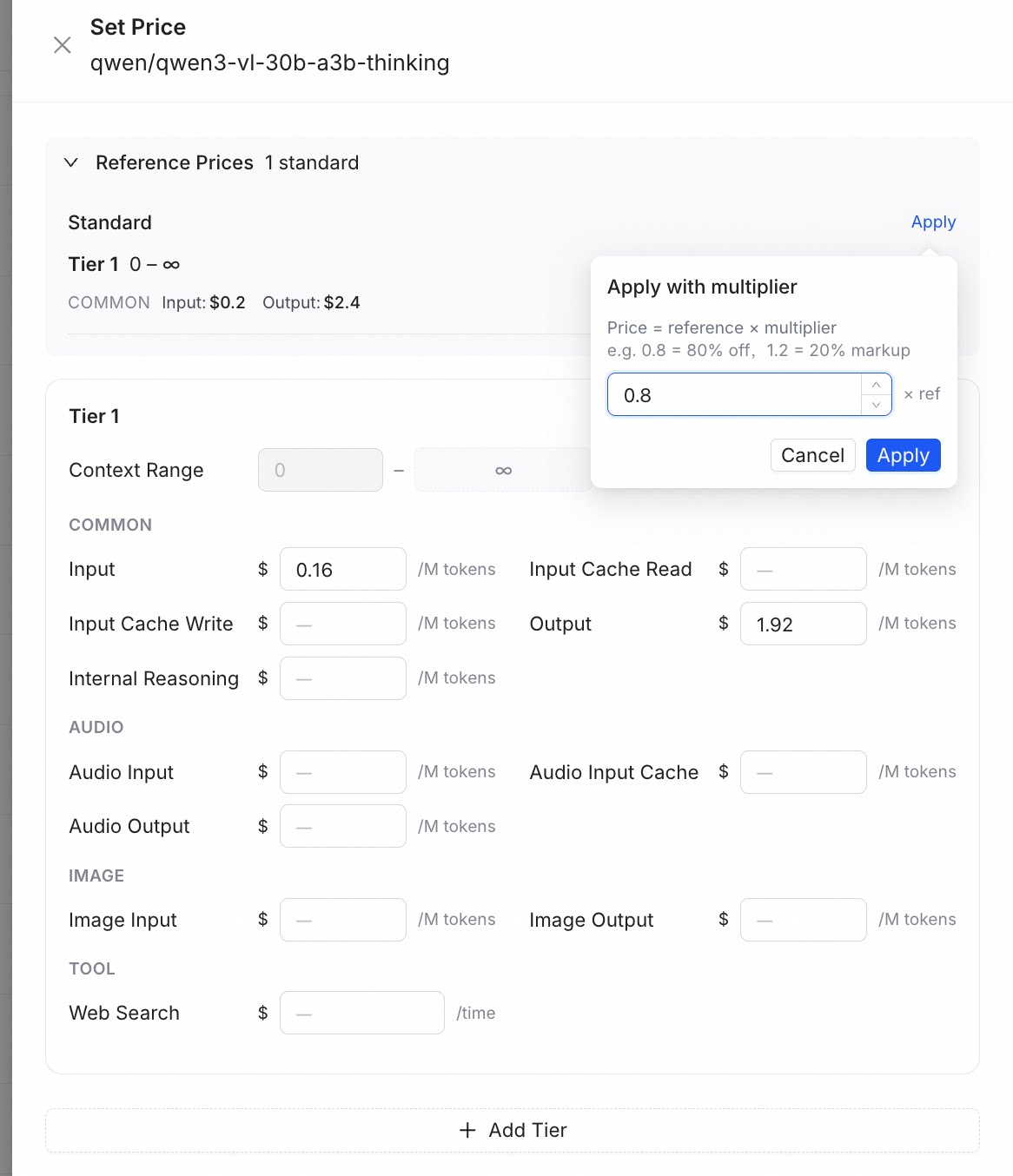
- Manual Entry: Enter your prices directly into the Input and Output fields. This method offers maximum flexibility.
After saving your price, click the List button to make sure the custom discount is active for this customer.
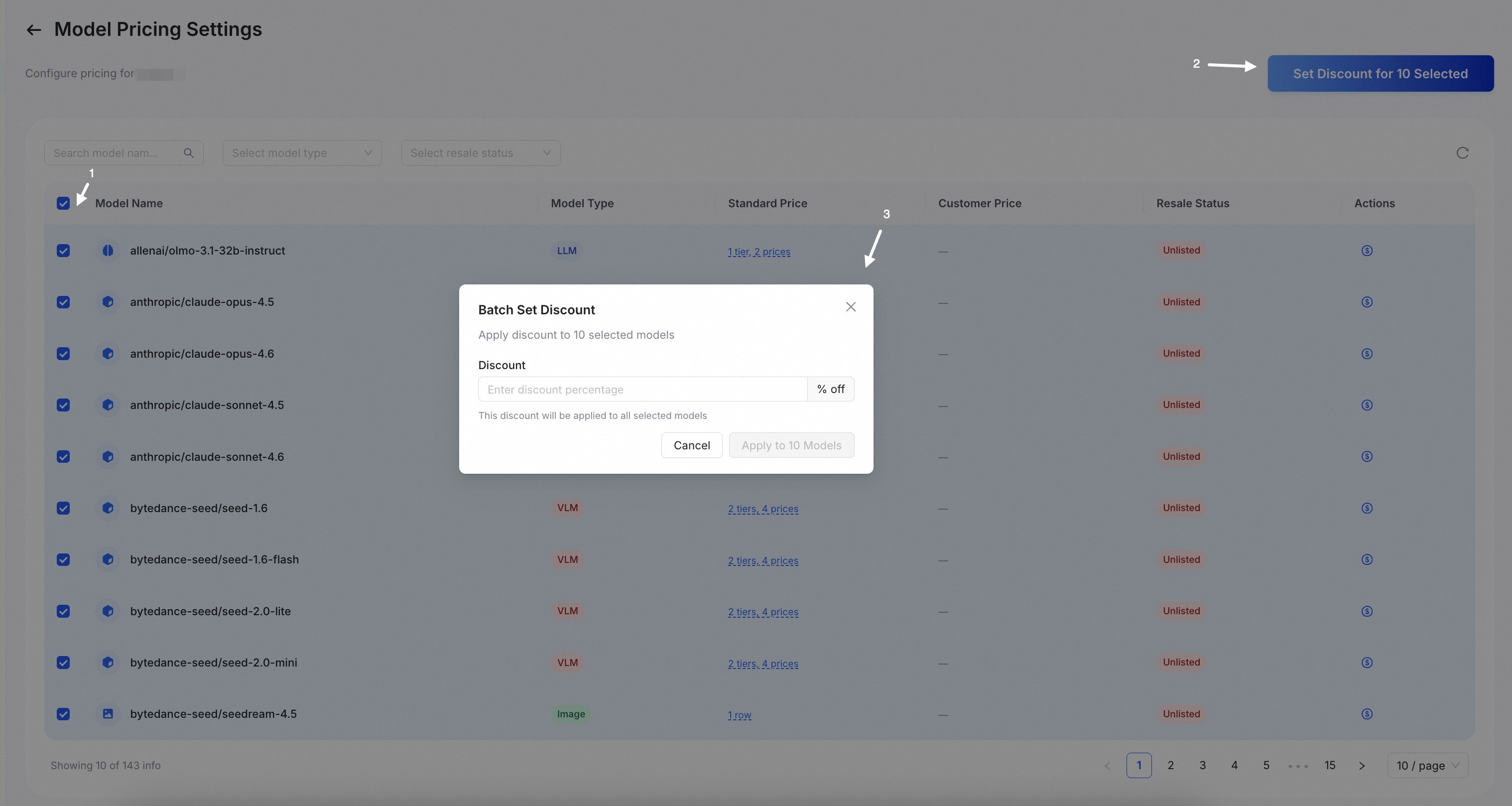
Batch Discounting:
If you want to apply the same discount to many models at once, select the models in the list, enter the discount percentage (e.g., 20 for 20% off), and the system will update all selected models' prices in one step.
Context record
Capture gateway request/response bodies for a customer's API traffic. Use this for debugging integration issues, auditing API usage, or investigating billing disputes.
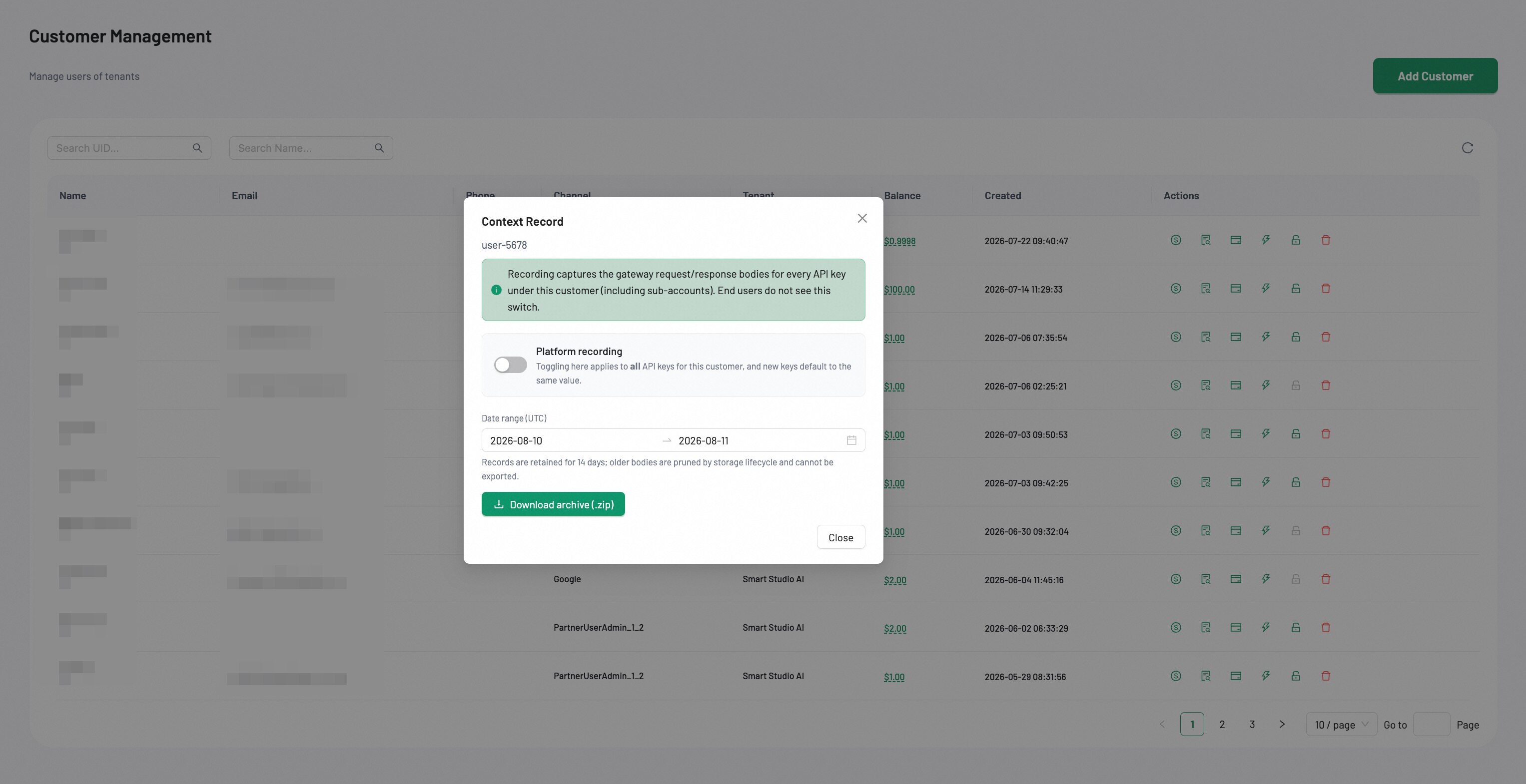
This modal provides two capabilities:
- Platform recording — Toggle to enable or disable gateway request/response recording for all API keys under this customer. New keys inherit the same setting. End users cannot see this switch.
- Download archive — Select a UTC date range and click Download archive (.zip) to export recorded bodies. Records older than the retention period are pruned and cannot be exported.
Note: This action requires Full Access permission for Customer Management.
Credits
Grant free credits to a customer for promotions, trial periods, or service compensation.
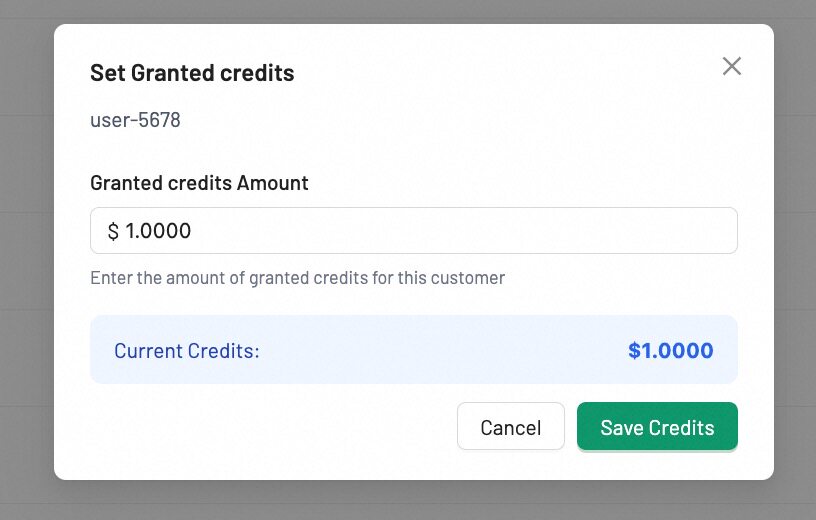
- Enter the credit amount to grant.
- Click Save Credits.
The current balance is displayed below the input. Credits take effect immediately.
Rate limit
Cap the tokens-per-minute (TPM) throughput for a customer to protect platform stability and enforce tier-based service agreements.
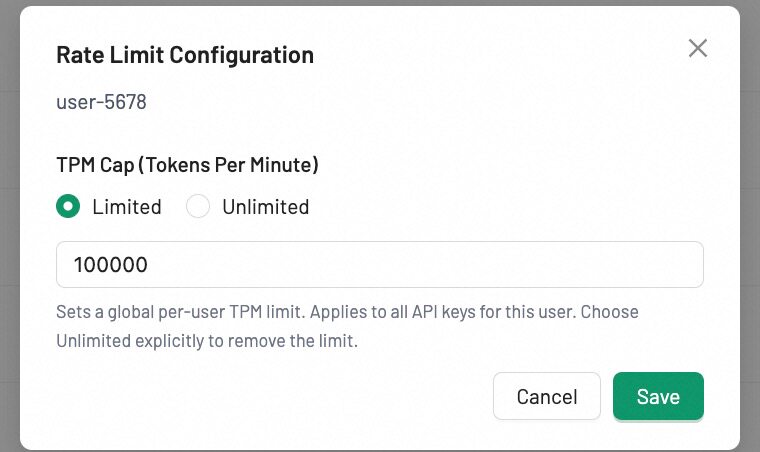
Set a global per-customer TPM (Tokens Per Minute) cap:
- Limited — Enter a numeric TPM value. Requests that exceed this limit are throttled.
- Unlimited — Removes the TPM cap entirely.
The cap applies to all API keys for this customer.
Reset password
Reset a customer's password when they are locked out or need credentials rotated.
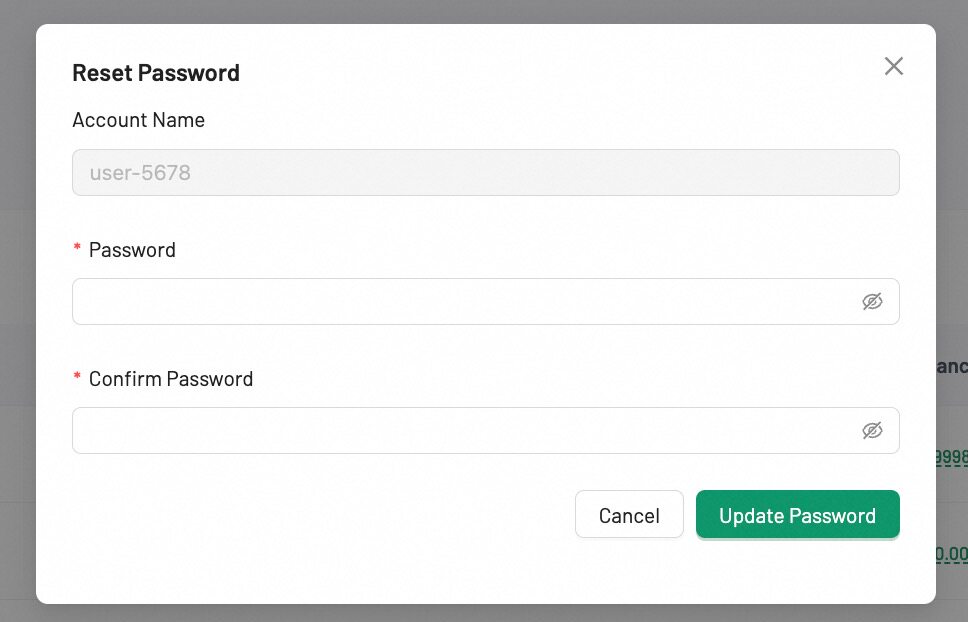
- Enter and confirm the new password.
- Click Save.
Note: This button is disabled for customers registered through third-party SSO channels (e.g., GitHub, Google). Their authentication is managed by the external provider.
Delete user
Remove a customer that is no longer active or was created in error.
Deleting a customer is irreversible. All associated billing history, credit records, and API key mappings are permanently removed.
Supported automation
AdminClient.customer supports listing, creating, and deleting end customers. See Admin Customer — TypeScript or Python.
Verify the result
Search the customer list after the operation. For creation, use the unique customer identity returned or discover it through the documented list operation. For deletion, confirm the customer no longer appears in search results.
Tips
- Use the Channel column to quickly identify how customers authenticate—this helps when diagnosing login issues.
- Customers with a $0.00 or red balance cannot make API calls unless billing is configured to allow post-paid usage.
- The numeric UID below each customer name is the stable identifier used in API calls and SDK methods.
- Export customer data periodically for reconciliation with external billing systems.
Next Step
Continue to Pricing, Billing, or the AdminClient Credits and Rate Limit references for customer-specific controls.