Audio
Use Labs → Audio to test the audio models available to your tenant. The Audio Lab provides an interactive interface for experimenting with text-to-speech (TTS), speech-to-text (STT), and other audio-capable models without writing any code. The page supports the input and output capabilities declared by the selected model.
Overview
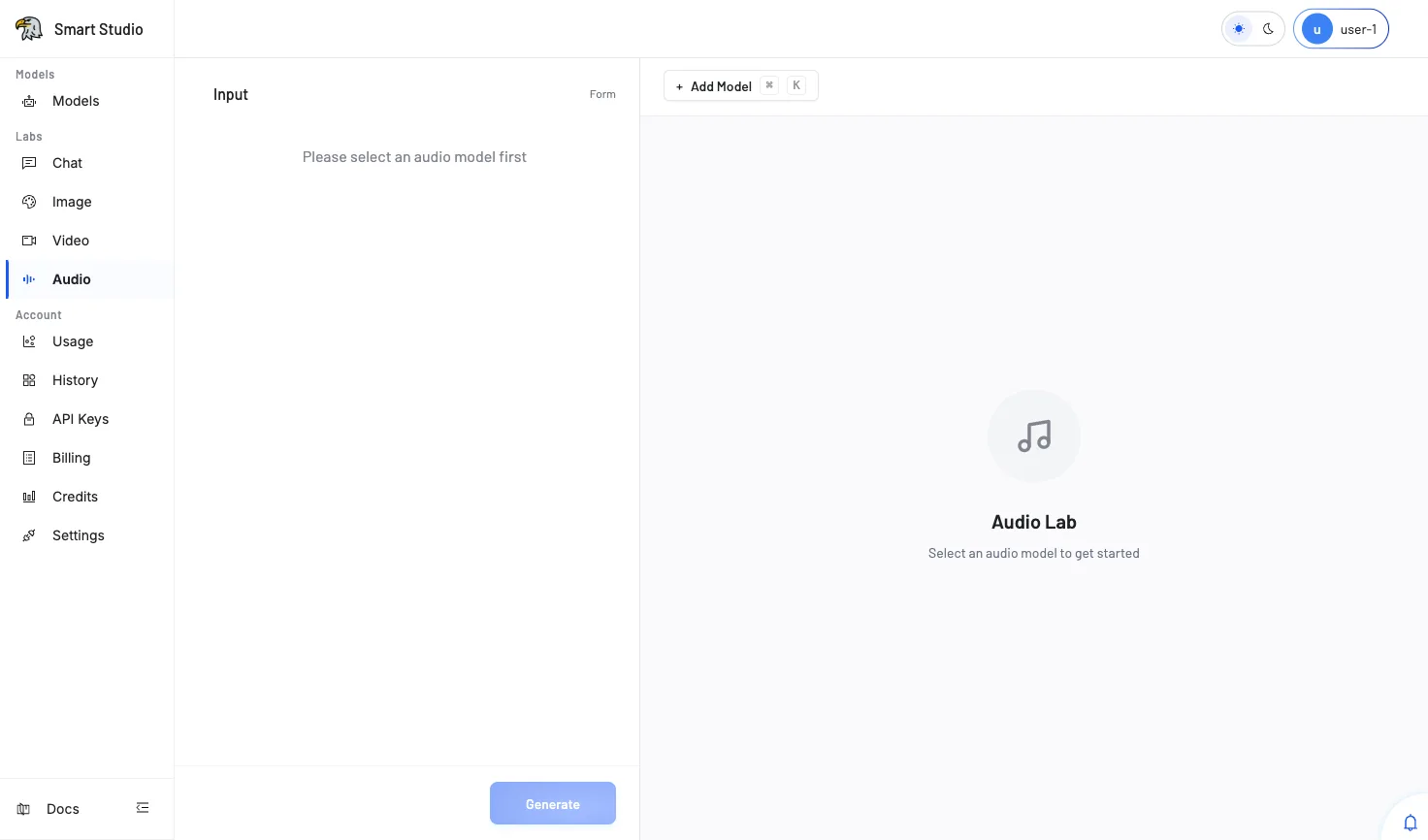
The Audio Lab interface consists of:
- Model Selector — A dropdown to choose from audio-capable models available in your tenant's model catalog.
- Configuration Panel — Dynamic input fields that adapt based on the selected model's schema and capabilities.
- Output Area — Displays or plays the generated audio result after processing.
The available models and their capabilities depend on your tenant's configuration and the provider models that have been enabled by the administrator.
Before You Start
- Confirm that an audio-capable model appears in your Models catalog.
- Ensure you have enough Credits or billing capacity for the generation request.
- Prepare the text or audio input required by the selected model.
- Check the model documentation for any specific input format requirements (e.g., character limits, supported audio formats).
Test an Audio Model
- Open Labs → Audio from the console navigation.
- Select an audio model from the model dropdown. The available options depend on your tenant's provisioned models.
- Complete the required fields shown in the configuration panel. Available fields are dynamically generated from the model's input schema.
- Adjust optional parameters if available (e.g., voice style, speed, language).
- Click Generate to submit the request.
- Review the output in the result area. For TTS models, an audio player will appear. For transcription models, the text output is displayed.
Supported Audio Capabilities
Depending on the model, the Audio Lab may support:
| Capability | Description |
|---|---|
| Text-to-Speech (TTS) | Convert text input into spoken audio with configurable voice parameters. |
| Speech-to-Text (STT) | Transcribe uploaded audio files into text. |
| Audio Generation | Generate music, sound effects, or other audio content from text prompts. |
| Voice Cloning | Produce speech in a specific voice style based on reference audio samples. |
Verify the Result
A successful generation completes without validation errors, spend-limit warnings, or billing-overdue messages. The output appears in the designated result area—either as a playable audio file or as transcribed text.
Troubleshooting
- If no models appear in the dropdown, return to Models and verify that an audio-capable model is available to your tenant.
- If required fields show validation errors, use the field names and accepted values shown by the model schema.
- If generation fails with a billing error, review Credits and Billing to ensure sufficient balance.
- If the output quality is unexpected, experiment with different parameter values or try an alternative audio model.
Tips
- Start with short text inputs when testing TTS models to minimize credit consumption during experimentation.
- Some models support multiple languages—check the model description for supported locales.
- Use the Audio Lab to validate model behavior before integrating into production applications via the API.
- Generated audio may be subject to usage policies—review the model provider's terms for commercial use rights.
Next Step
Use API Overview to identify the documented integration path for the audio capability you tested. For other model types, explore the Chat or Image labs.