Video Models
Model Lab's Video Mode lets you explore and compare video generation models in one place. Switch between Text-to-Video and Image-to-Video, and adjust parameters for each model to find the best fit for your use case.
Test Video Models
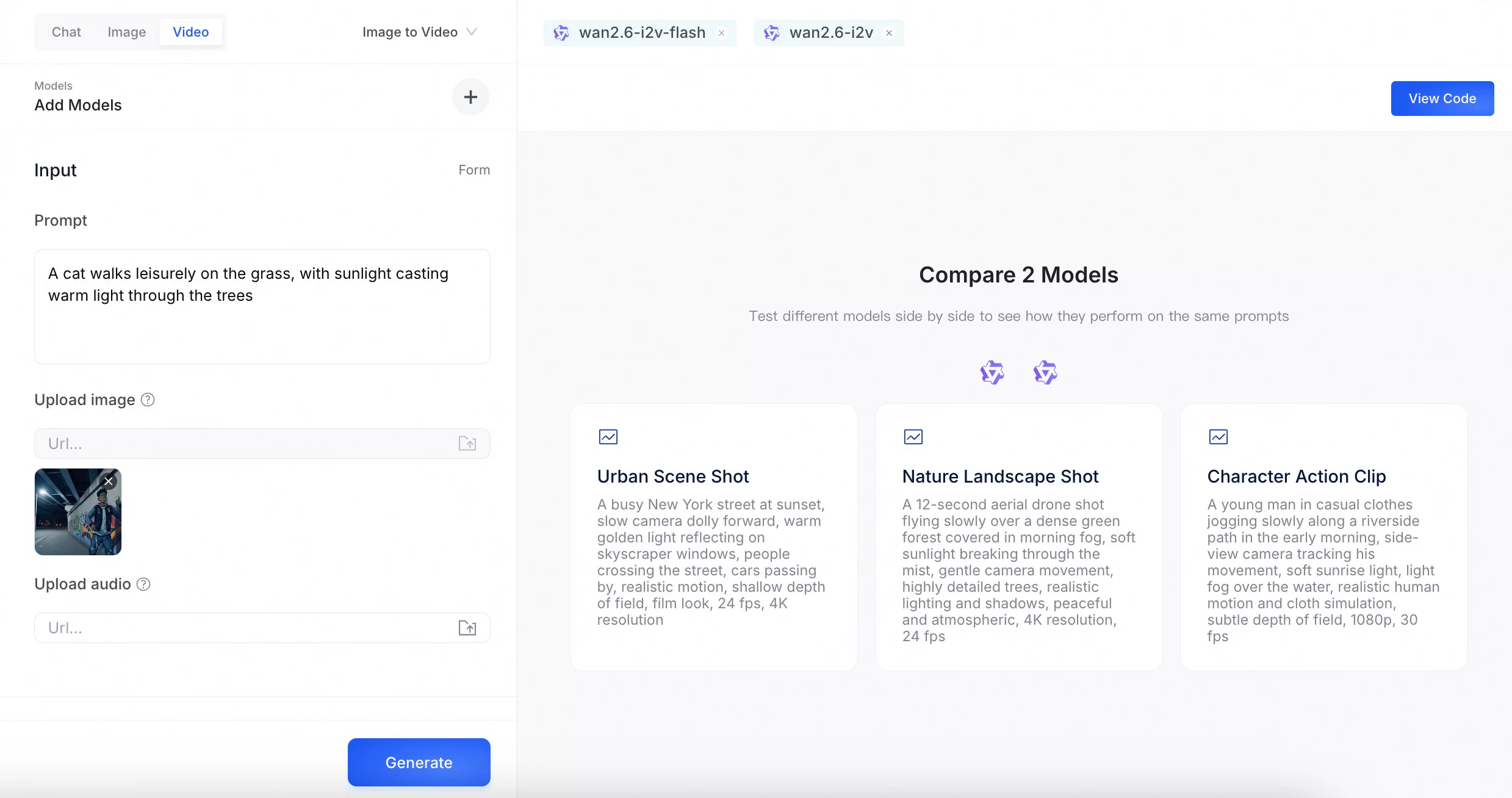
Follow these steps to generate videos and compare outputs:
-
Select a mode: Select Text-to-Video or Image-to-Video to get started.
-
Select models: Click Add Models to choose one or more models.
-
Configure generation: Enter your text prompt. In Image-to-Video mode, upload an image to use as the first frame. Certain models support additional media inputs such as audio and video. Optionally, select a model in the left panel to adjust its settings. Available options vary by mode. See Example Parameters for details.
-
Generate and compare: Click Generate to start the process. Once complete, review the outputs to compare video quality and style consistency across your selected models.
-
View code (Optional): Click View Code to instantly generate an API request script containing your exact prompts and parameter configurations.
Generation costs vary depending on your selected model, video resolution, and duration. For the same model, higher resolutions incur greater costs (1080P > 720P > 480P). Review Model pricing before running large-scale tests.
- Cost = Unit price (based on resolution) × Duration (seconds).
Example Parameters
Adjust these settings to generate new videos from text prompts.
| Parameter | Description |
|---|---|
| Negative Prompt | Defines specific elements, styles, or subjects to exclude from the generated image. Supports up to 500 characters in English and Chinese (excess characters are truncated). Example: low resolution, low quality, deformed limbs, chaotic composition. |
| Duration | The length of the generated video in seconds. Supported values vary by model. Some models offer fixed durations; others allow a custom value from 2 to 15 seconds. |
| Size | The output resolution (width × height). Supported values vary by model. |
| Shot Type | The narrative structure of the generated video. Select Multi to enable multi-shot narrative mode, generating videos across multiple connected scenes. |
| Seed | Sets the random seed for image generation (0 to 2147483647). Leave blank to use a random seed. |
| Watermark | Adds a visible watermark to the bottom-right corner of the generated video. |
| Prompt Extend | Automatically refines and expands your positive prompt to improve generation quality. This feature does not affect the negative prompt. |
The parameters listed here are examples for reference only. Available parameters vary by model. For the full parameter list, refer to the API documentation for your specific model.