Configure Auto Routing
Auto Routing lets an application send model="auto" so Smart Studio can select an available model from the administrator-managed pool. Tenant Settings can further allow or exclude models from that pool.
Before You Start
- Confirm that an administrator has enabled models in the Auto Routing Model Pool.
- Use an API key whose Allowed Models includes
auto, or leave the allowlist unrestricted. - Decide whether an allowlist or blocklist is safer for the application. The two modes are mutually exclusive.
Test the Current Pool
Use the current environment values and a protected API key:
curl "$SMART_STUDIO_BASE_URL/v1/chat/completions" \
  -H "Authorization: Bearer $SMART_STUDIO_API_KEY" \
  -H "Content-Type: application/json" \
  -d '{"model":"auto","messages":[{"role":"user","content":"Hello"}]}'
The response identifies the model selected by the router.
Configure Candidate Models
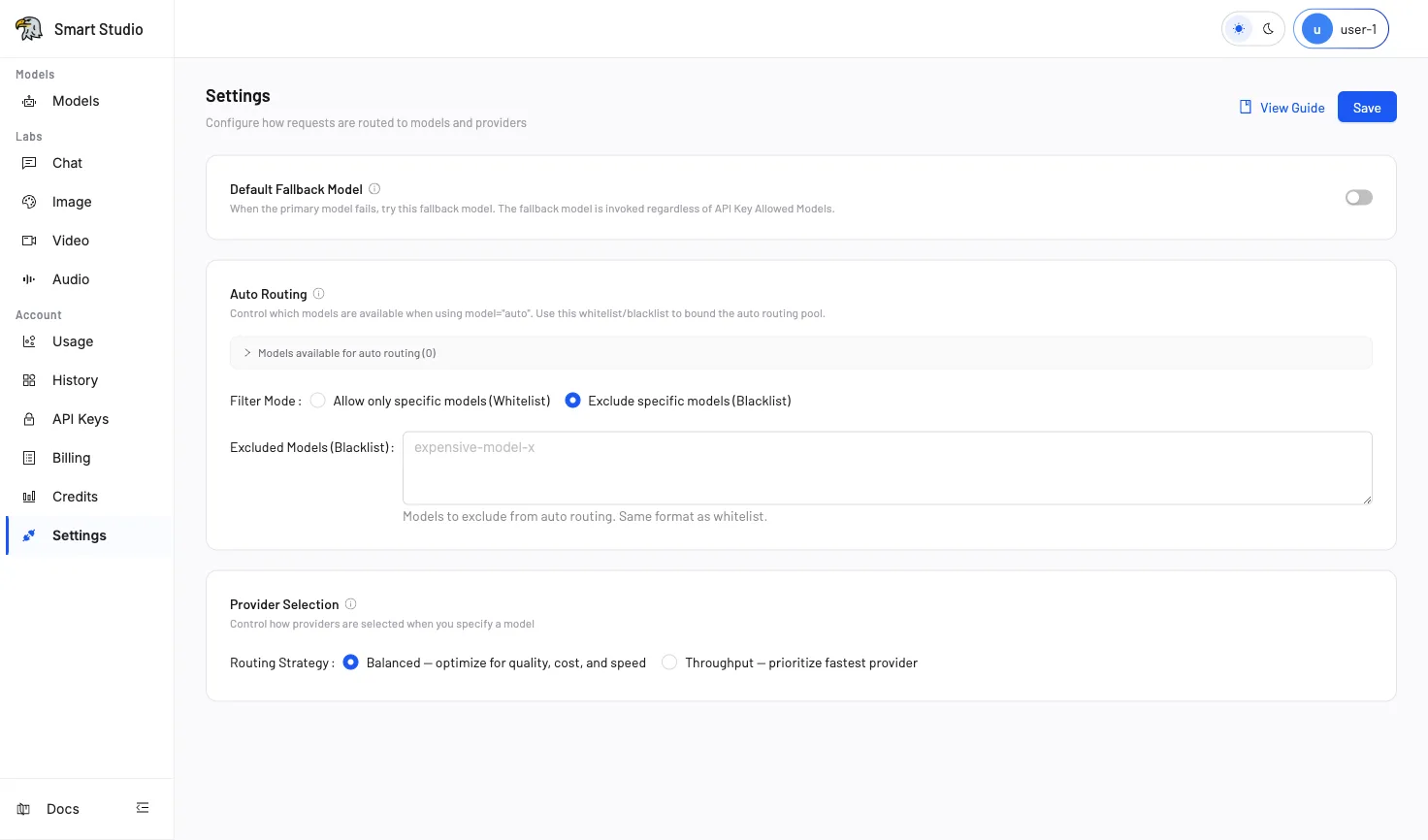
- Open Account → Settings (in your deployed Console).
- In Auto Routing, expand Models available for auto routing to review the current administrator-managed pool.
- Choose one filter mode:
- Allow only specific models (Whitelist) limits selection to the listed model patterns.
- Exclude specific models (Blacklist) removes the listed model patterns from consideration.
- Enter comma-separated model IDs or supported wildcard patterns.
- Select Save.
Changing filter mode clears the opposite list so an old allowlist and blocklist cannot apply together.
Verify the Result
- Send a controlled request with
model="auto". - Confirm that the returned model satisfies the configured filter.
- Open History and inspect the selected model and provider.
- Review Usage before expanding the policy to production traffic.
Troubleshooting
autois rejected: addautoto the API key's Allowed Models or use an unrestricted key approved for the test.- No model is selected: confirm that the administrator-managed pool is not empty and that the Tenant filter does not exclude every candidate.
- An unexpected model is selected: check wildcard patterns and whether the active filter mode is Whitelist or Blacklist.
- A specific provider is unexpected: review Provider Selection; Auto Routing chooses the model before provider selection is applied.
Next Step
Configure Provider Selection when a model has multiple providers, or Default Fallback for recovery from failed direct-model requests.