Direct Preference optimization (DPO)
Learn how to align large language models with human preferences using Direct Preference Optimization (DPO) with preference datasets in MSP.
Purpose and overview
Direct Preference Optimization (DPO) fine-tunes a model to prefer better responses over worse ones. Unlike Reinforcement Learning from Human Feedback (RLHF), DPO directly optimizes the model using preference pairs without requiring a separate reward model. DPO is commonly used to improve helpfulness, reduce harmful outputs, and align model behavior with human values.
Step 1: Model & datasets
Select a training method, base model, and preference datasets for the DPO training task.
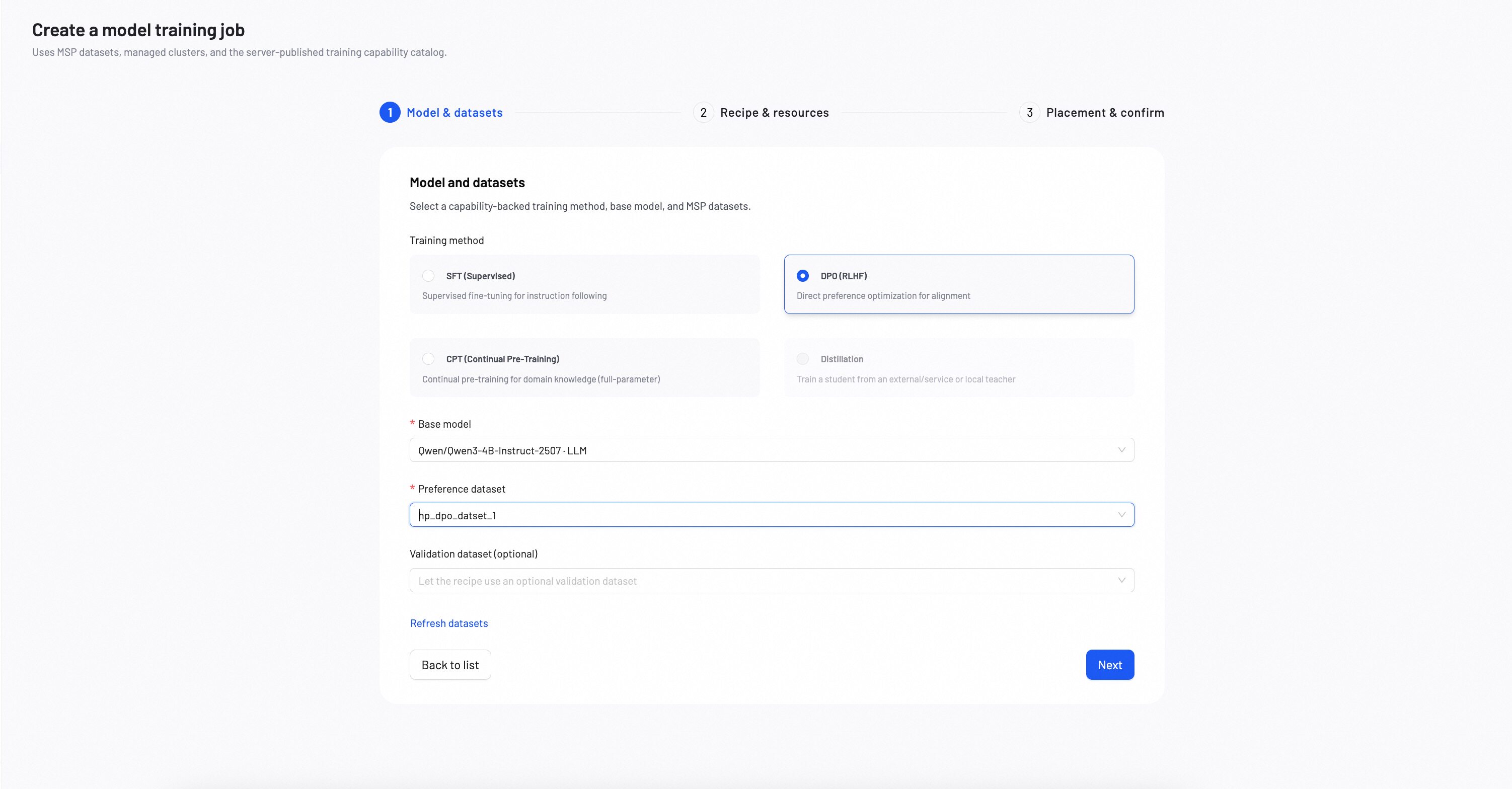
1. Choose a training method
Select DPO (RLHF) as the training method.
2. Choose a base model
Select a base model as the foundation for fine-tuning. The available models are determined by the training capability catalog. The choice of base model impacts the final performance and capabilities of the fine-tuned model. For detailed model comparisons and selection criteria, see How to Choose Models.
- Start with Instruct models that have already been SFT-trained for best DPO results. (e.g.,
Qwen3-4B-Instruct-2507) - DPO works best when the base model already has reasonable conversational abilities.
- Consider MOE models for production deployments requiring both high performance and efficiency. (e.g.,
Qwen3-30B-A3B)
3. Select datasets
Preference dataset
Select an existing MSP preference dataset for training. If you haven't created a dataset yet, see Create Datasets or use AI Dataset Preparation to automate the process.
Validation dataset (optional)
Optionally provide a separate validation dataset to monitor training progress. If not provided, the system can use auto-carveout to reserve a portion of the training data for evaluation.
- File format: JSONL — each line must be a valid JSON object representing one preference pair.
- Recommended size: 100–100,000 examples. Start with smaller datasets for initial experiments and scale up based on performance needs.
- Preference and validation datasets must be different.
Required data format
- DPO-LLM
- DPO-VLM
{
  "messages": [
    {"role": "system", "content": "<system>"},
    {"role": "user", "content": "<query>"}
  ],
  "chosen": {"role": "assistant", "content": "<preferred response>"},
  "rejected": {"role": "assistant", "content": "<less preferred response>"}
}
Format Explanation:
- messages: The conversation context including optional system prompt and user input
- chosen: The preferred (better) assistant response
- rejected: The less preferred (worse) assistant response
Each line in the JSONL file must contain one complete preference pair.
Example Data Formats:
{"messages": [
  {"role": "user", "content": "What is the capital of France?"}
], "chosen": {"role": "assistant", "content": "The capital of France is Paris."}, "rejected": {"role": "assistant", "content": "I don't know."}}
{"messages": [
  {"role": "system", "content": "You are a helpful assistant"},
  {"role": "user", "content": "How do I stay healthy?"}
], "chosen": {"role": "assistant", "content": "To stay healthy, maintain a balanced diet, exercise regularly, get enough sleep, and manage stress."}, "rejected": {"role": "assistant", "content": "Just eat whatever you want and don't worry about it."}}
{
  "messages": [
    {"role": "system", "content": "<system>"},
    {"role": "user", "content": "<query>"}
  ],
  "images": ["/xxx/x.jpg", "/xxx/x.png"],
  "rejected_response": "<rejected response>"
}
Format Explanation:
- When user-content contains placeholders like
<image>, they should correspond to the order in the images field, with matching quantities - When
<image>count is 0, it corresponds to LLM-DPO, allowing 0 images <image>only appears in user-content
Example Data Formats:
{
  "messages": [
    {"role": "system", "content": "You are a helpful and harmless assistant"},
    {"role": "user", "content": "<image>Describe this image in detail"},
    {"role": "assistant", "content": "The image shows a golden retriever playing in a sunny park with green grass and trees in the background"}
  ],
  "images": ["/data/park_dog.jpg"],
  "rejected_response": "It's a dog"
}
{
  "messages": [
    {"role": "user", "content": "<image><image>Which image shows a safer driving environment? Explain your reasoning"},
    {"role": "assistant", "content": "The first image shows a safer driving environment. The road is dry with clear visibility and light traffic. The second image shows wet road conditions with reduced visibility and heavy traffic, which increases the risk of accidents"}
  ],
  "images": ["/data/road_clear.jpg", "/data/road_wet.jpg"],
  "rejected_response": "The first one looks safer"
}
{
  "messages": [
    {"role": "user", "content": "<image>Describe the image, <video>and summarize what happens in the video"},
    {"role": "assistant", "content": "The image shows a chef preparing ingredients on a cutting board. The video demonstrates the complete recipe process, starting with chopping vegetables, followed by sautéing in a pan, and finishing with plating the dish"}
  ],
  "images": ["/data/chef.jpg"],
  "videos": ["/data/cooking.mp4"],
  "rejected_response": "Someone is cooking"
}
- Ensure chosen responses are clearly better than rejected responses in quality, accuracy, and helpfulness
- Maintain consistent preference criteria throughout the dataset
- Include diverse scenarios covering different types of queries and edge cases
- Avoid preference pairs where both responses are equally good or equally bad
- For VLM datasets, ensure image/audio/video paths are valid and accessible
- Ensure clear quality differences between chosen and rejected responses for image-text tasks
After completing all selections, click Next.
Step 2: Recipe & resources
Configure the training recipe, resource specification, and training parameters. Options are loaded from the signed MSP training capability catalog.
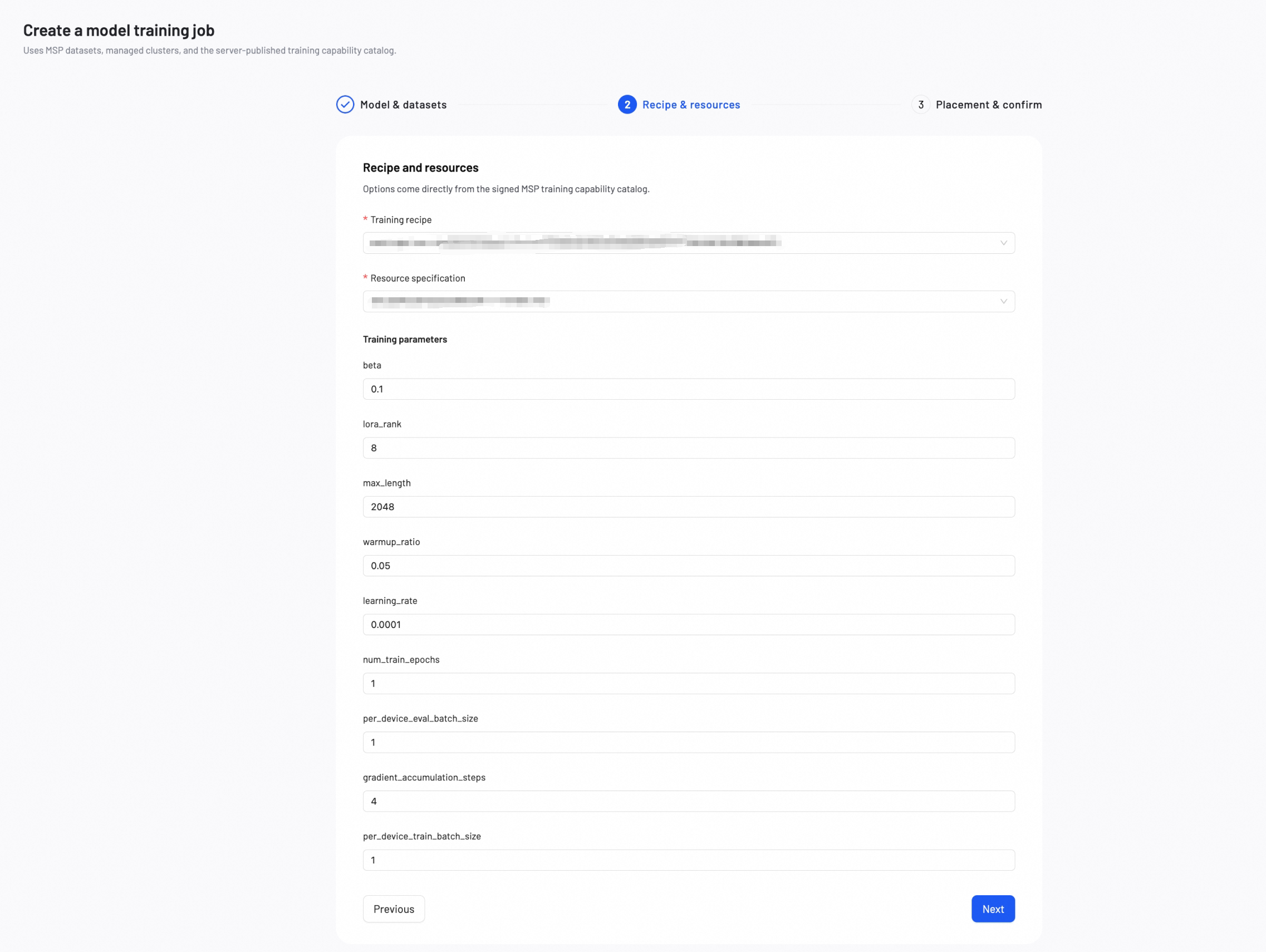
Training Recipe: Select a recipe version for the chosen base model and DPO training configuration.
Resource Specification: Select a resource specification that defines the GPU type and count required for training.
Training parameters
The following parameters apply to DPO training. DPO uses LoRA as the fine-tuning method.
| Parameter | Definition | Tuning Impact |
|---|---|---|
| beta | Controls the strength of the KL penalty that keeps the model close to the reference policy. | Increase: Stronger constraint to stay close to the original model, but may limit alignment improvement. Decrease: More aggressive alignment, but may cause the model to drift too far from its original behavior. |
| lora_rank | Sets the learning capacity of the LoRA adapters. | Increase (e.g., 16, 32): Improves the model's ability to learn complex preference patterns, but uses more GPU memory. Decrease (e.g., 4, 8): Reduces GPU memory usage, but the model may struggle with complex alignment tasks. |
| max_length | Sets the maximum token limit per example. Texts exceeding this limit will be truncated. | Increase to learn from longer texts, but this significantly increases GPU memory usage. |
| warmup_ratio | Specifies the fraction of the training process to use for a "warm-up" phase. During this phase, the learning rate slowly increases to prevent early training instability. | A small value (0.03–0.1) is generally recommended. This is primarily a stability mechanism, not a performance tuning parameter. |
| learning_rate | Controls the size of each adjustment the model makes during training. | Increase: The model learns faster, but training may become unstable. Decrease: Training becomes more stable, but convergence takes longer. |
| num_train_epochs | The number of complete passes through the training dataset. | Increase: More learning opportunities, but the model may overfit to the preference data. Decrease: Trains faster, but the model may not fully learn the preference alignment. |
| per_device_eval_batch_size | Number of evaluation examples processed per device during validation. | Increase: Faster evaluation but higher memory usage. Decrease: Lower memory usage but slower evaluation. |
| gradient_accumulation_steps | Specifies the number of small batches to process before the model performs a single learning update. This simulates a larger batch size to save memory. | Increase to achieve more stable training at the cost of slower speed. A value of 1 disables this feature. |
| per_device_train_batch_size | Number of training examples processed per device in a single forward/backward pass. | Increase: Produces more consistent training updates, but uses significantly more GPU memory. Decrease: Reduces GPU memory usage, but training updates may become less consistent. |
After reviewing and checking all the configuration, click Next.
Step 3: Placement & confirm
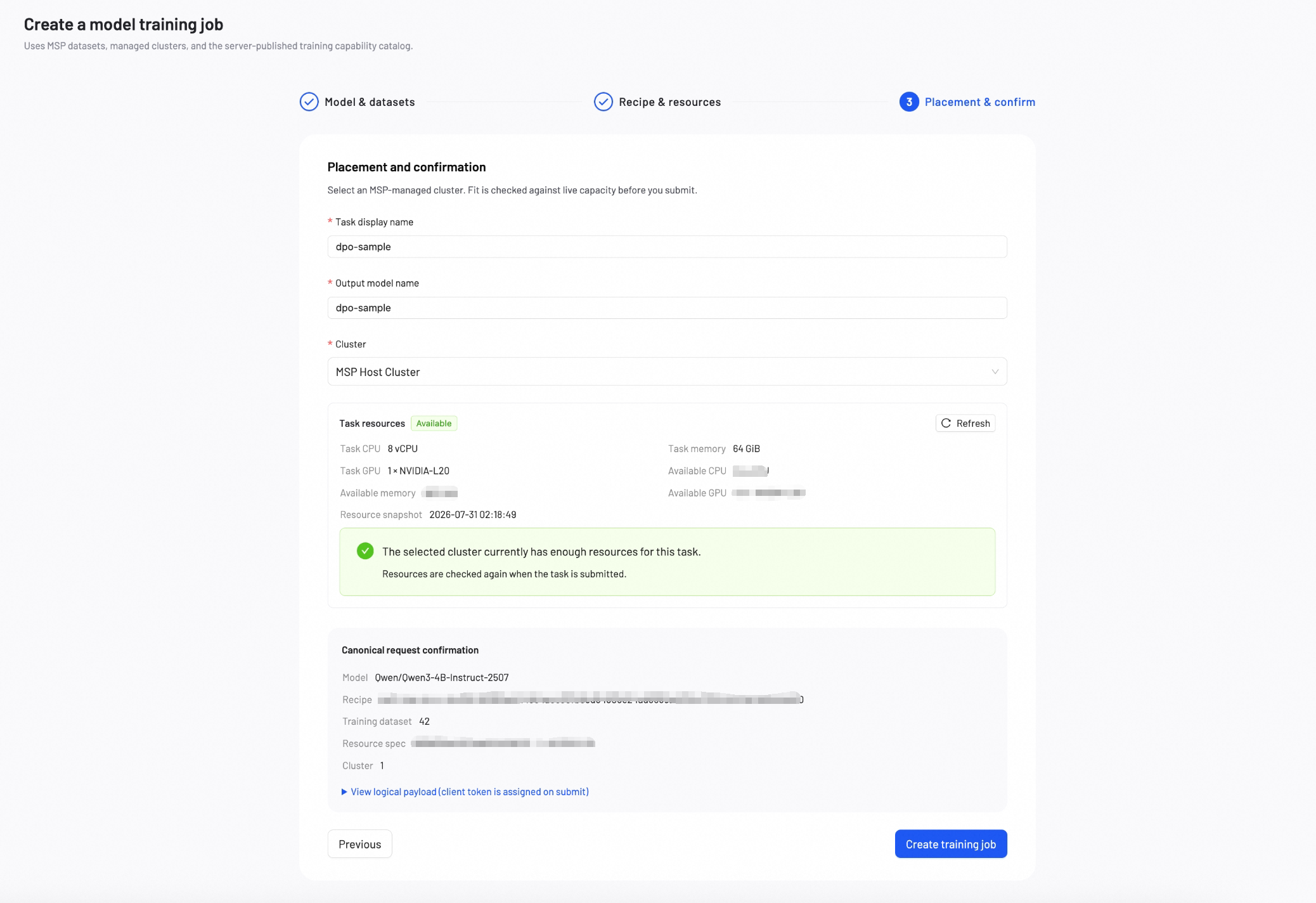
Select an MSP-managed cluster, name the task and output model to post-train the model.
Basic configuration
Task Display Name: A name for the fine-tuning task, shown in the task list.
Output Model Name: A name for the output model, shown in My Models.
Cluster Selection: Select an MSP-managed cluster for training. The cluster must have the required GPU type and capacity for the selected resource specification.
Canonical request confirmation
Before submitting, review the canonical request summary including model, recipe, datasets, resource specification, and cluster placement. You can expand the logical payload for detailed inspection.
Click Create training job to begin the training process.
Monitor training progress
During and after training, check key training metrics at any time. Once you're satisfied with the model's performance, you can deploy it or download the model weights at any time.
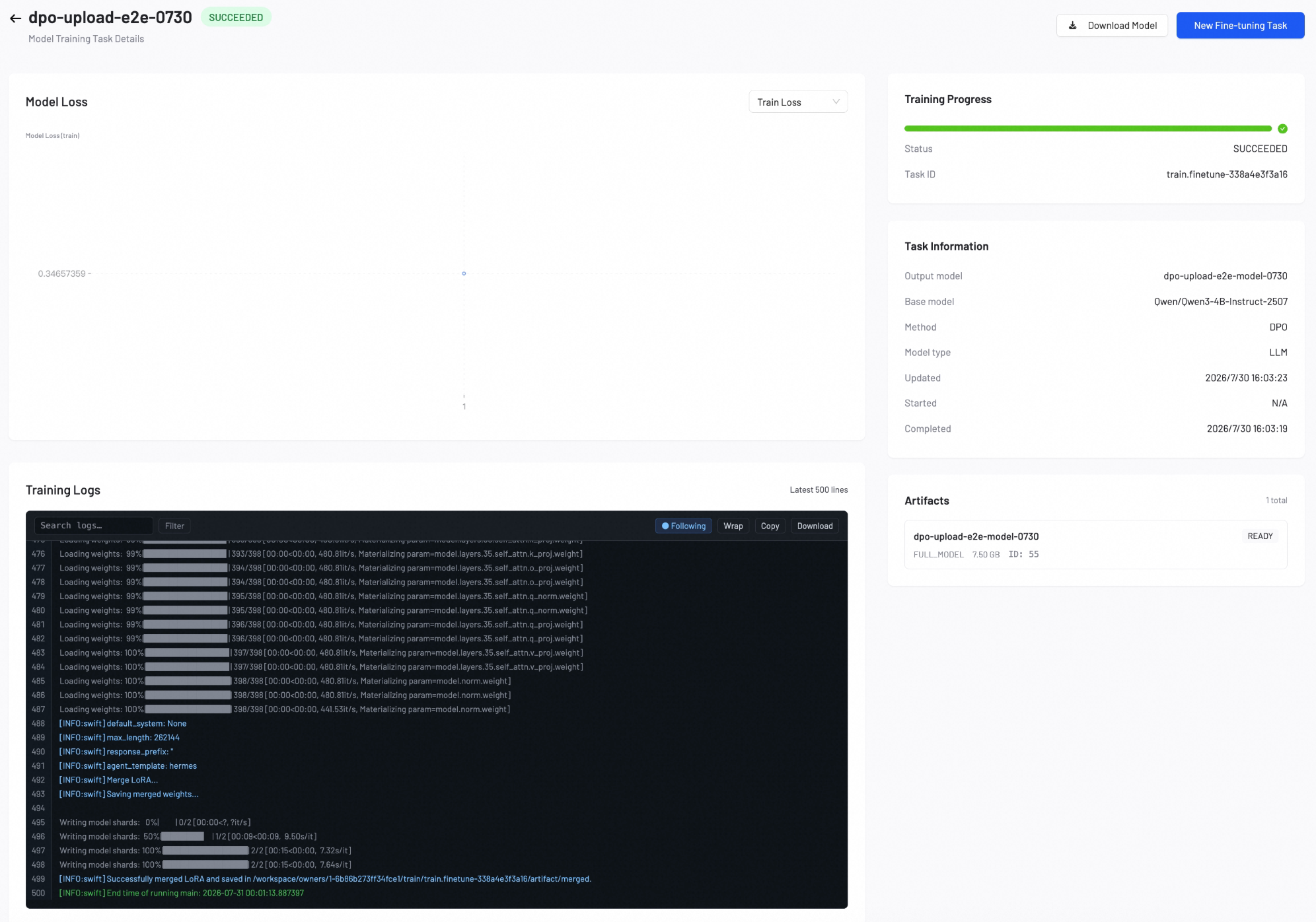
The Model Loss chart displays two metrics:
- Training Loss: Measures how well the model learns from your preference data.
- Validation Loss: Measures how well the model generalizes to unseen preference pairs.
- If both losses decrease steadily, your model is learning the preference alignment well. Continue training.
- If training loss decreases but validation loss increases, your model may be overfitting. Stop training and deploy the current model.
- If both losses remain high or increase, your preference data or configuration may need adjustment. Review your dataset and parameters.
Parameter tuning guidelines
- Start with defaults: Default values work well for most use cases.
- Increase LoRA rank: Increase to 16, 32, 64, or 128 for complex alignment tasks.
- Adjust beta: Start with the default beta value. Increase if the model drifts too far from its original behavior; decrease if alignment improvement is insufficient.
- Adjust learning rate: Lower values for stable training, higher values for faster convergence.
- Monitor validation loss: Watch for a decrease in validation loss.
Next steps
Deploy the fine-tuned model to a production endpoint for real-world usage.
Measure model performance with benchmark or AI auto-evaluation.