Cluster Management
The Cluster Management page provides a centralized interface for registering, monitoring, and configuring Kubernetes clusters used by the MSP platform. Use this page to manage cluster lifecycle, diagnose connectivity issues, sync model assets, and allocate cluster resources to team members through resource groups.
Cluster list
The Cluster List displays all registered clusters and their current status. From this view, you can perform day-to-day cluster operations including registration, health probing, node inspection, and model asset synchronization.
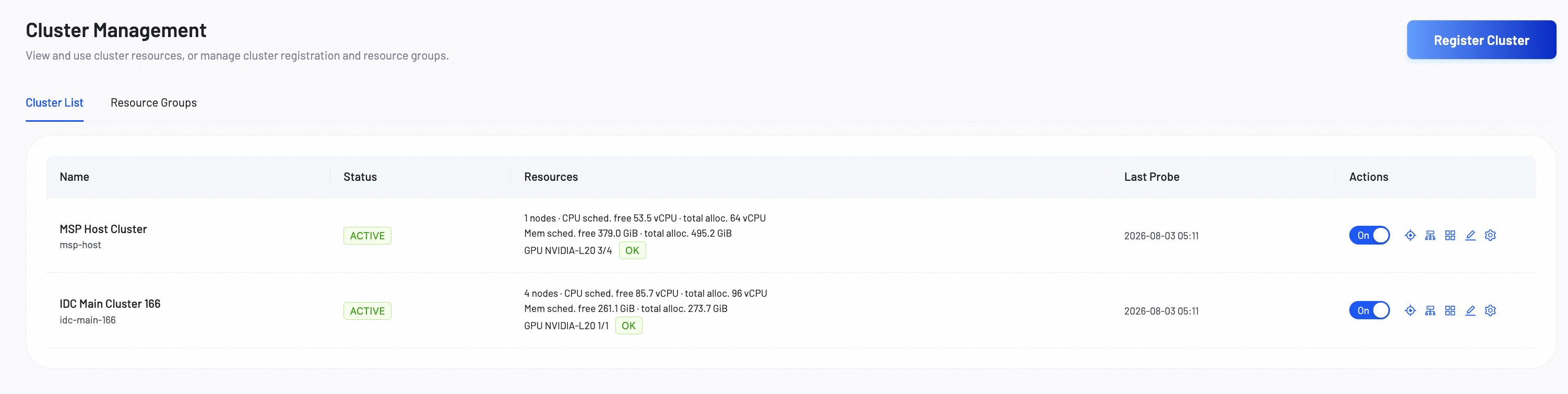
Register a cluster
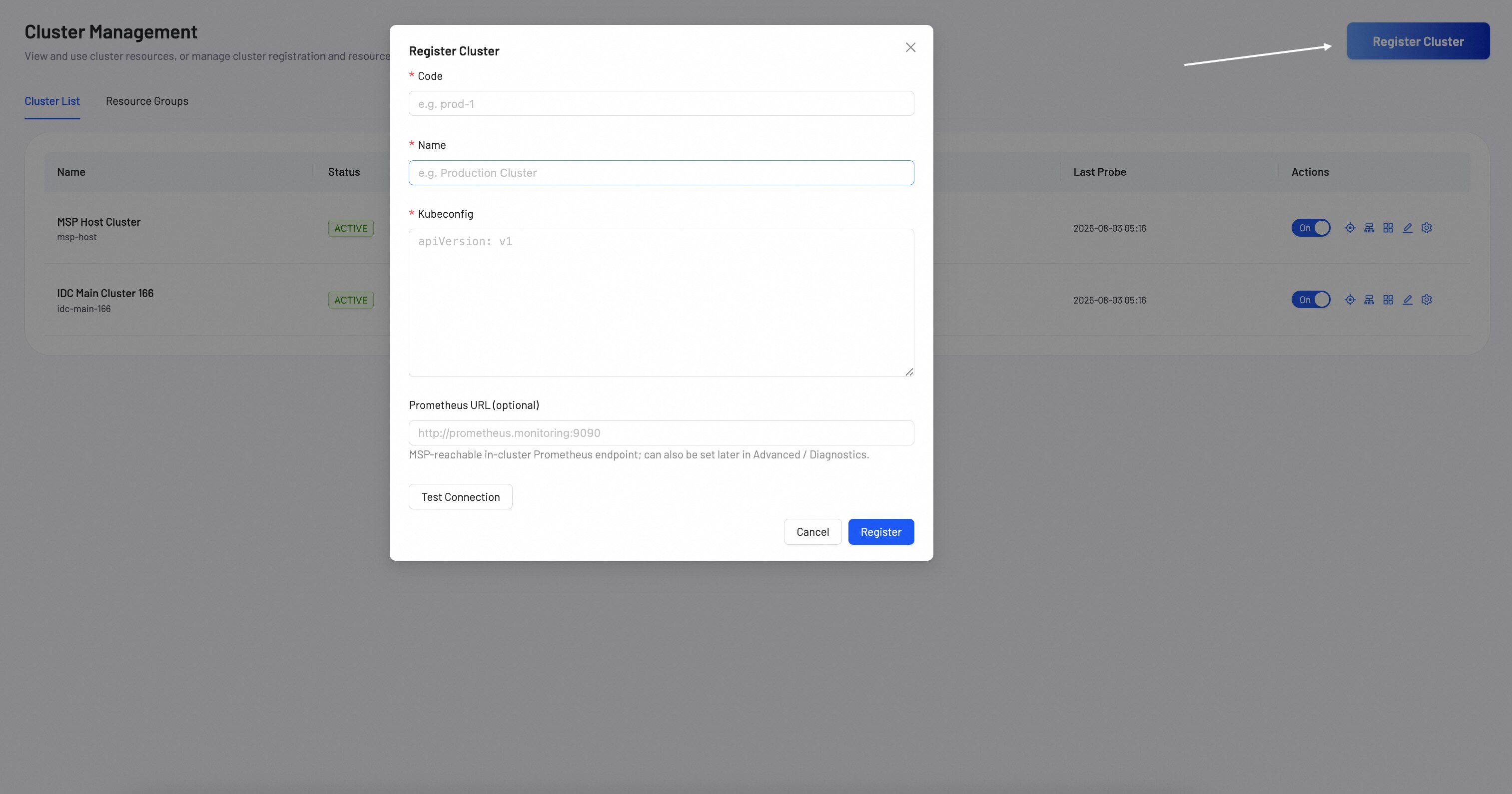
To register a new cluster, click Register Cluster and provide the following information:
- Code: A unique short identifier for the cluster (e.g.,
prod-1). This value cannot be changed after registration. - Name: A descriptive name for the cluster (e.g.,
Production Cluster). - Kubeconfig: Paste the kubeconfig file content that grants access to the target cluster. The platform uses these credentials to communicate with the cluster API server.
- Prometheus URL (optional): The Prometheus endpoint URL for cluster monitoring and metrics collection.
After filling in the required fields, click Test Connection to verify the kubeconfig is valid, then click Register to complete the registration.
- Ensure the kubeconfig has sufficient permissions for the platform to manage workloads on the target cluster.
- A cluster can only be registered once. Duplicate registrations will be rejected.
Probe
Use the Probe action to verify the connectivity and health status of a registered cluster. Probing sends a request to the cluster API server using the stored kubeconfig and updates the cluster status.
Nodes
Click Nodes to view the node inventory of a specific cluster. The node view displays key information for each node, including:
- Node Name: The Kubernetes node identifier.
- Status: Current readiness status (Ready, NotReady, and other values).
- Roles: Assigned roles (control-plane, worker).
- Resources: Available CPU, memory, and GPU capacity.

Model assets
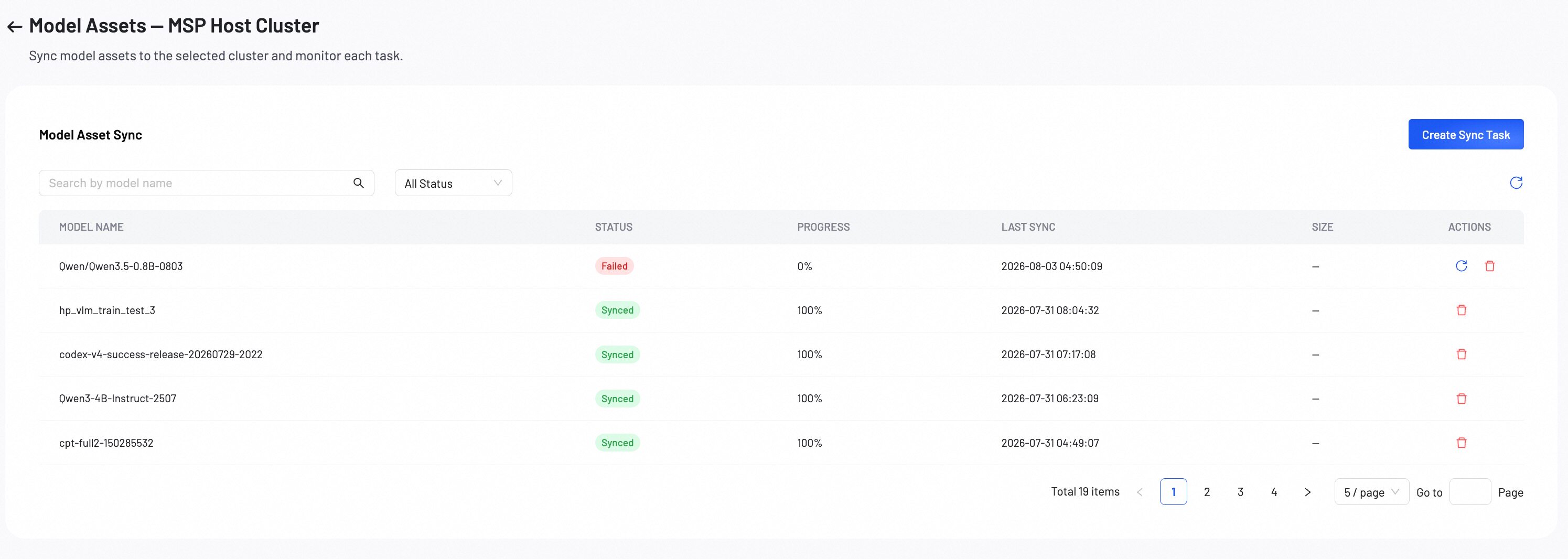
The Model Assets action triggers synchronization of model artifacts to the selected cluster. This ensures that models required for deployment or inference are available on the cluster's local storage.
To sync model assets:
- Select the target cluster from the cluster list and click Model Assets to open the sync panel.
- Create Sync Task and select the models to synchronize.
- Click Create Task to start the transfer.
- Large models may take significant time to transfer depending on network bandwidth and storage capacity.
- Ensure the target cluster has adequate storage before initiating a sync.
Advanced diagnostics
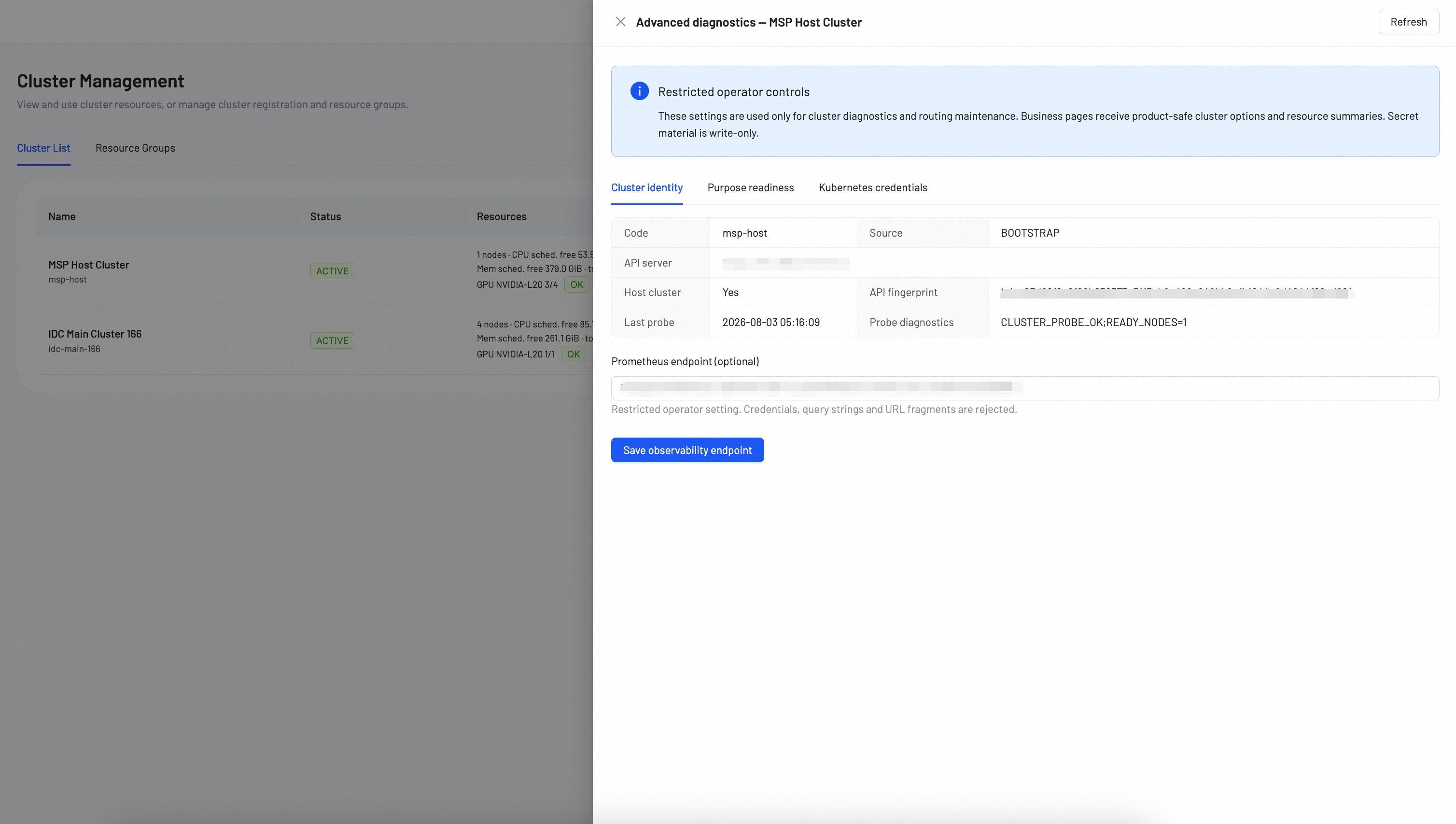
The Advanced Diagnostics panel provides in-depth health and configuration checks for the MSP Host Cluster. This is particularly useful when troubleshooting cluster onboarding or identifying misconfigurations.
The diagnostics panel is organized into three sections:
Cluster identity
Displays the unique identity metadata of the host cluster, including the cluster ID, region, and platform version. Verify that the identity information matches your expected configuration.
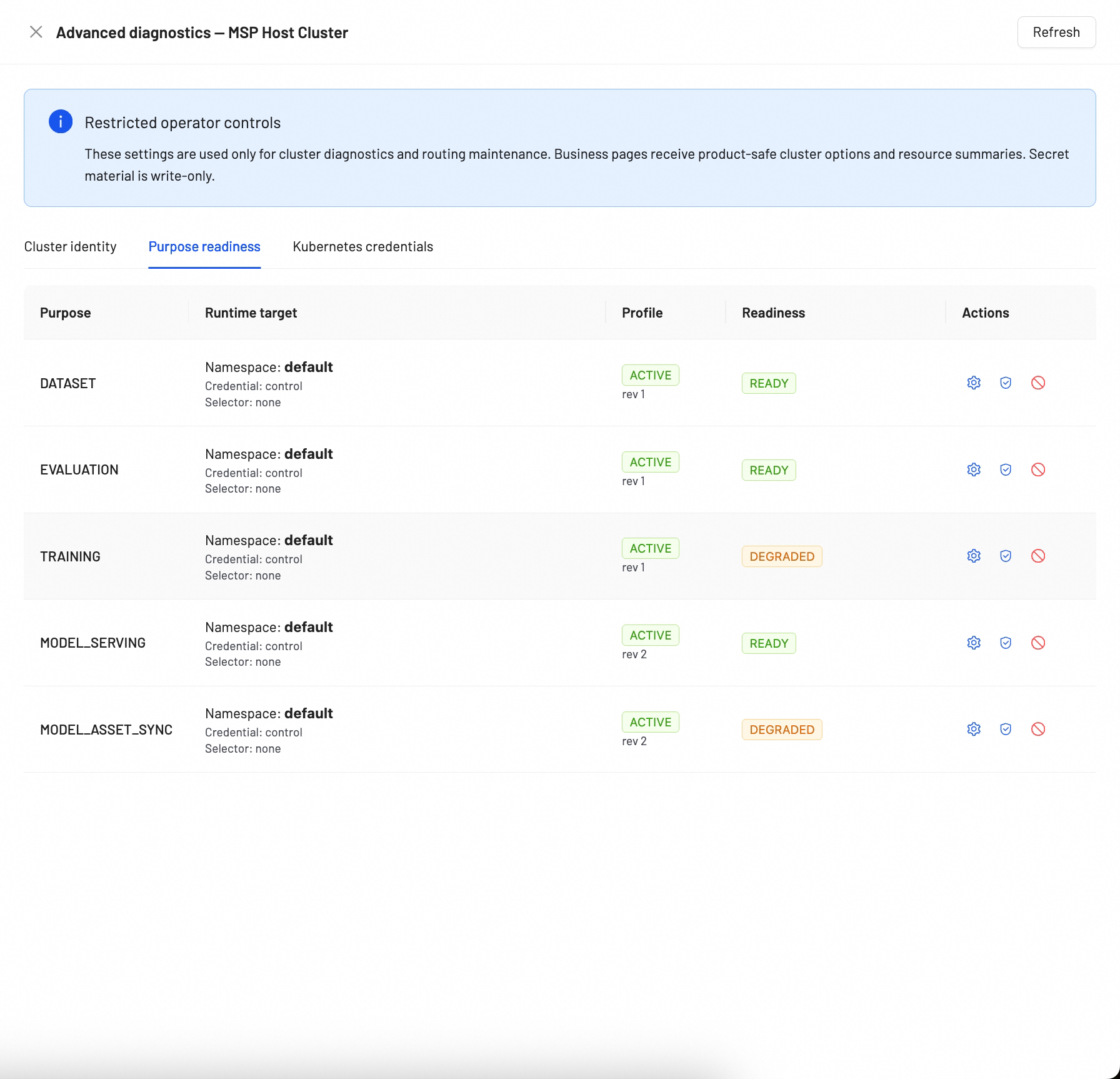
Purpose readiness
Indicates whether the cluster is ready to serve its assigned purpose (e.g., inference serving, model training). Each purpose is evaluated against a set of prerequisite checks such as available GPU resources, required system components, and storage provisioning.
Configure
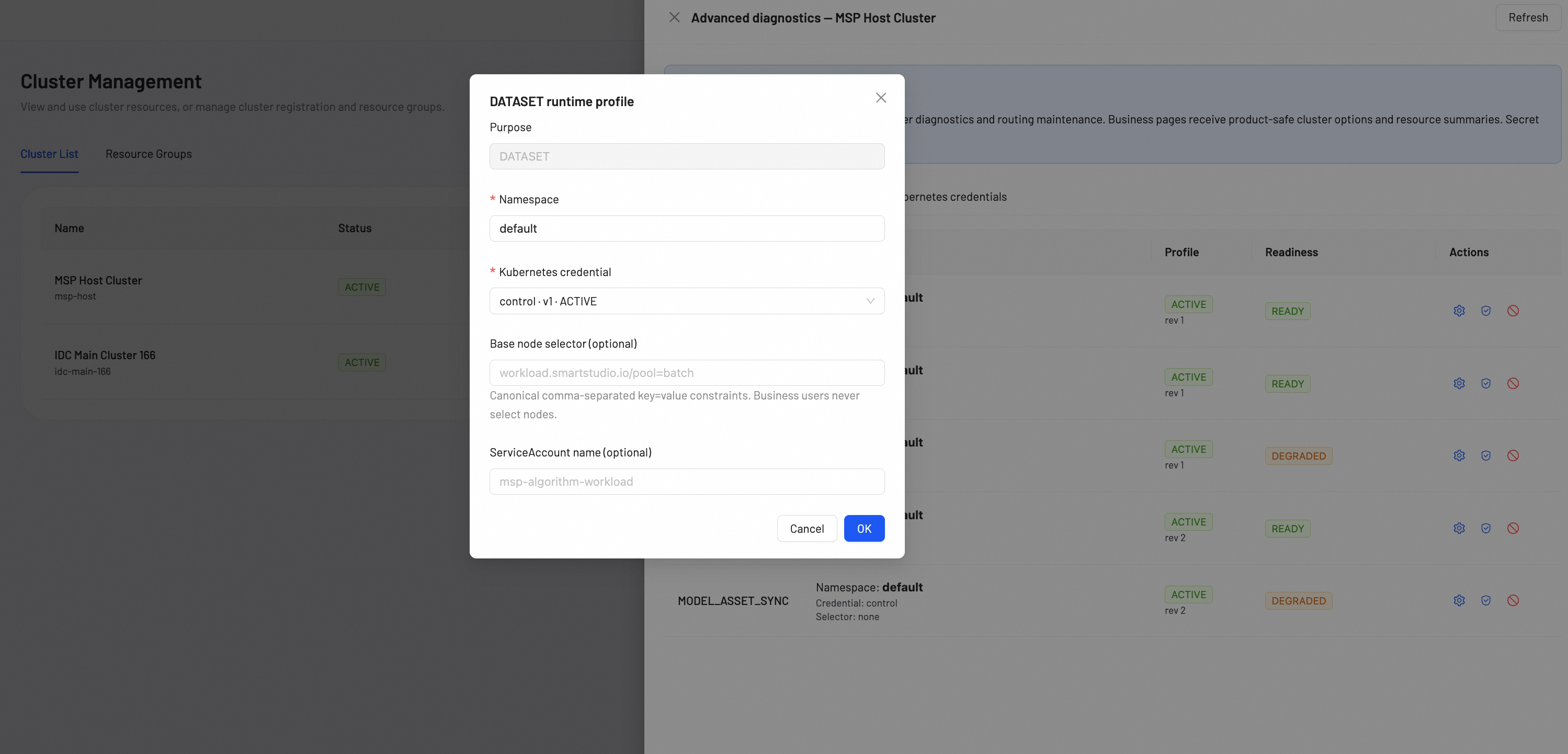
Click Configure to set up the cluster purpose and related settings. The configure panel includes the following fields:
- Purpose: Select the cluster purpose (e.g.,
DATASET). - Namespace: The default Kubernetes namespace for workloads (default:
default). - Kubernetes credential: Select the credential to use for cluster authentication.
- Base node selector (optional): Canonical comma-separated key=value constraints (e.g.,
node-role.kubernetes.io/gpu=). Business users never select nodes directly. - ServiceAccount name (optional): The name of the Kubernetes ServiceAccount to use for workload execution.
Kubernetes credentials
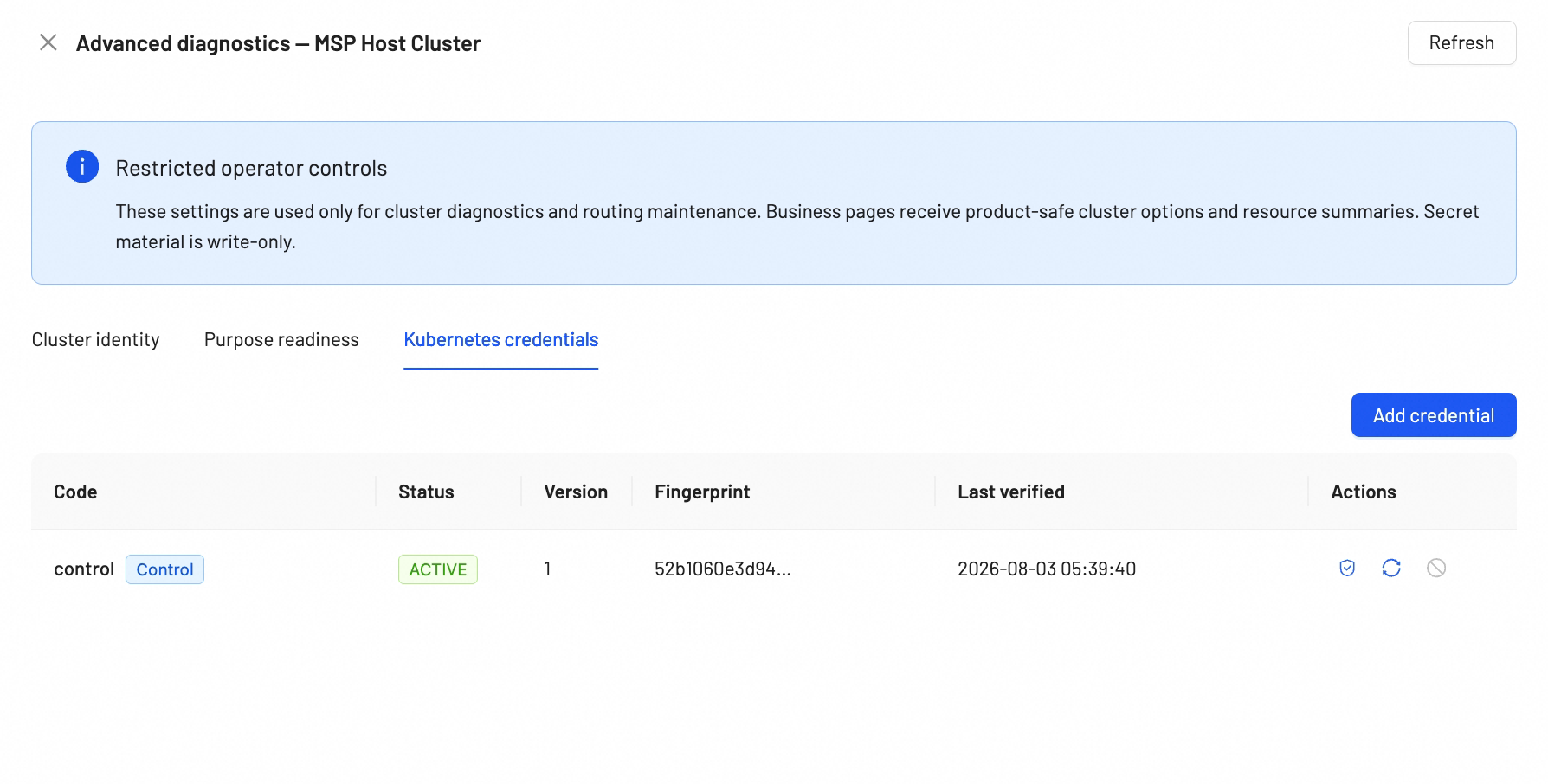
Shows the status and details of the stored Kubernetes credentials for the host cluster, including:
- Credential Status: Whether the credentials are valid, expiring soon, or expired.
- Expiration Date: The expiry timestamp of the current credentials.
- Last Validated: The most recent time the credentials were successfully verified.
If credentials are expired or nearing expiration, update them by re-uploading a valid kubeconfig through the cluster registration flow.
Resource groups
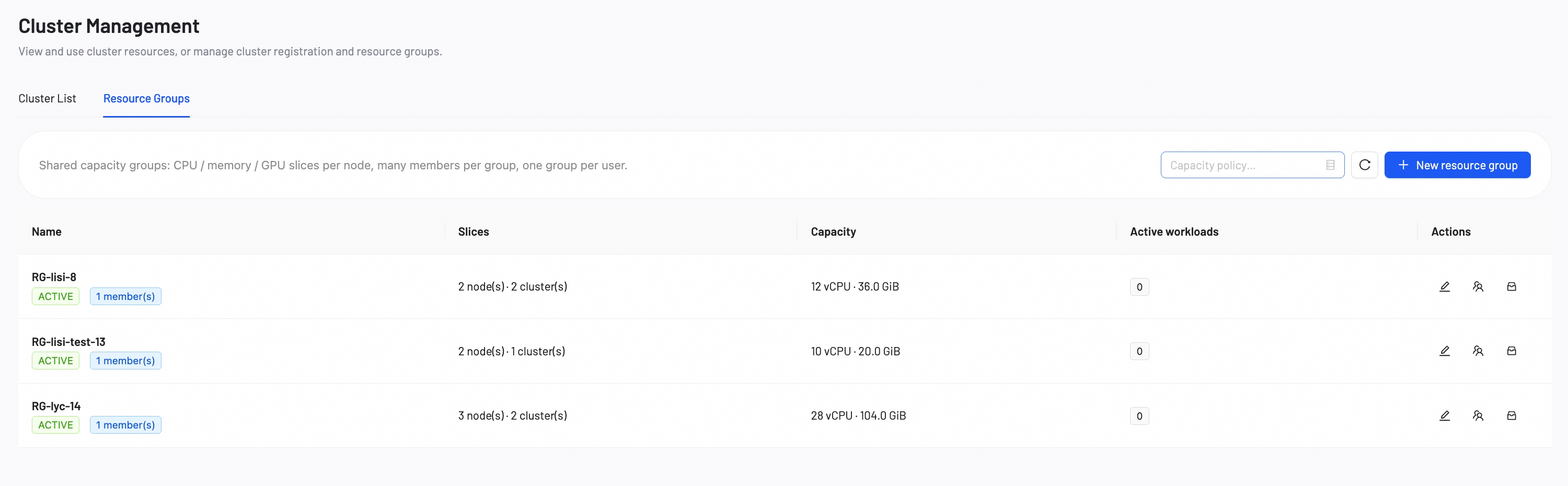
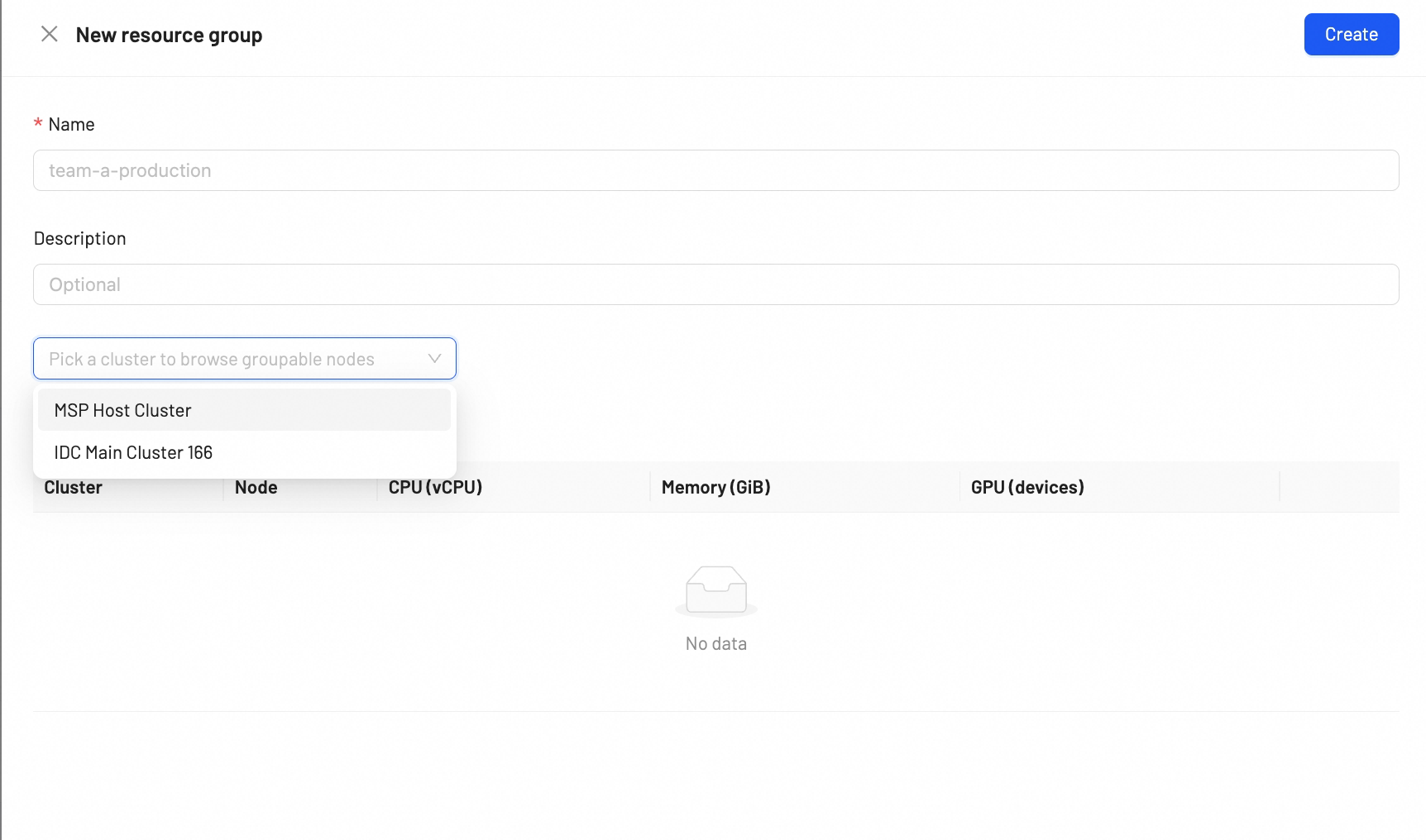
Resource Groups allow you to organize clusters into logical groups and assign them to team members. This provides controlled access to cluster resources based on roles and responsibilities.
Add a cluster group
To create a new cluster group:
- Click Add Cluster Group.
- Enter the following information:
- Name: A descriptive name for the cluster group.
- Description: A brief description of the group's purpose or scope.
- Cluster: Select a cluster from the dropdown to associate with this group.
- Click Confirm to create the cluster group.
- A team member can be assigned to multiple resource groups.
- Removing a member from a resource group revokes their access to all clusters within that group.
Next steps
Track service metrics, cluster resources, and API usage in real time.