AI Auto Evaluation
AI Auto Evaluation tests your model with custom datasets, LLM-as-Judge scoring, and customizable metrics. This method is ideal for real-world or domain-specific testing.
Step 1: Configure basic settings
Select a target cluster, then configure the evaluation parameters.
- Cluster: Choose an available cluster for model evaluation. Evaluation only consumes CPU resources.
- Model Type: Select LLM (Large Language Models for text tasks) or VLM (Vision-Language Models for multimodal tasks). Note: VLM currently supports AI Auto Evaluation only.
- Evaluation Method: Choose how to evaluate your model.
- Evaluation Type: Select Single or Comparative.
- Model: Select the model to evaluate. Both platform-deployed models and Router models are supported.
- Judge Model (LLM-as-Judge): Select a judge model to compare the model’s predicted answers against the ground truth answers.
Tip: For Comparative Evaluation, select two models to evaluate side by side.
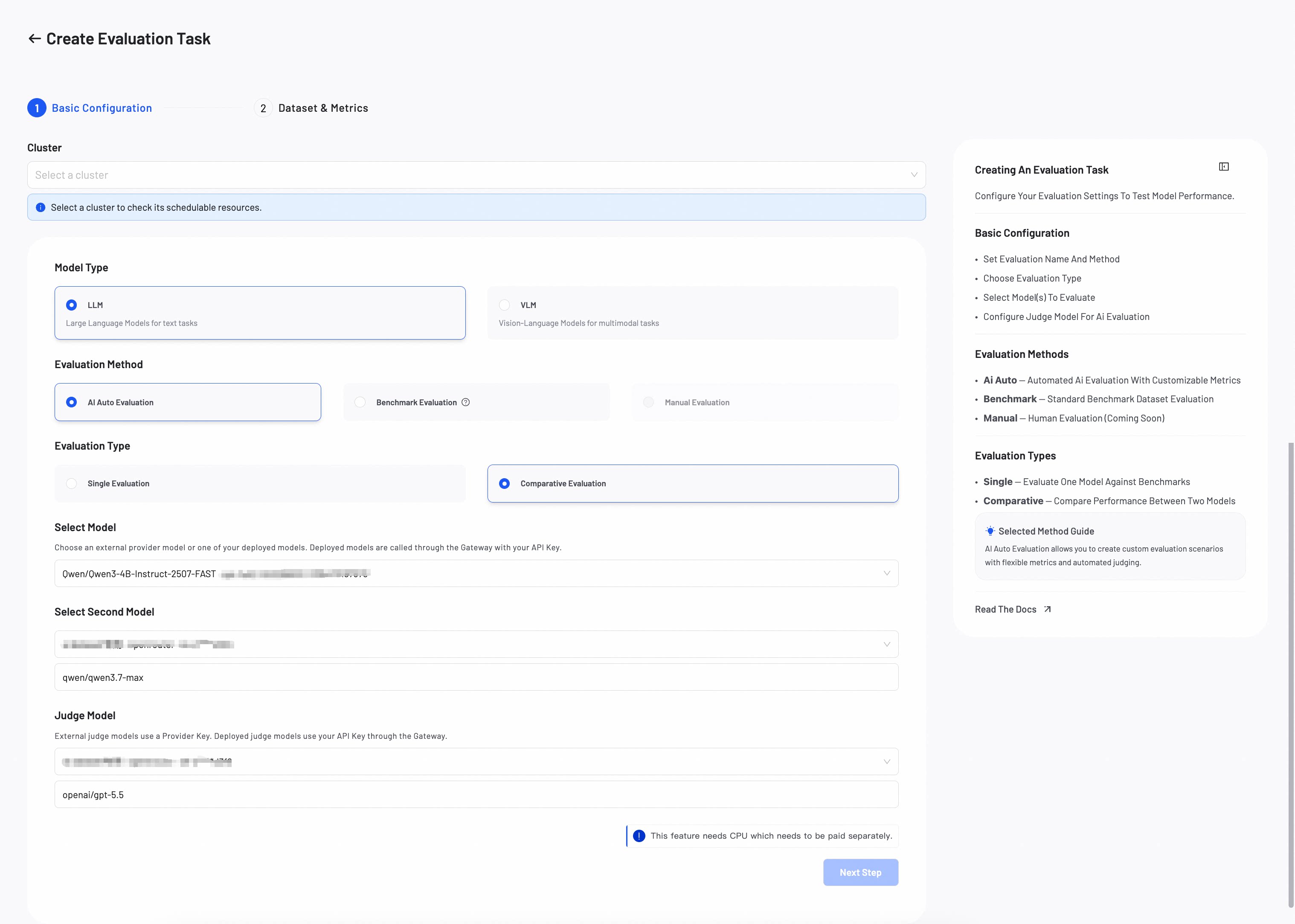
Both the Router model and Judge Model consume large token volumes. Confirm your Provider Key is configured. Check that your account has sufficient balance before proceeding.
Step 2: Configure datasets & metrics
Upload an evaluation dataset and define the metrics for evaluating model performance.
1. Dataset setup
Upload your evaluation dataset:
- Use OSS: Provide the OSS path to your JSONL dataset.
- Select Existing Dataset: Choose an existing dataset from the console.
- Create Dataset: Create a new evaluation dataset. For best results, use the AI Data Prep Tool to prepare your evaluation data.
All datasets must be in JSONL format. For detailed format requirements and examples, refer to the Dataset Format Requirements guide.
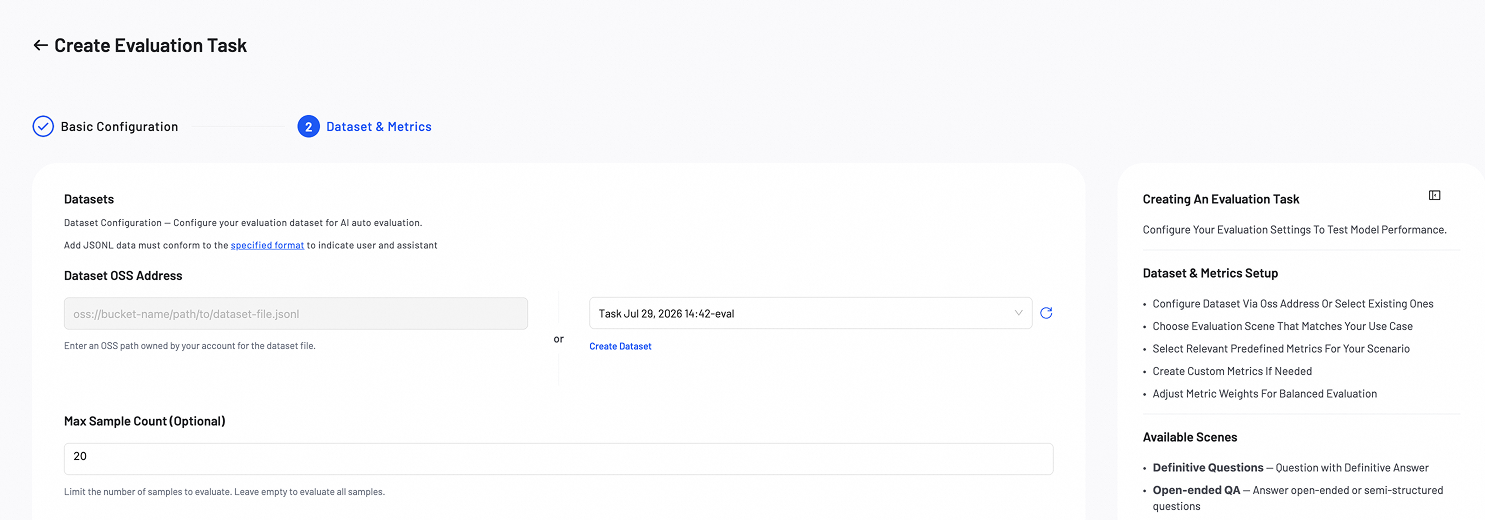
- MAX-Sample Count (Optional): Set the maximum number of samples to evaluate. Leave empty to evaluate all samples.
2. Metrics configuration
Define the evaluation scene and select the metrics for evaluating model performance.
- Select a Scene for your evaluation:
| Scene | Description |
|---|---|
| Definitive Questions | Evaluates responses to questions with standard, verifiable answers. |
| Open-ended QA | Evaluates responses to open-ended questions without a single correct answer. |
Scene Description: Review and edit the scene description to provide context for the evaluation.
- Configure metrics for your selected scene:
- Predefined Metrics: Select predefined metrics to evaluate the model.
- Custom Metrics: Create custom metrics to meet specific needs (e.g, Instruction Following, Safety).
- Weight Distribution: Assign a weight to each metric.
Preview the system prompt and user prompt template before execution.
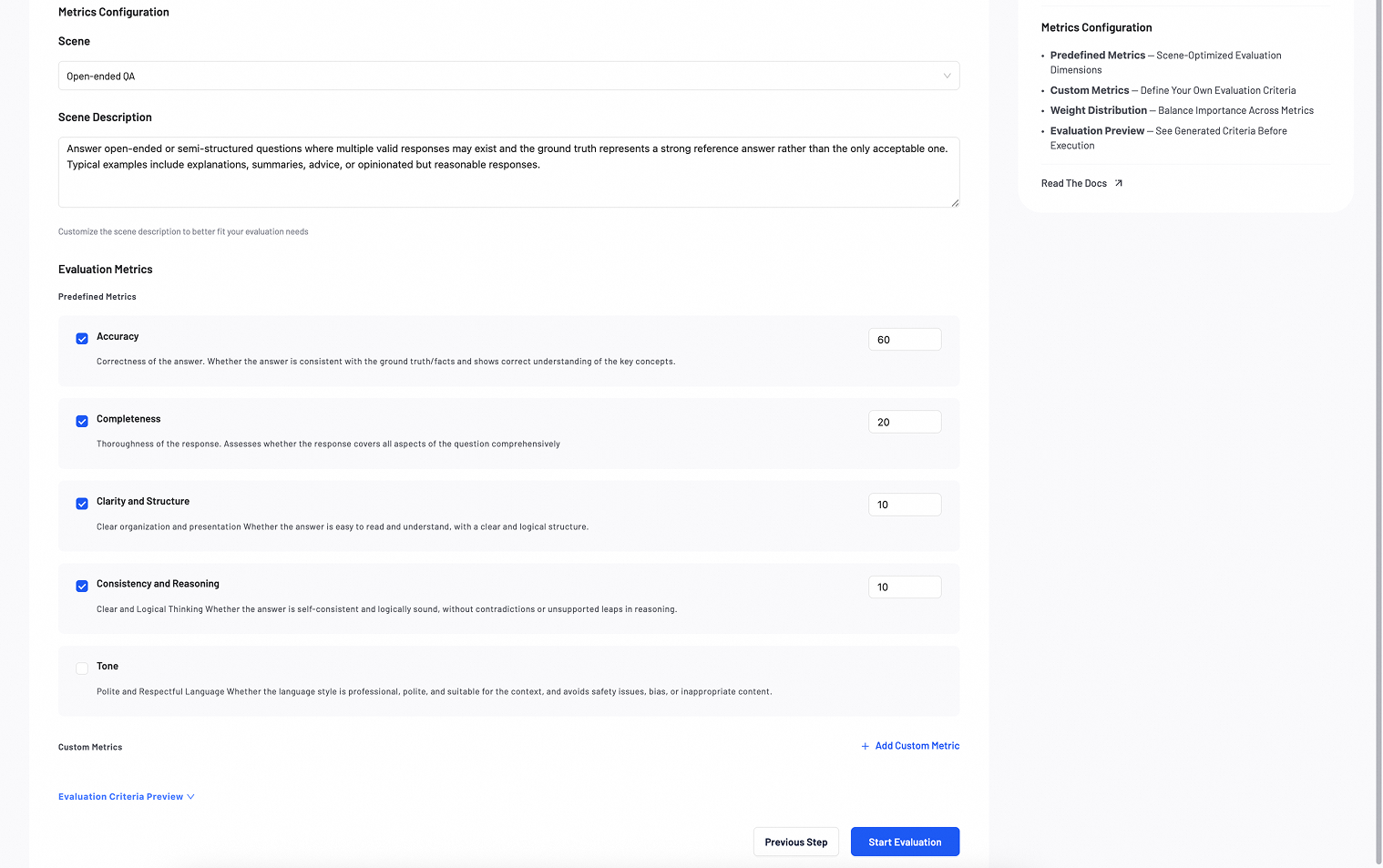
Verify all configurations, then click Start Evaluation. The evaluation progress will display in the list.
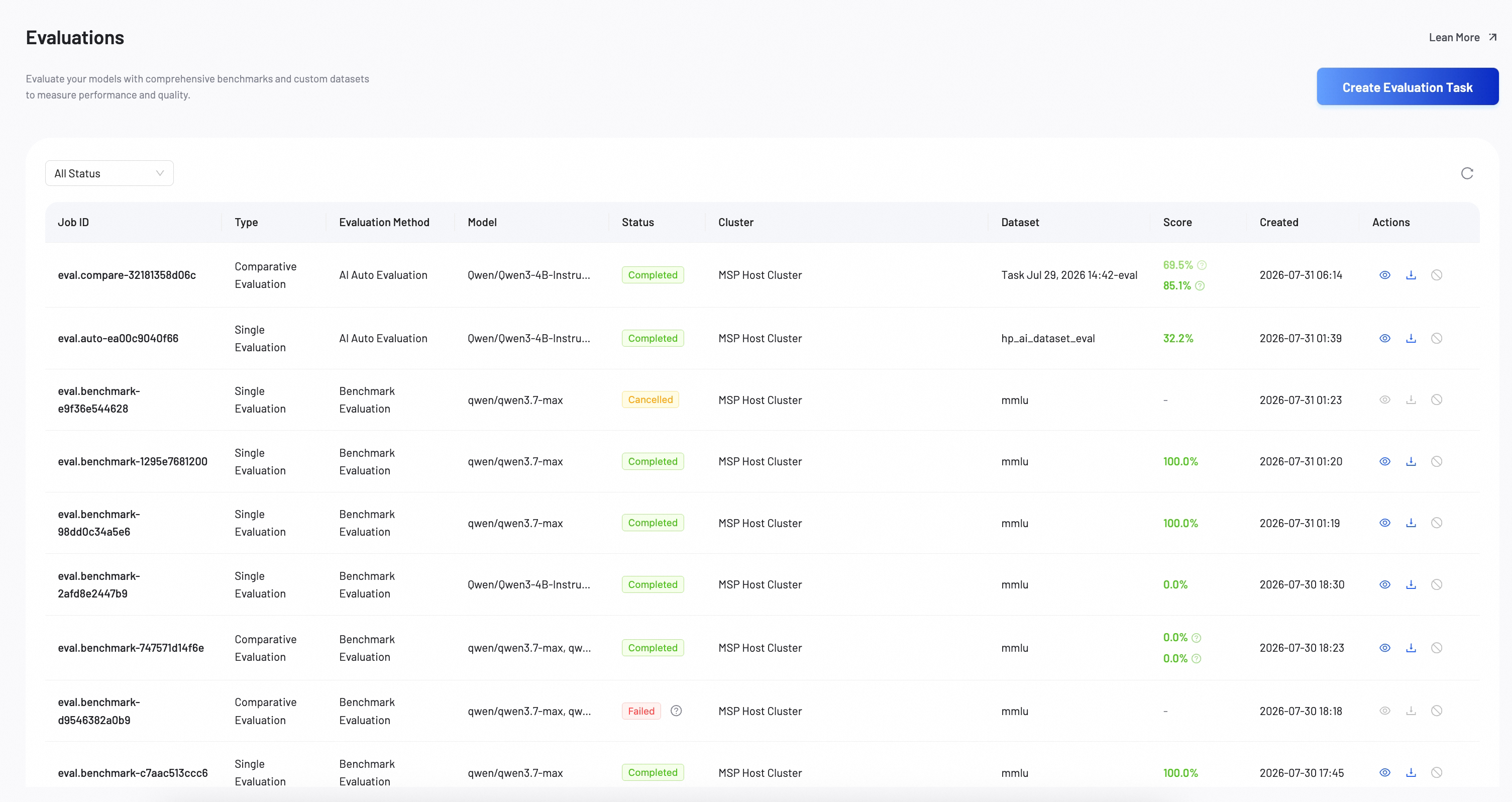
Step 3: View evaluation report
After the evaluation completes, review the detailed report to analyze model performance. The layout adapts for Single or Comparative evaluations.
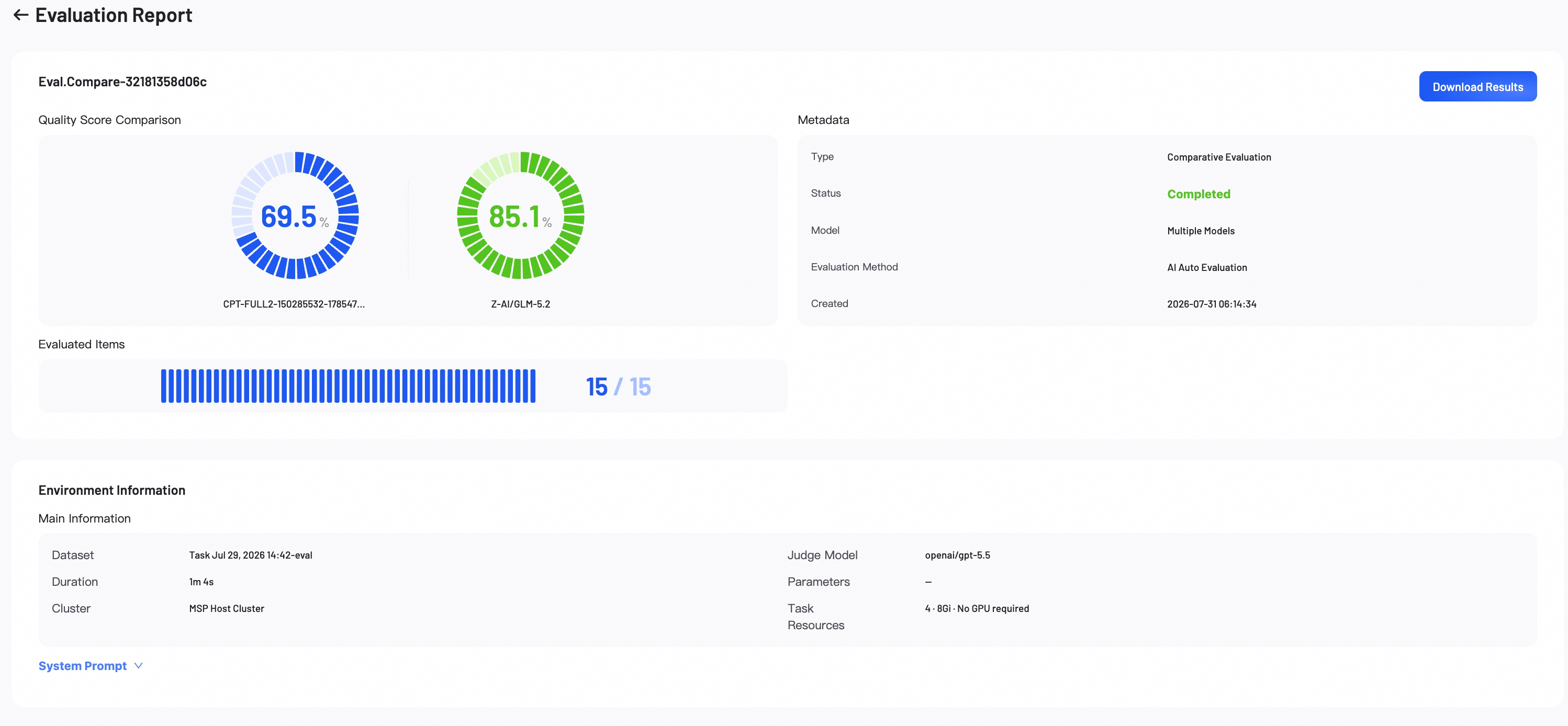
Score overview
Score Overview provides a summary of the evaluation results.
- Quality Score: Represents the model's overall weighted score. In a Comparative Evaluation, scores for all models appear side-by-side.
- Evaluated Items: Shows the number of evaluated samples out of the total.
- Metadata: Lists key information about the job.
- Download Results: Click to download the complete evaluation results.
Performance metrics
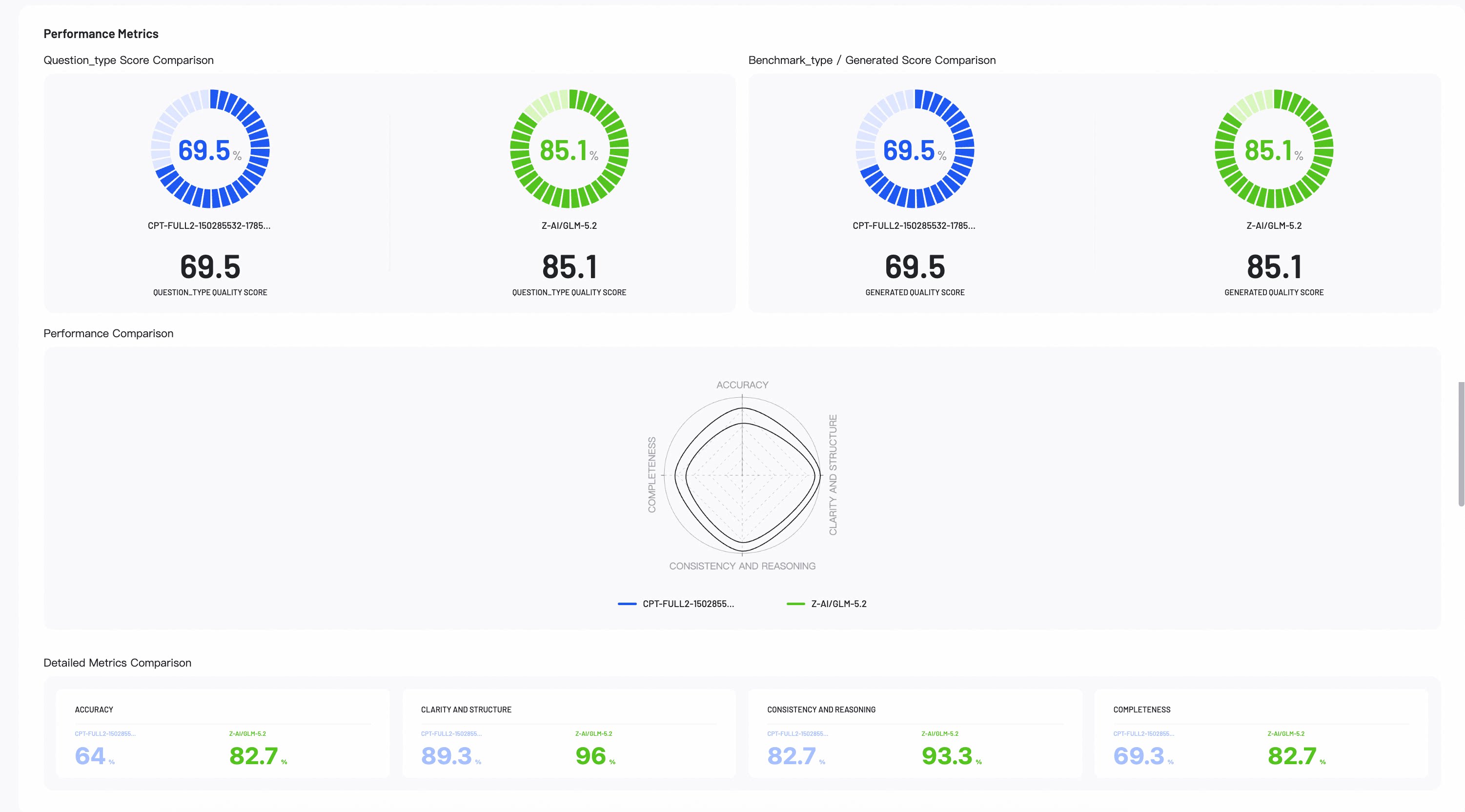
Performance Metrics provides visual insights into your evaluation results. Use these insights to identify where each model excels.
- Score Comparison: Displays model accuracy across different questions and benchmark categories.
- Performance Comparison: The radar chart compares model capabilities across all configured metrics.
- Detailed Metrics Comparison: Lists the exact numerical scores for each evaluation metric across all models.
Case analysis
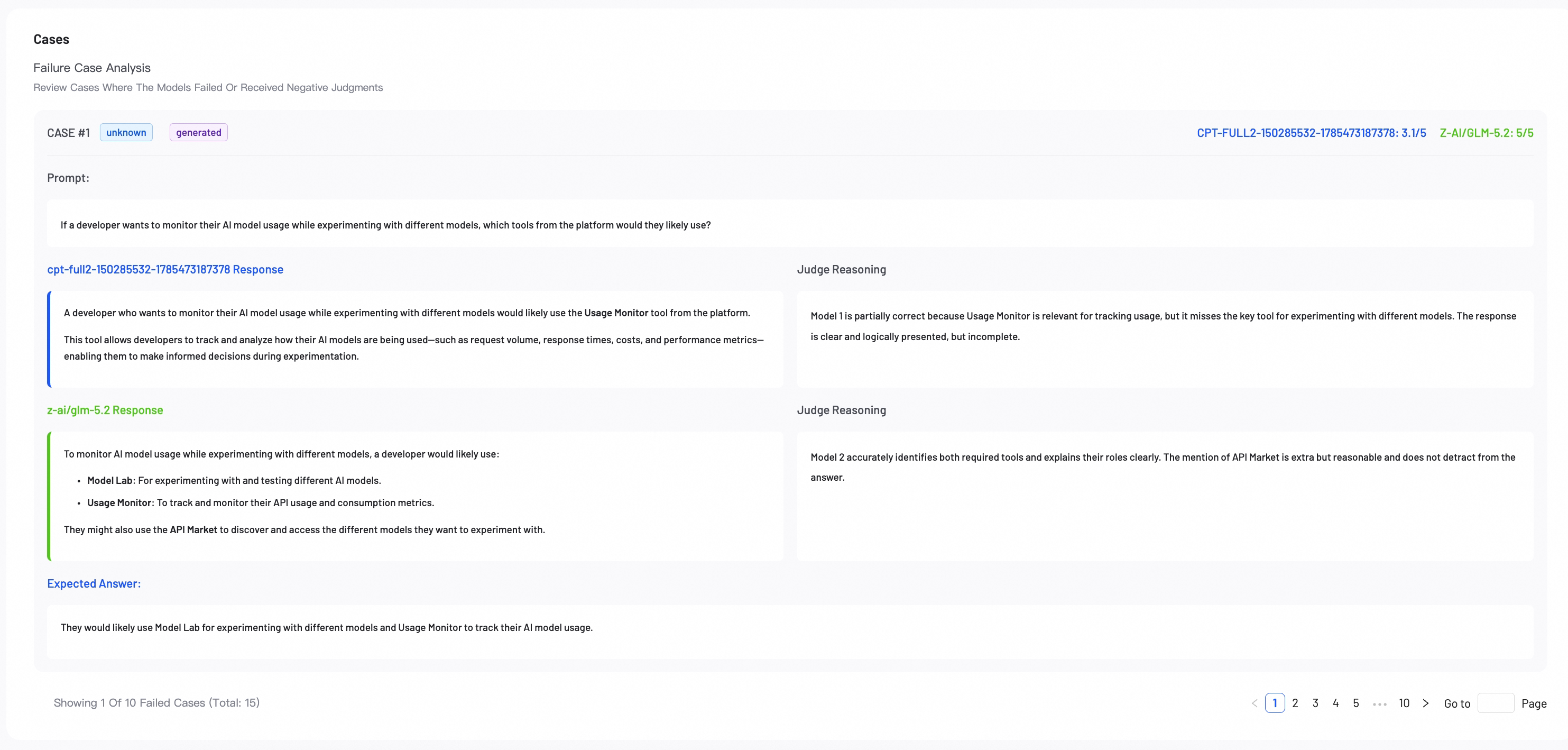
Review individual evaluation cases for error analysis. This helps you understand specific model behaviors.
Single Evaluation: The report defaults to Failure Case Analysis. Low-performance samples are highlighted.
Comparative Evaluation: The default Side-by-Side View shows how different models responded to the same prompt. Review the judge's score and reasoning for each response to understand performance differences.
Analysis & recommendations (comparative evaluation only)
Analysis & Recommendations provides a model recommendation based on the comparison.

Dataset format
Select the dataset format that matches your evaluation type.
AI-Auto evaluation datasets must match the format generated by the AI-Data-Prep tool.
- LLM Format - base data agent
- LLM Format - sss bench
- VLM Format
{
  "init": {                                  // Initial version
    "messages": [                            // Conversation list
      { "role": "user", "content": "..." },  // User question
      { "role": "assistant", "content": "..." } // Model answer
    ],
    "question_type": "fact_retrieval",       // Question type
    "config_post_training_method": "sft",    // Training method
    "metadata": {                            // Metadata
      "entity": "...",                       // Core entity
      "entities_used": ["..."]               // List of entities used
    }
  },
  "confirm": "confirmed",                    // Review status
  "refined": {                               // Refined version
    "messages": [                            // Same structure as init.messages
      { "role": "user", "content": "..." },
      { "role": "assistant", "content": "..." }
    ]
  }
}
  {
    "init": {
      "messages": [
        { "role": "user", "content": "..." },
        { "role": "assistant", "content": "..." }
      ],
      "question_type": "domain_benchmark",
      "config_post_training_method": "sft",
      "metadata": {
        "source": "benchmark",
        "benchmark_type": "domain",
        "benchmark_name": "judicial_analysis",
        "industry": "legal"
      }
    },
    "confirm": "confirmed",
    "refined": {
      "messages": [
        { "role": "user", "content": "..." },
        { "role": "assistant", "content": "..." }
      ]
    }
  }
{
  "init": {
    "messages": [
      {
        "role": "system",
        "content": "System prompt (Role definition)"
      },
      {
        "role": "user",
        "content": "User instruction (Detailed task rule description + Processing instruction)"
      },
      {
        "role": "assistant",
        "content": "Model's initial output (First generated HTML code)"
      }
    ],
    "image_path": "Input image file path"
  },
  "confirm": "confirmed | rejected",          // Review status
  "refined": {
    "messages": [
      {
        "role": "system",
        "content": "System prompt (Same as init)"
      },
      {
        "role": "user",
        "content": "User instruction (Same as init)"
      },
      {
        "role": "assistant",
        "content": "Model's refined/corrected output (Final confirmed HTML code)"
      }
    ],
    "image_path": "Input image file path (Same as init)"
  }
}